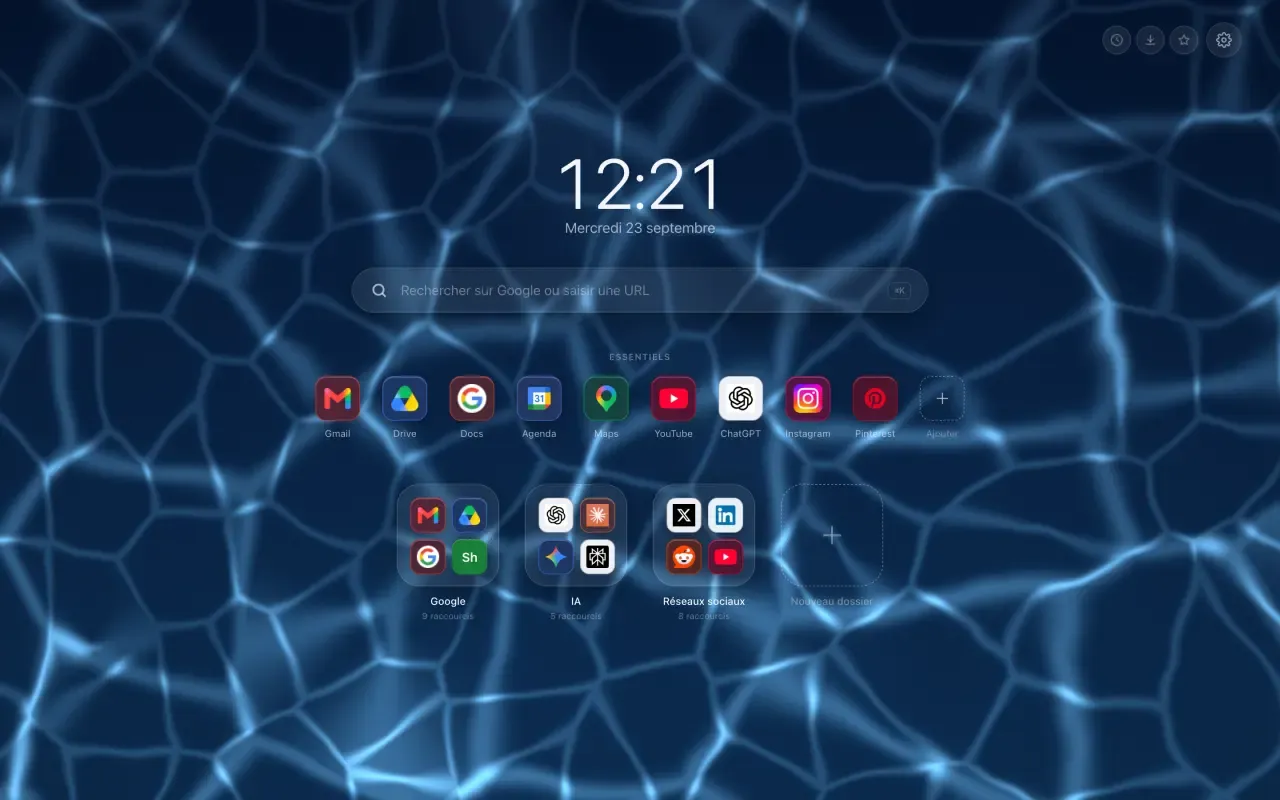
Organizing your Chrome bookmarks always ends the same way: a full bar, a menu that unrolls over three screens, and sites you retype rather than hunt for. The trouble is not how many there are, it is that you never see them.
Put them where you already look
Hoome files your sites into folders on the new tab page, the one you open fifty times a day. A folder zooms open above the page, shows everything it holds at once, and closes with one key.
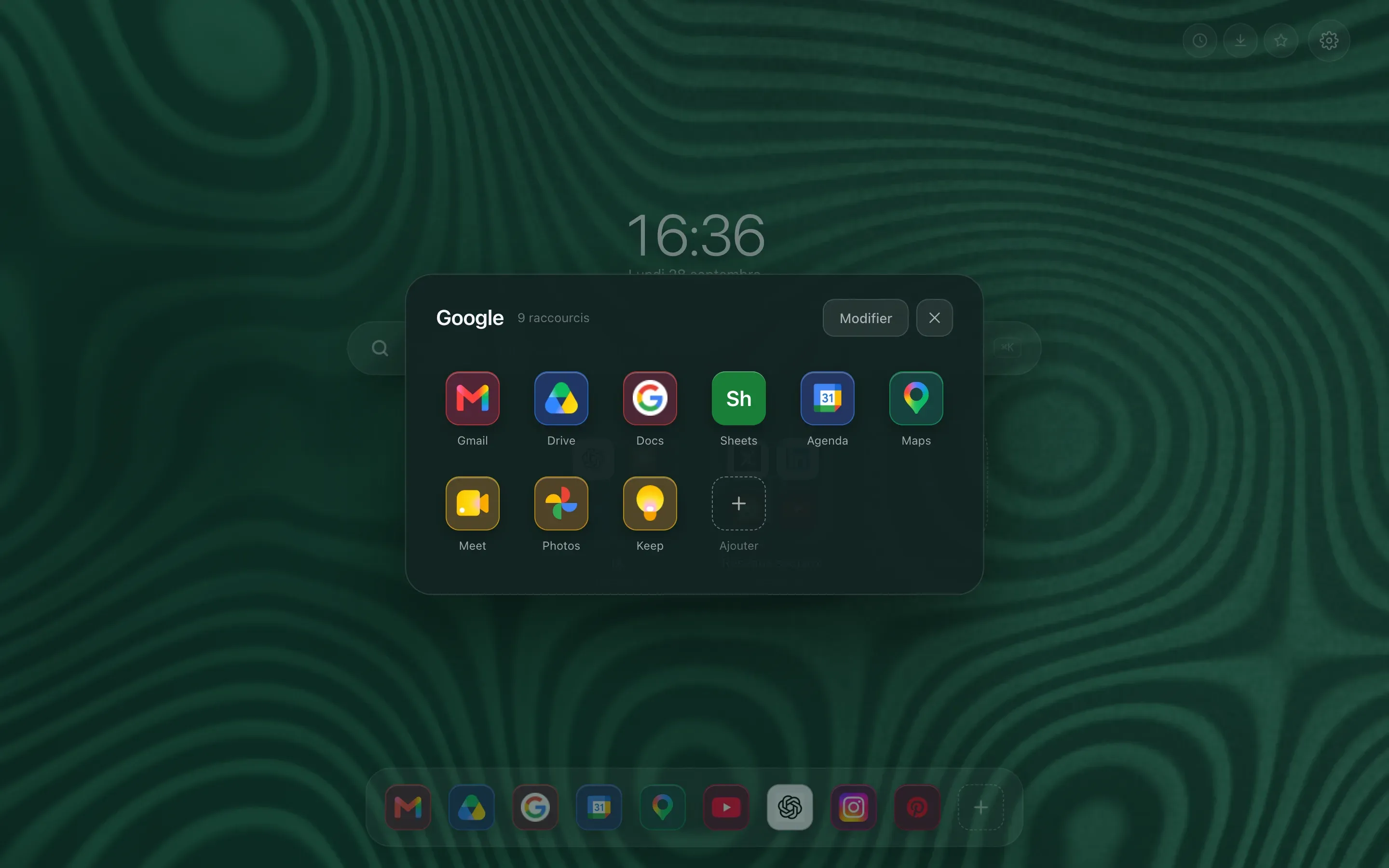
Nothing replaces your Chrome bookmarks, which stay where they are. Hoome sits on top of them, and you choose what deserves to be in plain sight.
Three ways to organize your bookmarks into folders
The first time you open it, three paths, and everything can be changed afterwards.

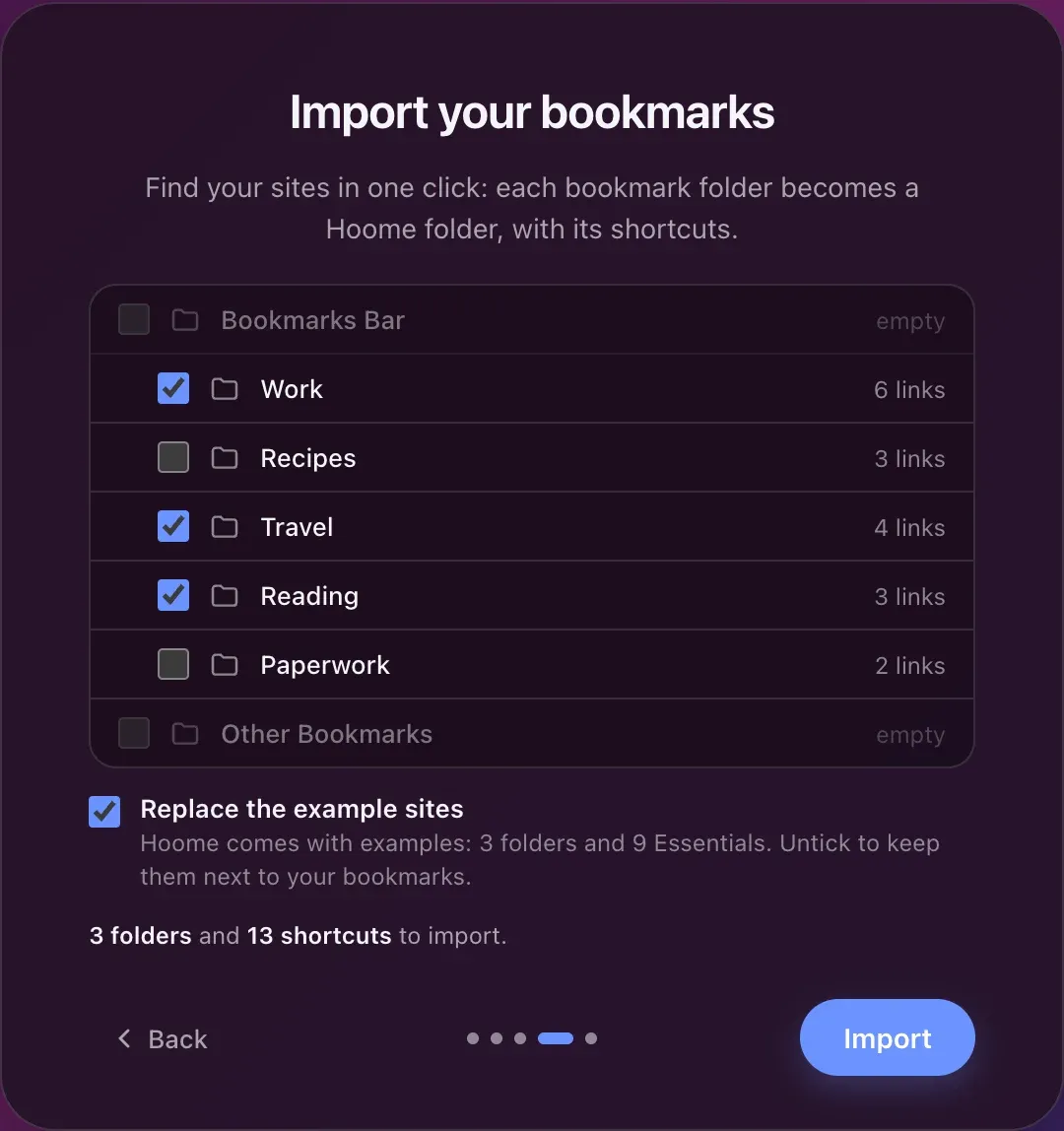
Import my bookmarks brings your bookmark folders over as they are: a bookmark folder becomes a Hoome folder, with what it holds. It is the quickest route when your filing already suits you.
Choose my folders starts from eleven ready-made categories, from Google to social networks, with the sites people use most inside. You tick the ones that look like you.

Start from scratch leaves the page blank, to fill your own way.
Then it moves
A folder can be renamed, emptied, filled again. A shortcut moves from one folder to another by dragging it. The sites you open every morning go up into the row of Essentials, above the folders, where they are one click away.
And if you change your mind, the import can be run again at any time: right-click the page, then Import from bookmarks.