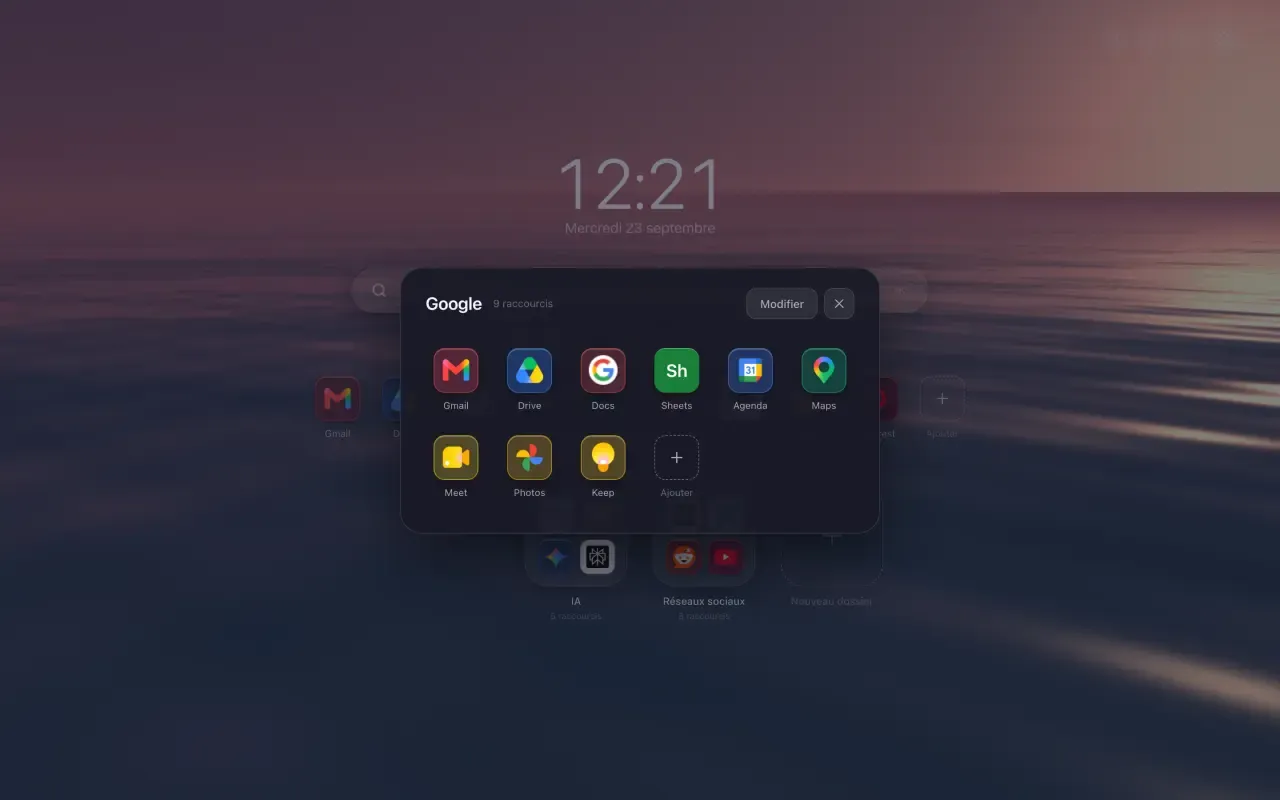
To organize your sites in Chrome you need two things: somewhere to file them, and somewhere to see them. Chrome files very well, with its bookmarks. It shows them far less well. This guide covers both, then the way Hoome puts your sites in front of you, on every new tab.
What Chrome already offers to organize your sites
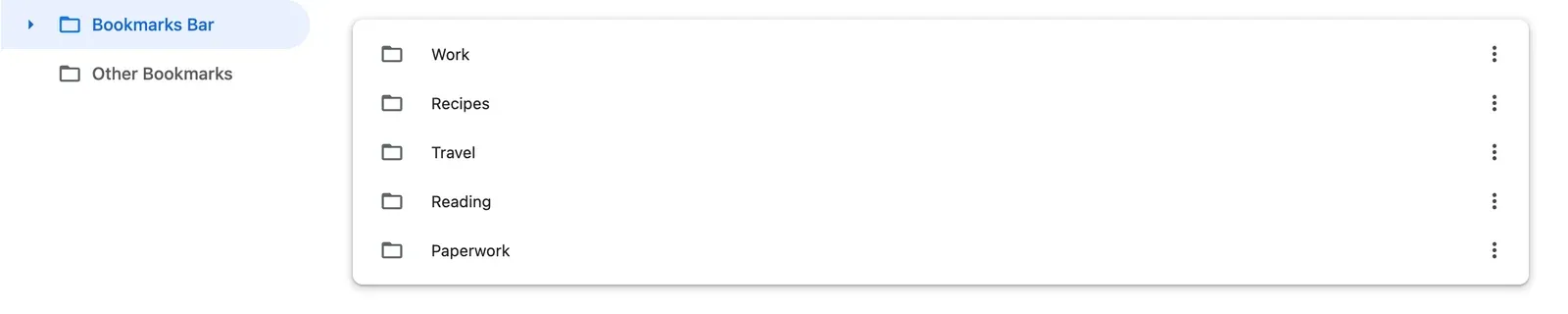
Bookmarks. The star in the address bar saves the page. Bookmarks are filed into folders, in the bookmarks bar under the address bar, or in the bookmark manager, at chrome://bookmarks. It is solid, synced with your Google account, and free.
Tab groups. Right-click a tab, then Add tab to new group: the tabs of one project gather under a colour and a name, and the group folds away.
Their limit is the same: you never see them at a glance. The bookmarks bar shows only what fits on one line, the manager is a list to scroll, and groups serve the tabs you have open more than the sites you keep. So you retype the address instead of hunting for the bookmark.
Putting your sites where you look
The page you see most often is the new tab. Hoome replaces it with your sites, tidied into folders the way apps sit on a phone. A folder opens on top of the page, shows everything it holds at once, and closes with one key.
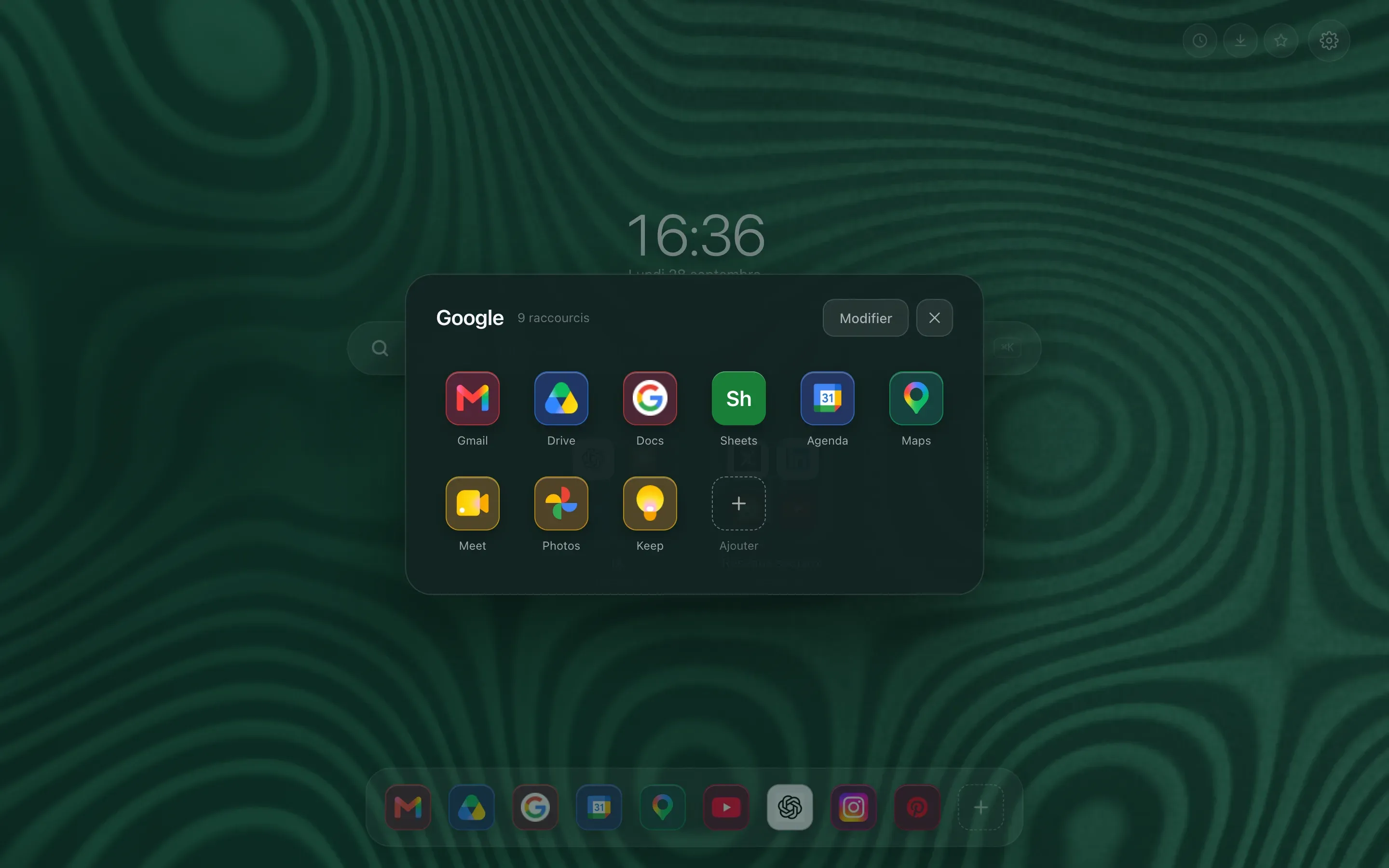
Above the folders, the row of Essentials keeps the sites you open every morning one click away, with no folder to open first.
Your Chrome bookmarks do not move: Hoome sits on top of them, and you choose what deserves to be in plain sight.
Tidying without losing an evening to it
Three ways to fill the page, on first launch and later on:
- Import your bookmarks: a bookmark folder becomes a Hoome folder, with what it holds,
- Start from ready-made categories, from Google to social networks, with the sites people use most,
- Add them by hand, an address is enough: Hoome finds the name and the icon.
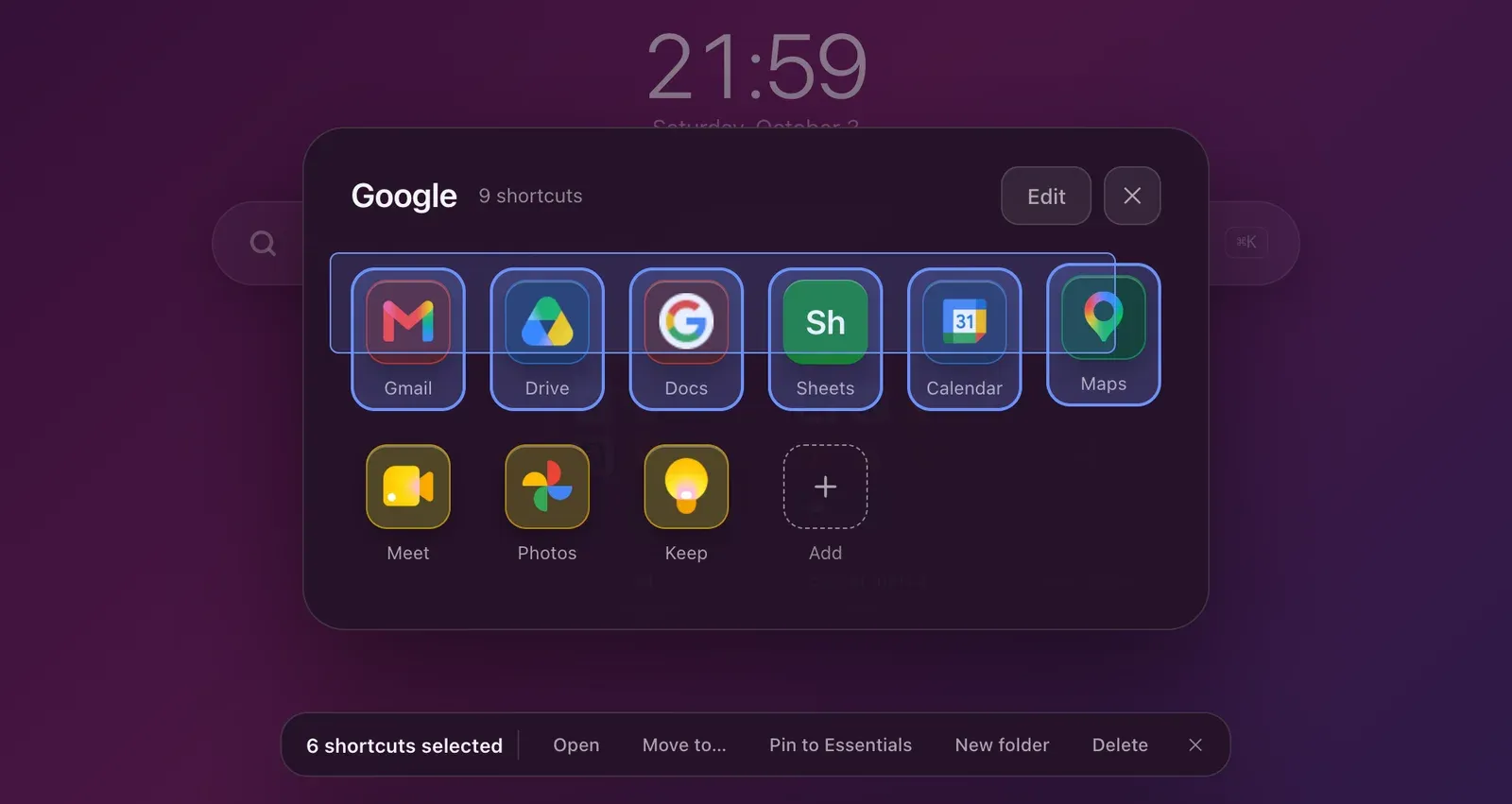
After that, everything is filed with the mouse. A tile moves by dragging it, a shortcut leaves one folder for another, and a rectangle drawn in the empty space selects several at once, to move or to pin in one go.
Finding a site in three letters
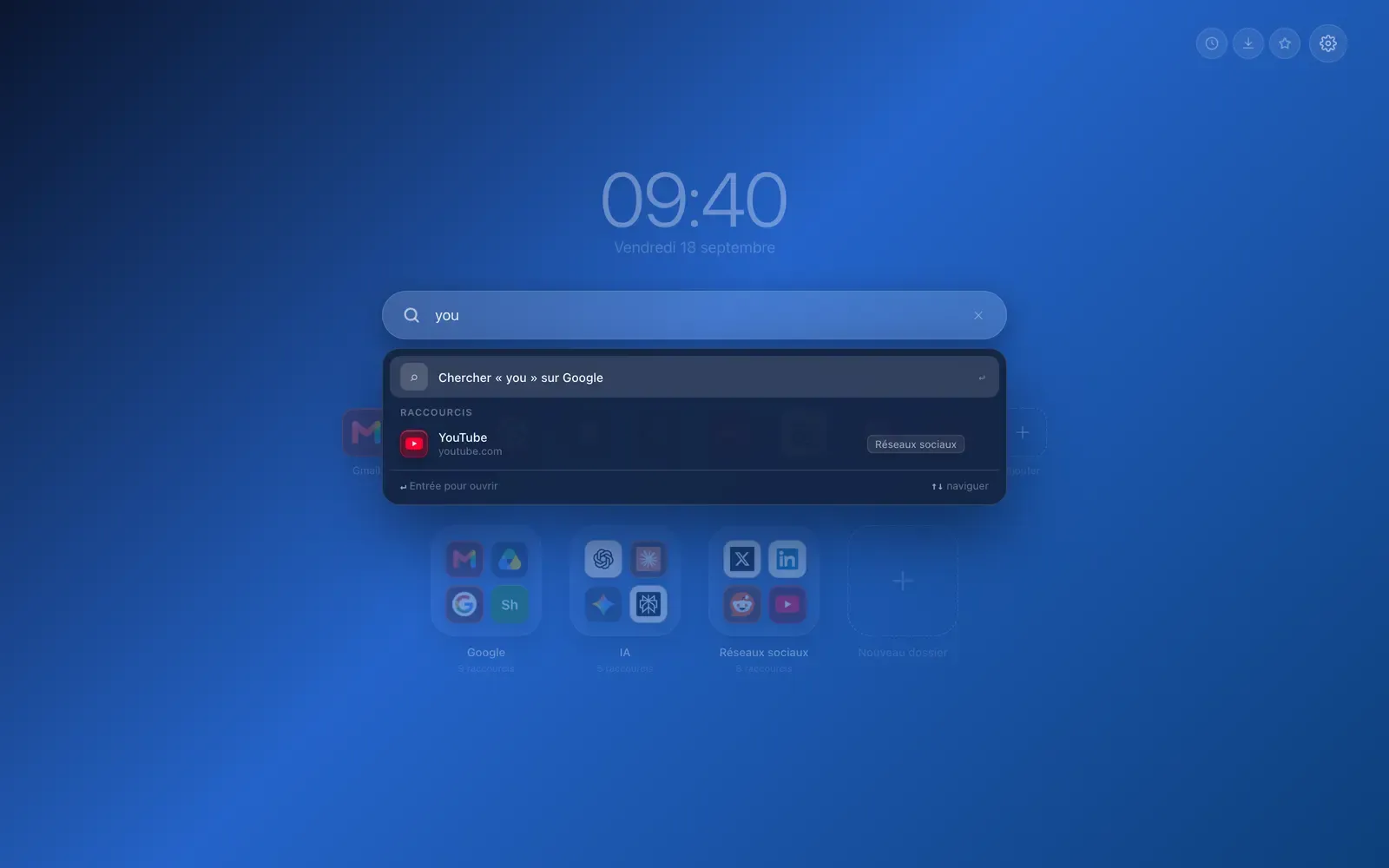
Open a new tab and type: the keystroke lands in the search bar, which goes through your shortcuts at the same time as it offers the web search. Three letters are usually enough, then an arrow, Enter, and the site opens, even if it was asleep at the back of a folder.
Not losing all of it
A tidy-up that took an hour deserves protecting. Hoome takes a backup every day and before every sensitive operation, keeps the last three, and exports everything to a file whenever you ask. If the browser loses the data of an extension, Hoome restores the most recent backup by itself.
Where to start
- Install Hoome from the Chrome Web Store.
- On first launch, import your bookmark folders, or tick the categories that look like you.
- Move the five or six sites you open every day up into the Essentials.
Everything stays on your computer, with no account and no ads. The articles below go through each step.