When Chrome opens new tabs by itself, it is almost always a setting, an extension or a website asking it to, and almost never a fault. The tabs appear at startup, in the middle of something you are reading, on an advert, or it is the new tab itself that shows Yahoo or a search engine you never chose. This guide goes through the five causes, from the simplest to the most serious, then the cases where nothing is actually wrong, with Chrome’s screens as they appear in English.
Chrome opens new tabs by itself at startup
If unwanted tabs appear every time Chrome launches, start by looking at what Chrome has been told to open. Open the three-dot menu, Settings, then On startup. The direct address is chrome://settings/onStartup.
There are three choices. With Open a specific page or set of pages, Chrome opens the addresses listed underneath every time it launches.
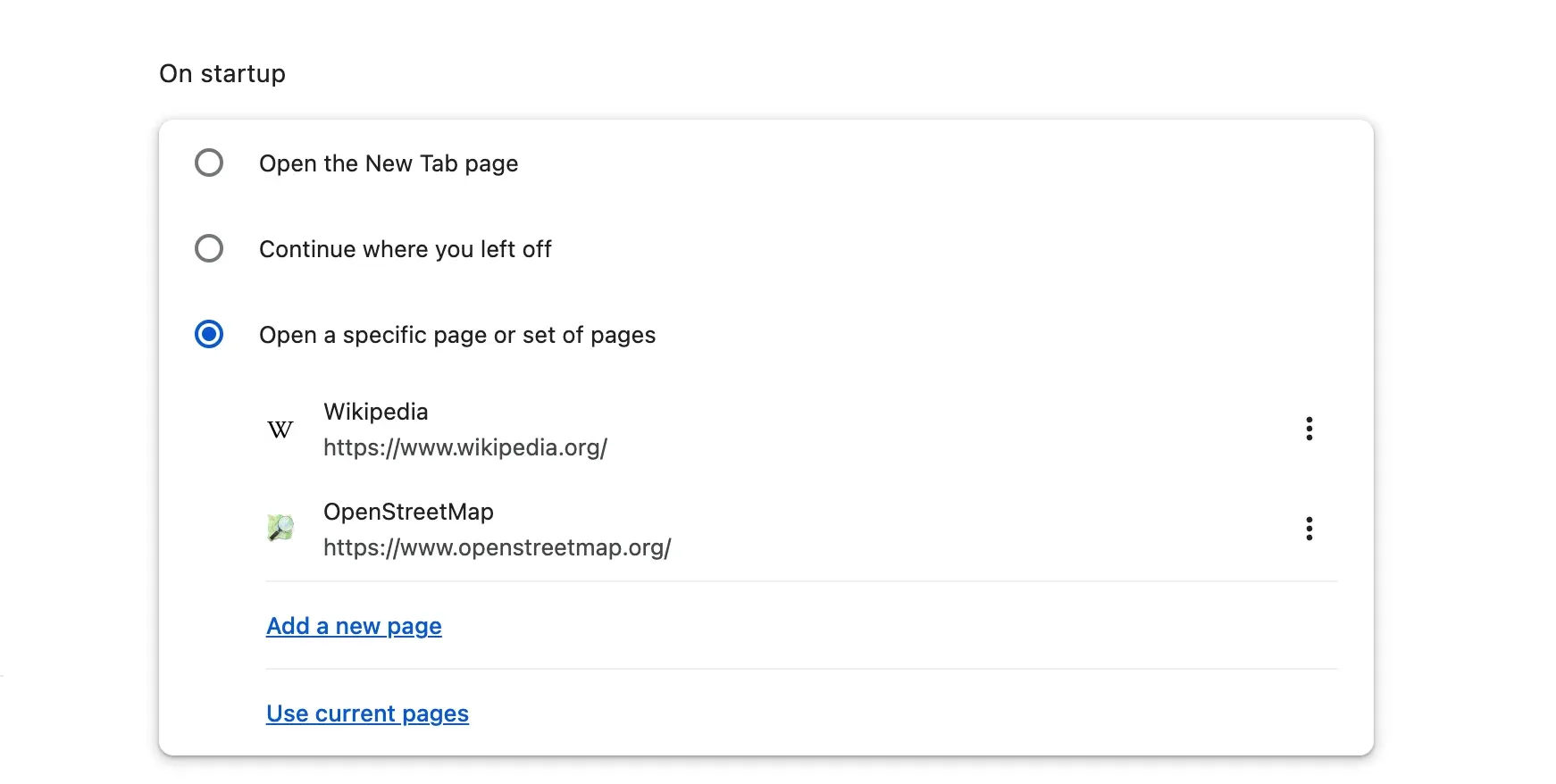
To get rid of an address you do not recognise, click the three dots on its row, then Remove. If you do not want anything in particular at startup, simply choose Open the New Tab page.
On Windows, a modified shortcut. Some unwanted software adds an address to the Chrome shortcut itself: the site then opens every time you launch Chrome from that shortcut, whatever your settings say. Right-click the Chrome shortcut, then Properties. In the Target field, the path ends with chrome.exe". It may be followed by an option that Chrome adds itself, such as --profile-directory="Default" for a profile: leave that in place. A website address, on the other hand, has no business being there: delete it without touching the rest, then confirm.
An extension has taken over the new tab
This is behind the most common case: the new tab or your searches suddenly lead to Yahoo, or to a search engine with a name you have never heard of. An extension has replaced the new tab page, the search engine or the startup page. It was often installed along with a piece of free software, or when you clicked on a fake update.
Chrome says so itself. When an extension controls one of these settings, the settings page shows it in the relevant place, with two buttons, Manage and Disable.
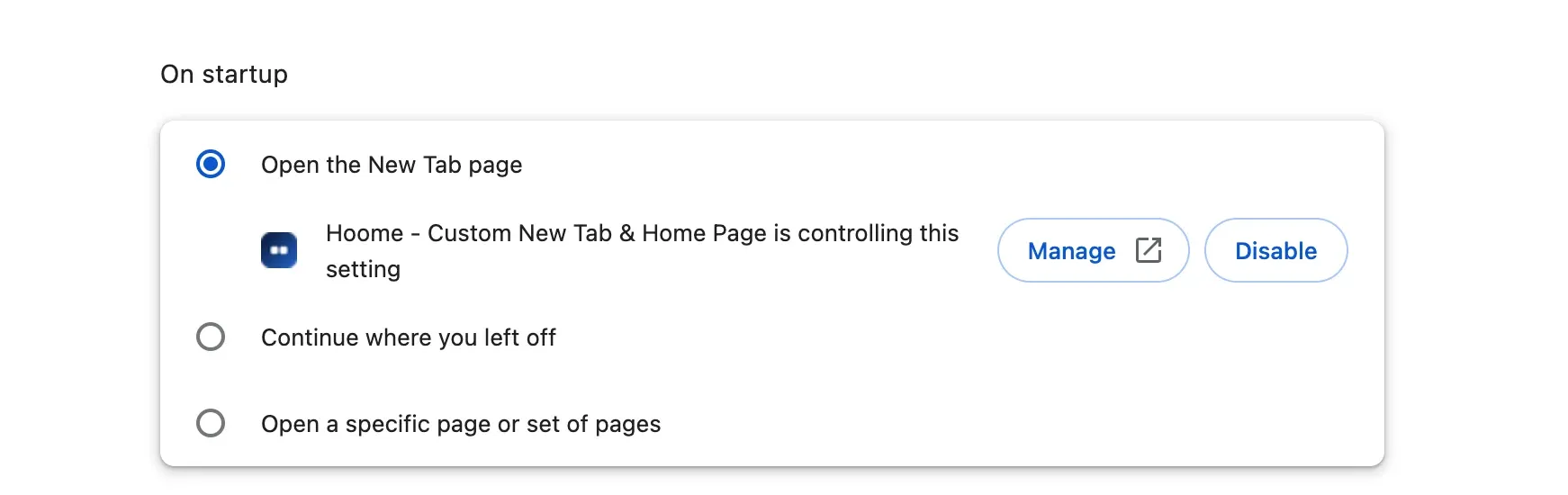
In this screenshot, the extension controlling the new tab is Hoome, our own, installed on purpose: that is its job. Chrome files the notice under On startup because the New Tab page is one of the pages it can open at launch. An extension you chose yourself is nothing to worry about. An extension whose name means nothing to you, however, has no business being there. Also check the Search engine section of the settings: an extension that has changed your search engine is named there in the same way.
To clean things up, open the extensions page: three-dot menu, Extensions, then Manage extensions, or chrome://extensions in the address bar.
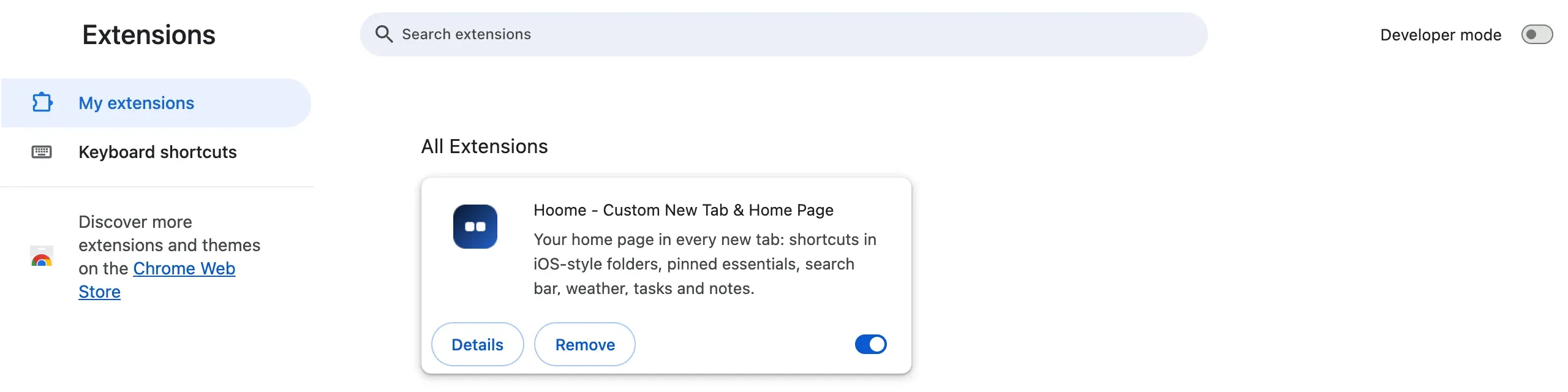
- An extension you do not know: click Remove, without a second thought,
- doubts about several extensions: turn them all off with their toggle, then turn them back on one at a time. The one that brings the tabs back is the culprit,
- an extension that comes back after you remove it: a program on the computer is reinstalling it. Go straight to the section “Reset Chrome, then check your computer”.
To choose extensions that do not cause this kind of trouble, our selection of the best Chrome extensions sorts them by use, with what you need to know before installing them.
Notifications from a site
A site you have allowed to send you notifications can send them at any time, even when you are not visiting it. Some abuse this: fake virus alerts, imaginary prizes, adverts. A click on the notification opens a tab, and it looks as though Chrome has started opening pages on its own.
The list is in the settings: Privacy and security, Site settings, then Notifications. The direct address is chrome://settings/content/notifications.
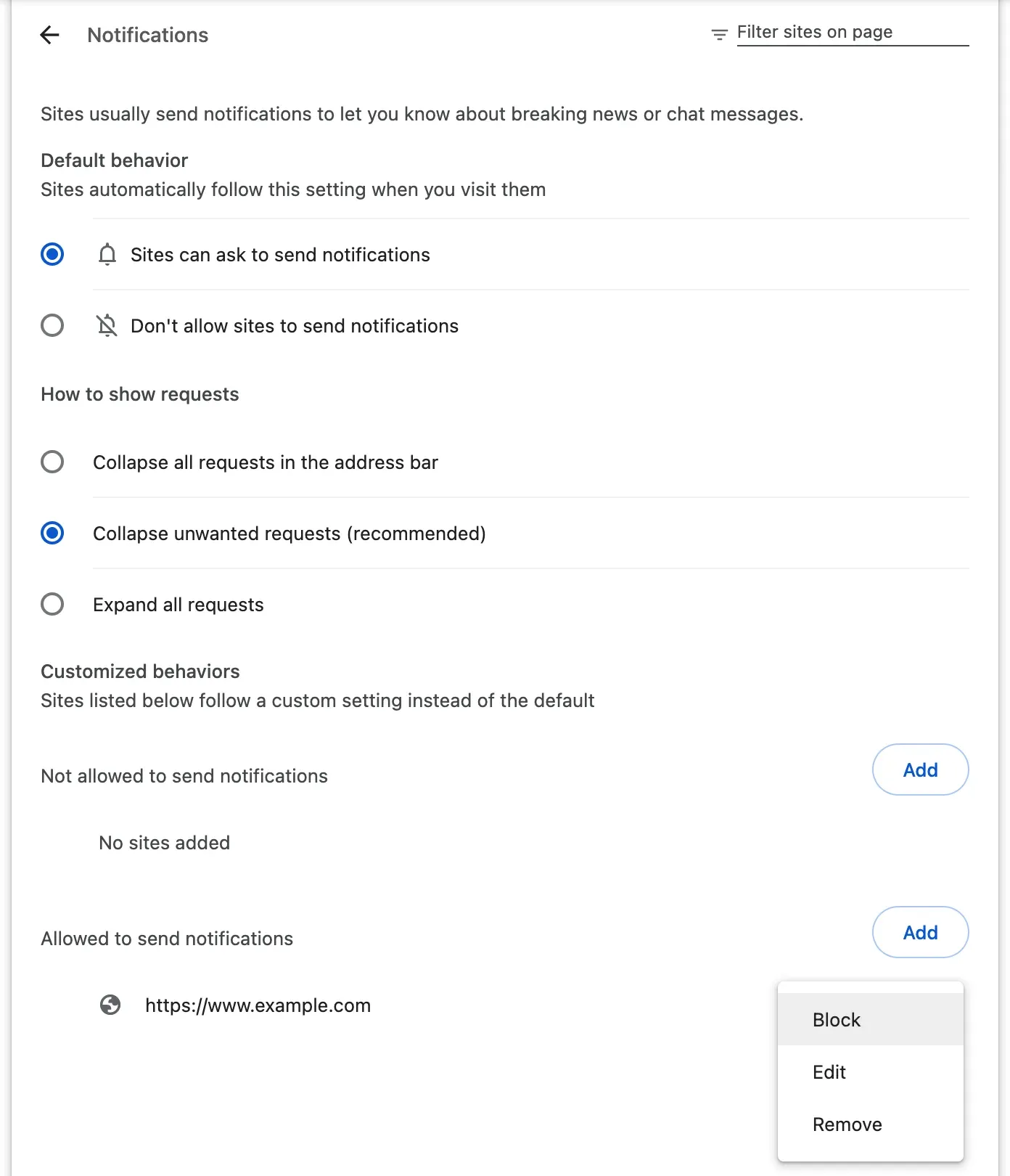
Under Allowed to send notifications, each site has a three-dot menu: Block or Remove takes the permission away. So that no site ever asks you again, choose Don’t allow sites to send notifications.
Pop-ups and redirects
By default, Chrome stops sites from opening windows and redirecting you without your consent. A site you once allowed keeps that right, and sometimes all it took was an absent-minded click on the blocked pop-up icon at the end of the address bar, then on its option “Always allow pop-ups and redirects from” that site. Check the list in Privacy and security, Site settings, then Pop-ups and redirects (chrome://settings/content/popups), and remove the sites you do not know from the Allowed to send pop-ups and use redirects list.
If tabs only open on one particular site, with every click anywhere on the page, the site itself is doing it, often a streaming site full of adverts. Chrome’s settings cannot do much about that: the simplest fix is to stop visiting it.
Reset Chrome, then check your computer
If none of the above has worked, Chrome can put its settings back to their defaults. Open Settings, Reset settings, then Restore settings to their original defaults (chrome://settings/reset). Chrome sums up what it is about to do before doing it. Its window does not say so, but the permissions granted to sites, notifications and pop-ups included, are reset too, as is the theme.
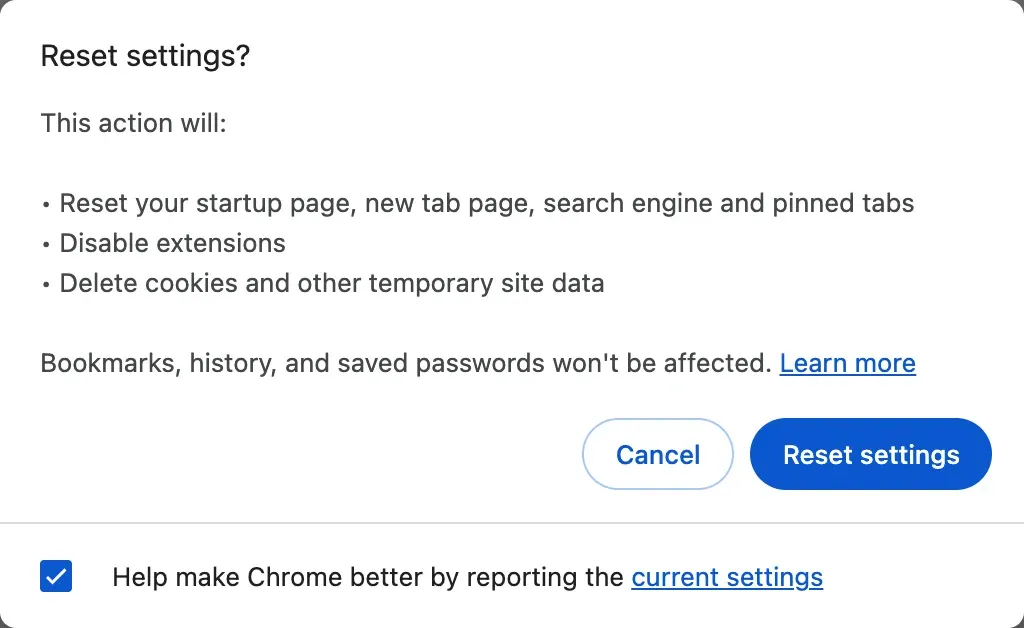
Your bookmarks, history and passwords stay. Your extensions are disabled, not removed: afterwards, turn back on the ones you know, one at a time, and leave the others off. As cookies are deleted, expect to have to sign back in to some sites.
If the tabs still come back, the cause lies outside Chrome: a program installed on the computer puts its settings back every time it starts.
- On Windows: in Settings, Apps, then Installed apps, uninstall the programs you do not recognise, especially the most recent ones, then run a full scan with Windows Security or your antivirus,
- on a Mac: uninstall unknown apps from the Applications folder. Then, in System Settings, type “profile” in the search field and remove any configuration profile you did not install, then type “background” to switch off the items allowed in the background that you do not recognise,
- in both cases: if Chrome’s menu shows “Managed by your organization” on a personal computer, first check that you are not signed in to Chrome with a work or school account. If you are not, a program is imposing rules on it: the
chrome://policypage lists them, and the program that set them needs uninstalling.
When it is not a problem
Some tabs open because you asked for them without realising:
- a middle click with the mouse wheel, or
Ctrl+ click (⌘+ click on a Mac), opens a link in a new tab in the background. On some touchpads, a three-finger gesture does the same, - a
Ctrlor⌘key that stays pressed, stuck under an object for example, turns every click into a new tab, - a site that opens its links elsewhere: that is its choice, not a Chrome setting.
And if it is the other way round, a vanished tab you need to find again, our guide to reopening a closed tab in Chrome covers every case.
A new tab page you chose
Choosing your own new tab page does not lock out other extensions: Chrome gives the new tab to the last one installed. But you see the change straight away, since your page disappears, and Chrome warns you that an extension has changed what page is shown when you open a new tab.
Hoome, our extension, replaces the new tab page with your sites sorted into folders, and changes no other Chrome setting: neither your startup pages nor Chrome’s search engine. Its search bar uses the search engine chosen in your browser. It only opens a tab when you click, with one exception: if you remove it, Chrome opens a hoome.dev page asking you why, unless its Strict privacy mode is turned on. Its free version needs no account, and Chrome names it in its settings, as in the screenshot above. For the full tour, read our introduction to Hoome.
Common questions
Does Chrome open tabs because of a virus? Rarely because of a virus in the strict sense. Most often, it is an extension or adware, installed along with another program. It does not necessarily steal your data, but it has no business on your computer.
Why does the tab show Yahoo? Because an extension or a program has replaced your search engine or your new tab with a page that goes through Yahoo. Yahoo did not install it itself: the middleman is paid for every search it sends there, and it is the one that changed your settings. The section on extensions above shows how to track it down.
Does resetting Chrome delete my bookmarks? No. It keeps your bookmarks, history and saved passwords, and disables extensions without removing them.
In short
- Tabs at every startup: On startup, then the specific pages, and on Windows the Target field of the shortcut,
- a new tab or a search that leads somewhere else: the “is controlling this setting” notice in the settings, then the extensions page,
- advert tabs throughout the day: notifications, then pop-ups and redirects,
- nothing helps: Restore settings to their original defaults, then the programs installed on the computer.