A well-chosen Chrome extension saves you time every day. A badly chosen one reads everything you do. This selection sorts the best ones by use, from ads to the new tab page, with what each one does and what to know before you install it.
How we chose. Every extension on this list has its page on the Chrome Web Store, checked on 4 October 2026, and every one was updated in 2026: an abandoned extension always ends up breaking, or changing hands. All of them have a free version. We quote no ratings and no user counts: they tell you what is popular, not what suits you.
One thing to be clear about: Hoome, the new tab page further down, is ours. It sits in its category, next to another one we like.
Block ads and trackers
uBlock Origin Lite. The reference blocker, in the version built for Chrome’s current extension format. The original uBlock Origin no longer works in Chrome since the browser dropped the old format in 2025. The Lite version blocks ads, trackers and crypto miners as soon as it is installed, with nothing to set up. It is free and open source.
Privacy Badger. Made by the Electronic Frontier Foundation, a digital rights nonprofit, it learns on its own which domains follow you from site to site, and blocks them. It pairs well with an ad blocker: its goal is not to hide ads but to stop you being tracked.
Manage your passwords
Chrome has its own password manager, stored in your Google account, and it is enough for many people. A dedicated extension is worth it if you use several browsers, or if you would rather not hand everything to your Google account.
Bitwarden. Open source, with a free version and no limit on passwords or devices. It also stores passkeys and sensitive notes, and fills in login forms for you.
Proton Pass. The password manager from Proton, the Swiss company behind Proton Mail. Everything is encrypted, and the free version includes a few email aliases, so you do not have to give out your real address every time you sign up.
Write and translate without leaving the page
LanguageTool. A spelling and grammar checker that works in almost every text field on the web, emails included, in many languages. The free version covers the essentials; the paid one goes further on style.
DeepL. Translates the text you select on a page, and what you write, right in the field you are writing in. Handy for answering an email in another language.
Google Translate. The official extension shows the translation of a selected word or sentence without switching tabs. For a whole page, Chrome already does it on its own: right-click the page and choose to translate it.
Tidy your tabs and your sites
OneTab. One click, and every open tab becomes a list in a single tab, which frees up memory. They reopen one by one or all together. It is the simplest cure when you end the day with forty tabs.
Raindrop.io. A complete bookmark manager: collections, tags, search, page previews. Useful when Chrome’s bookmarks spill out of the bar.
Chrome itself tidies better than people think. Right-click a tab, then Add tab to new group, and the tabs of one project gather under a colour and a name. Our guide to organising your sites in Chrome covers everything the browser can do on its own.
The new tab page
It is the page you open most often, and Chrome’s stops at ten shortcuts. An extension can replace it, only one at a time, since there is only one new tab page.
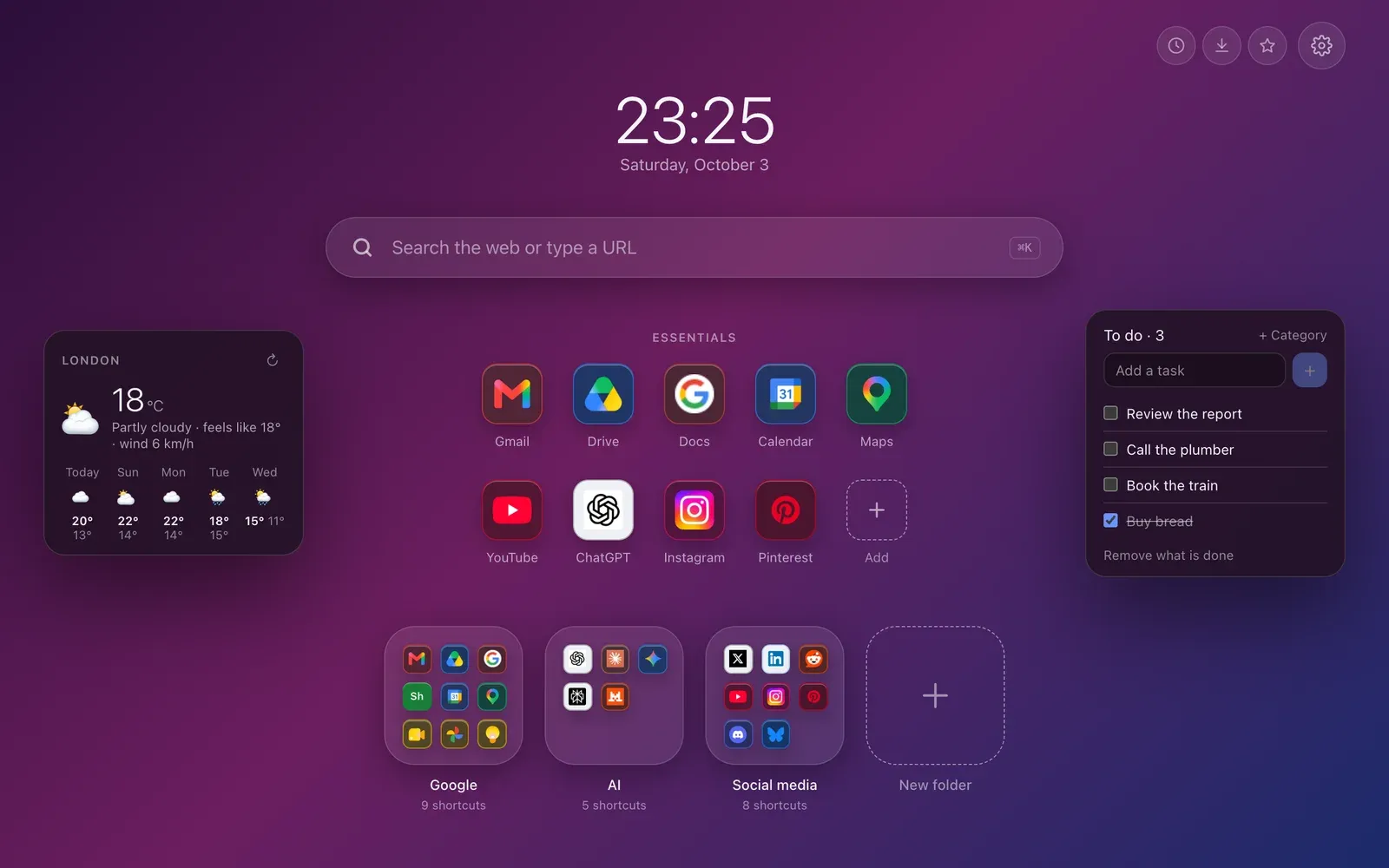
Hoome, ours. Your sites sorted into folders like on a phone, a Dock for the everyday ones, animated backgrounds drawn by your own computer, and, if you like, the weather, your tasks and your notes. No account is needed, no analytics are sent, and your data stays on your computer, or in your browser’s account if you sync. The free version goes up to five folders and a hundred shortcuts; Premium lifts those limits and adds several desks, one for work, another for home.
Bonjourr. A minimalist, open source new tab inspired by iOS: a beautiful background, the time, a few links. If you are after calm more than organisation, this is the one.
To go further, our guide to customising the Chrome home page starts from what Chrome offers, then shows what an extension adds.
Stay focused
StayFocusd. You set a daily allowance for the sites that distract you; once it is used up, they stay blocked until the next day.
Todoist for Chrome. Your Todoist task list in the toolbar, and the current page added as a task in one click. You need a Todoist account, free to start with.
Notion Web Clipper. Saves the current page to your Notion workspace. Useful if Notion is already your notebook.
A better YouTube
SponsorBlock. Skips the sponsored segments of videos, flagged by its community of users, as well as the reminders to subscribe. Free and open source.
Unhook. Hides what keeps you on YouTube: recommendations, Shorts, comments, the home page. You come for one video, you leave with it.
Read and see more comfortably
Dark Reader. A dark theme for every website, adjustable site by site: brightness, contrast, sepia.
Read Aloud. Reads the article on the page out loud. Handy for listening to a long text while doing something else.
Capture a full page
GoFullPage. One click on its icon, and the whole page is captured, even what runs off the screen, then saved as an image or a PDF.
Chrome can also do it on its own: open the developer tools (Cmd + Option + I on a Mac, Ctrl + Shift + I on Windows), then Cmd + Shift + P or Ctrl + Shift + P, type “screenshot” and choose the full size screenshot.
Install, pin, and clear out
They all install from the Chrome Web Store: Add to Chrome, then Chrome shows the permissions requested before you confirm. The jigsaw piece icon to the right of the address bar lists your extensions; the pin puts one in the toolbar.
To see everything, type chrome://extensions in the address bar: each extension can be turned off with a switch there, or removed.
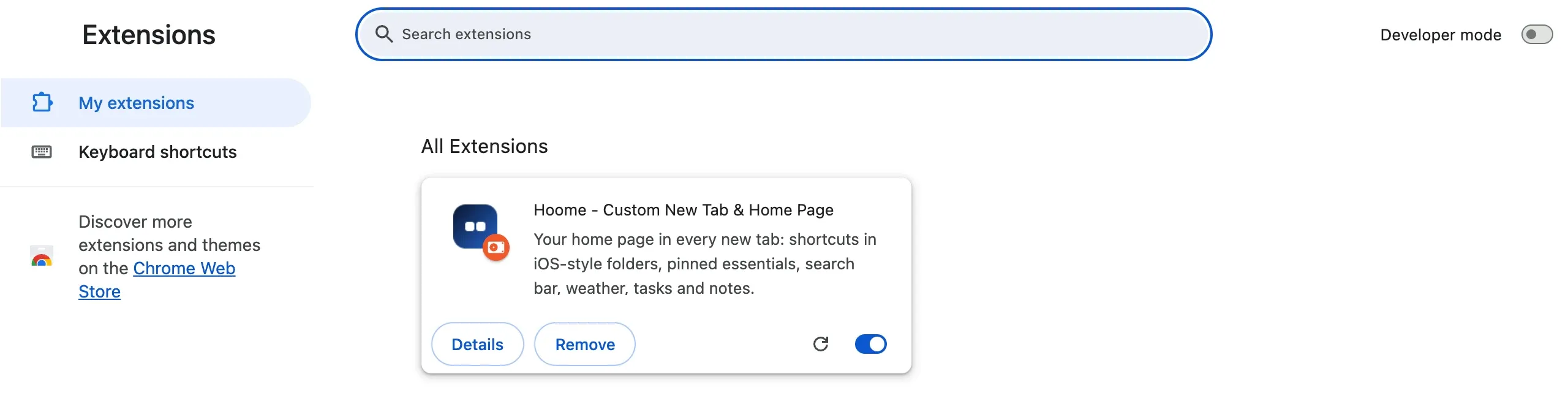
Three habits apply to all of them:
- Read the permissions. An extension that wants to read and change your data on every website sometimes needs to, like an ad blocker. A calculator does not.
- Check the date of the last update on its store page. An extension that has not changed in two years is often abandoned.
- Remove what you no longer use. At the end of 2025, security researchers showed that extensions installed millions of times had been turned into spyware after years of good behaviour. The fewer you have, the less exposed you are.
The questions people ask
Do extensions slow Chrome down? Each one takes a little memory, and some work on every page you open. Chrome’s Task Manager, under More tools, or Shift + Esc on Windows, shows what each one uses. An extension you do not use always costs something.
How many should I install? As few as possible. Five or six well-chosen ones cover nearly every need, and each extra one is one more door into your data.
Can an extension see my passwords? An extension allowed to read and change your data on every website sees the content of pages, forms included. That is why a password manager should come from a well-known publisher, and why it is better not to pile up extensions that ask for that access.
In short
| Use | Extensions |
|---|---|
| Block ads and trackers | uBlock Origin Lite, Privacy Badger |
| Passwords | Bitwarden, Proton Pass |
| Write and translate | LanguageTool, DeepL, Google Translate |
| Tabs and bookmarks | OneTab, Raindrop.io |
| New tab page | Hoome, Bonjourr |
| Focus | StayFocusd, Todoist, Notion Web Clipper |
| YouTube | SponsorBlock, Unhook |
| Reading comfort | Dark Reader, Read Aloud |
| Screenshots | GoFullPage |
Start with one or two, the ones that fix something that really bothers you. An extension is judged by use, after a week: if you have not noticed it, it was not doing anything for you.