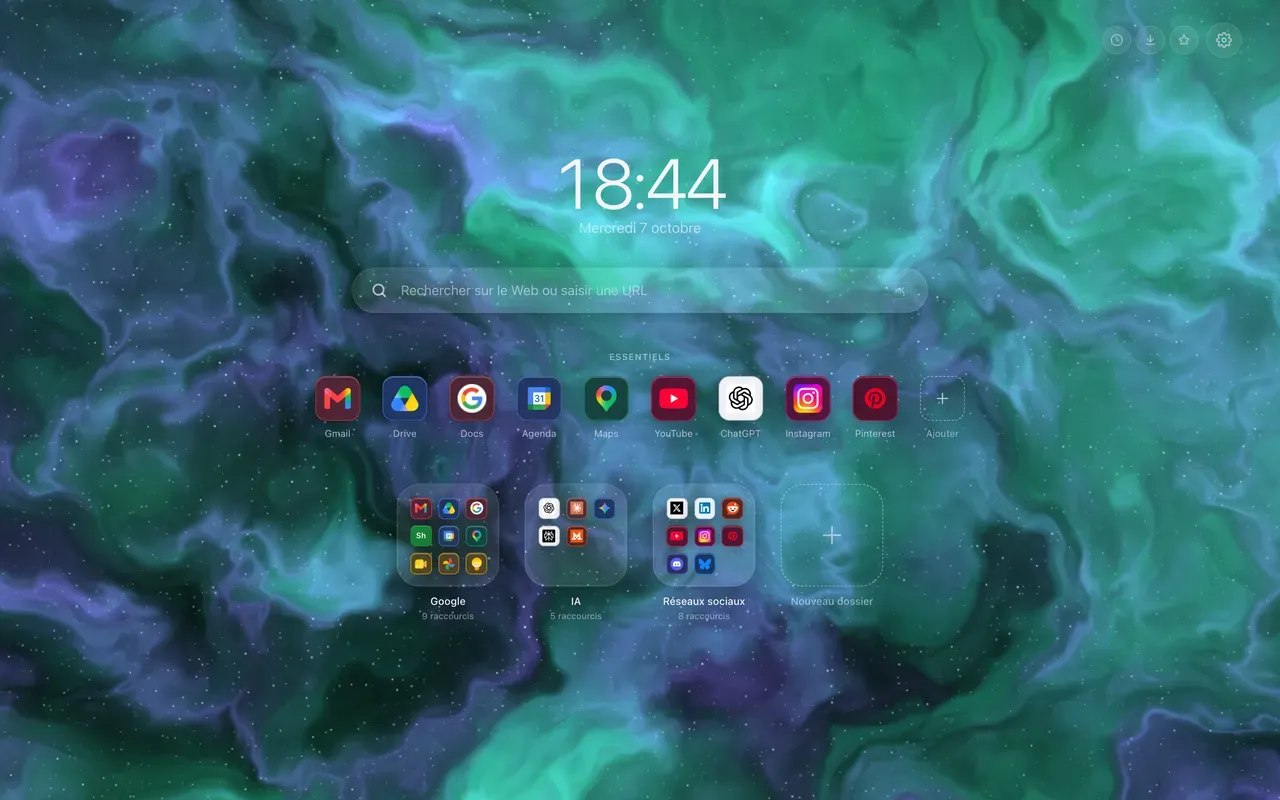
A clock on Chrome new tab puts the time in front of you every time you open a new tab, without searching the corner of the screen for it. Chrome does not offer one. Hoome shows one, with the date underneath, in the middle of the page in the default layout.
How big should the clock on Chrome new tab be?
Five sizes, from very small to very large. At very large, the time becomes the backdrop of the page; at very small, it steps aside for your shortcuts.
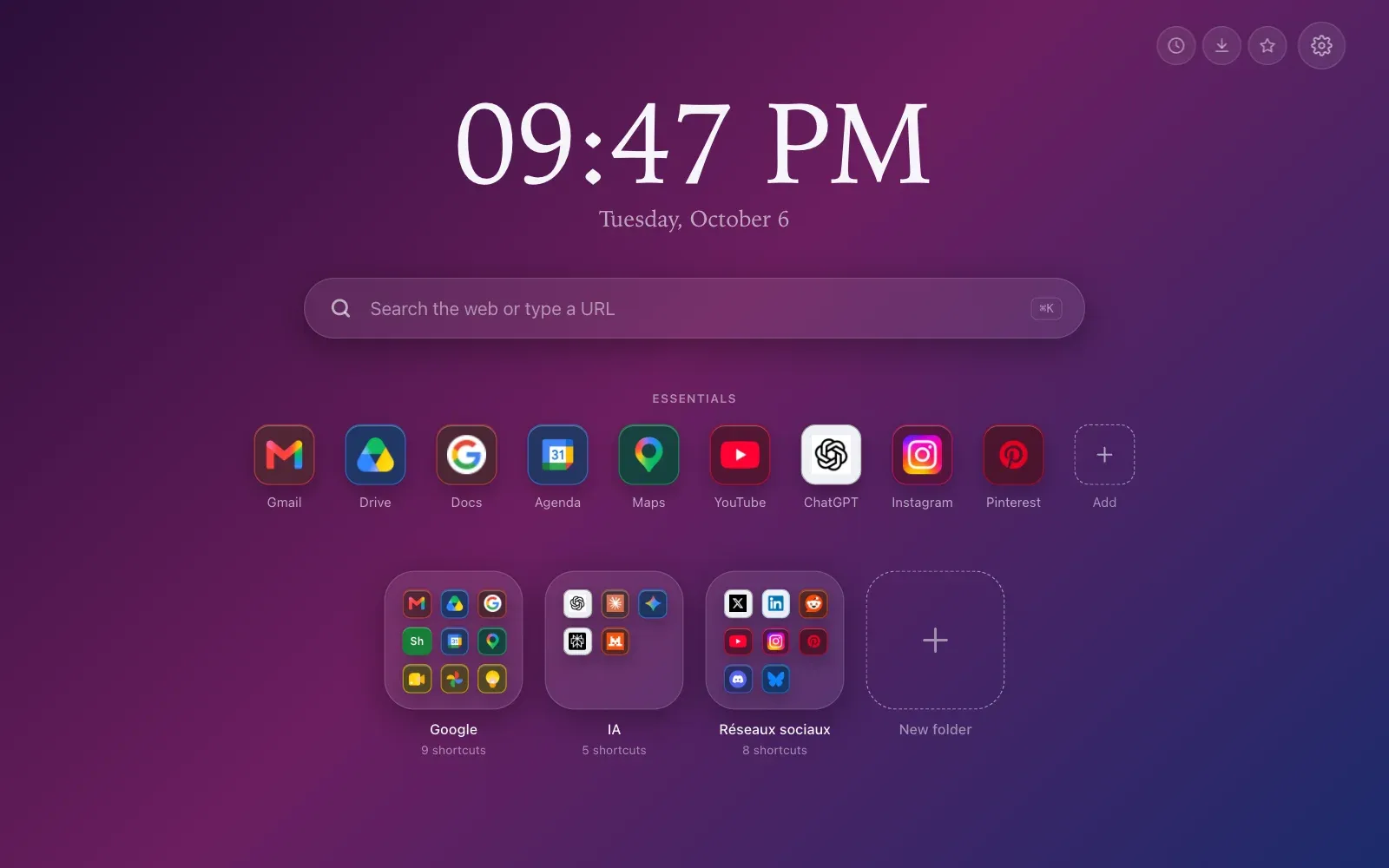
On a short screen, a laptop or a smaller window, the clock tightens by itself to leave room for the rest, without losing the size you picked: it returns to it as soon as the screen gets bigger.
The format and the typeface
A twenty-four-hour or twelve-hour clock, as you prefer. Then four typefaces, all provided by your system, so there is nothing to download:
- System, the interface one,
- Light, with thin strokes, widely spaced,
- Elegant, with serifs,
- Fixed digits, where no digit moves as it changes.
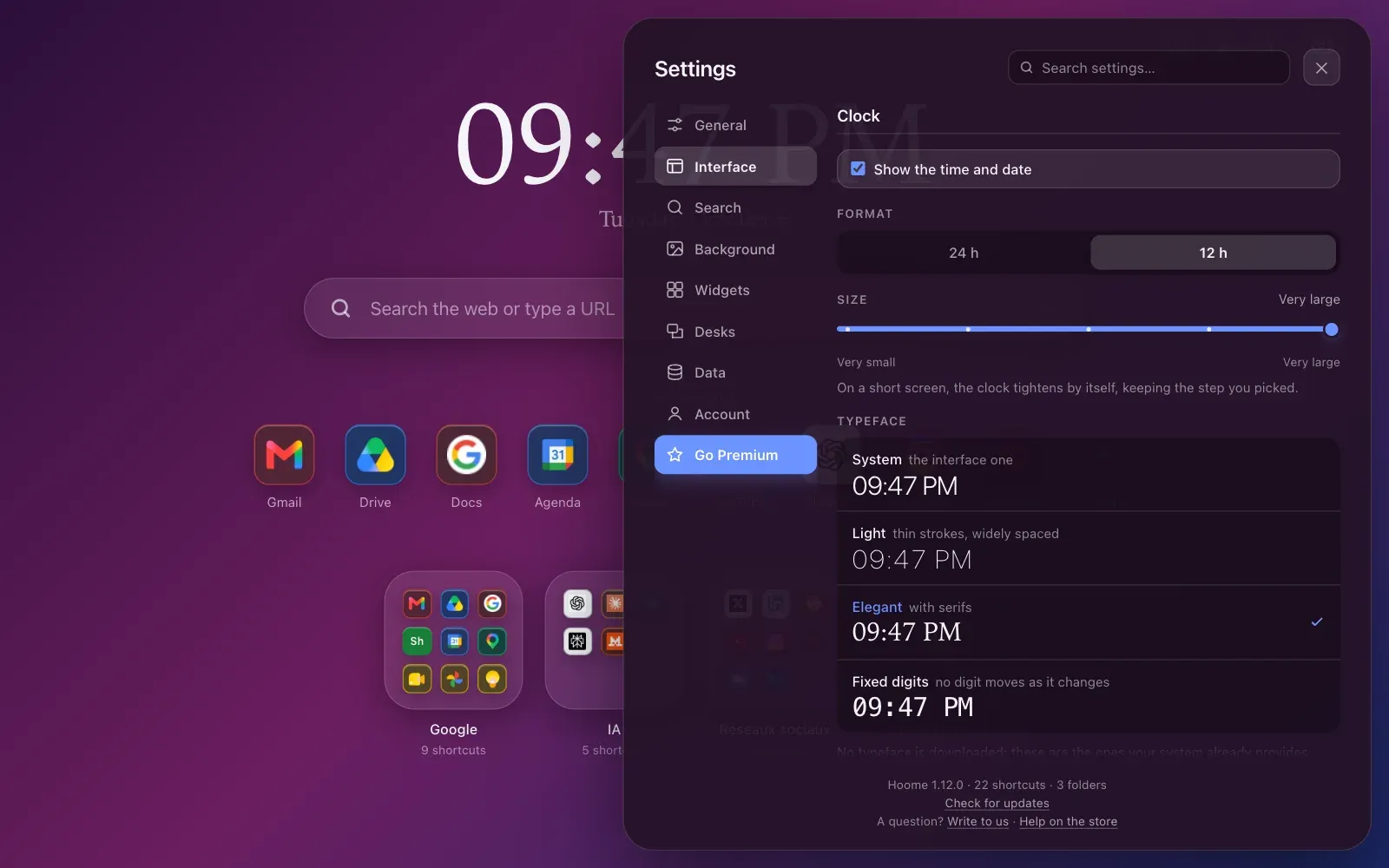
Every setting applies to the page while you change it: you see the result before you close the panel.
The clock colour, which also colours the date, is set just below: automatic, which follows the theme, one of the suggested tints, or a colour of your own, which a light shadow keeps readable on every background. All the clock settings are free, colour included.
The language of the time and the date
By default, the clock follows the language of the interface. It can also take another one: the date in Japanese, the time written with the digits of Arabic script or those of Devanagari, without the rest of the page changing language.
And if you would rather have a page with no time at all, a checkbox hides the time and the date. The settings are remembered for the day you bring them back.
It is all in the settings, the cog at the top right, Interface section, then Clock.