There are two ways to customize the Chrome home page: the browser settings, quick but soon exhausted, or an extension that replaces the new tab page with one of your own. This guide covers both, setting by setting.
Customizing the Chrome home page without an extension
Open a new tab and click Customize Chrome, at the bottom right. From there you change the background, the browser colour and the light or dark mode. Shortcuts are set there too: My shortcuts, which you pick, or Most visited sites, which Chrome picks for you.
To have that page open when the browser starts, go to Settings, On startup, then Open the New Tab page.
The limits come quickly: ten shortcuts at most, no folders, and nothing but links.
If an extension already owns your new tab, these settings are not for you. They dress up the Chrome page, the one you no longer see. Chrome may even take the chance to ask “Did you mean to change this page?”: its “Change it back” button disables the extension, and your new tab goes back to Chrome’s. Nothing is lost for all that, your shortcuts and folders stay saved: open
chrome://extensionsand switch the extension back on. The background and the layout of an extension are changed in its own settings.
A tidy home page, with Hoome
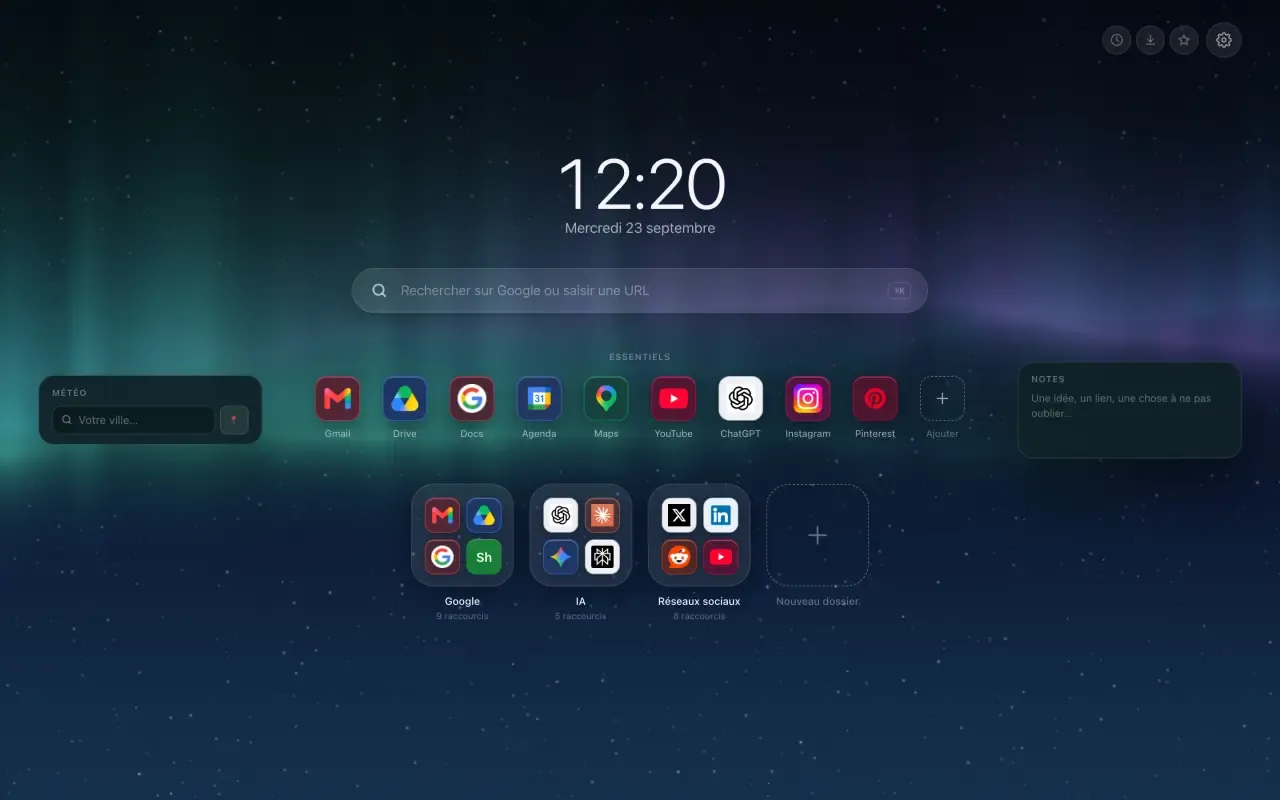
Hoome replaces the new tab page with yours: your sites tidied into folders the way apps sit on a phone, a row of Essentials for the ones you open every day, and a search bar that looks through your own shortcuts as well.
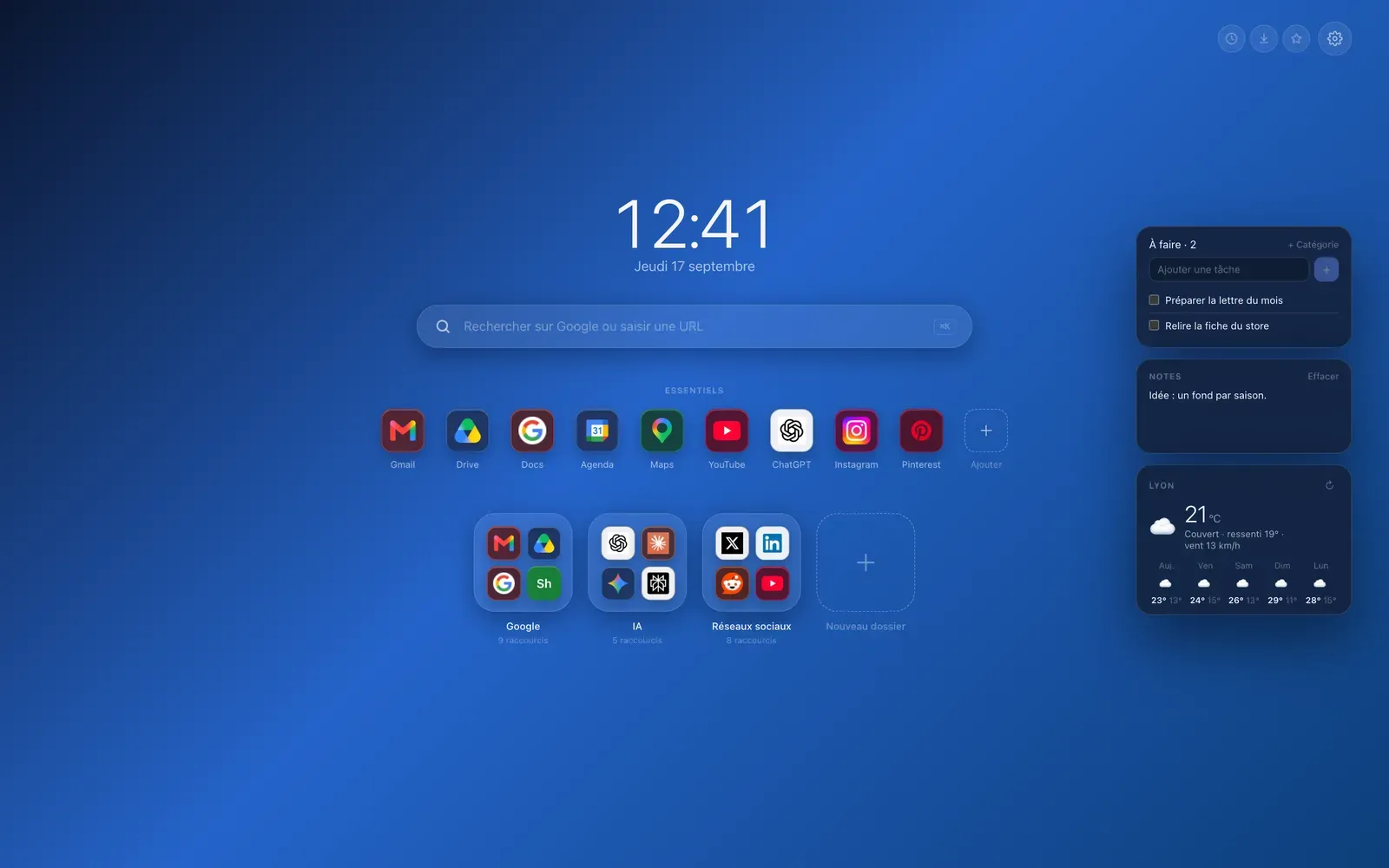
The weather, a to-do list and notes come as widgets, which you drag to the left or the right of the page. None of them is switched on by default.
Choosing your layout
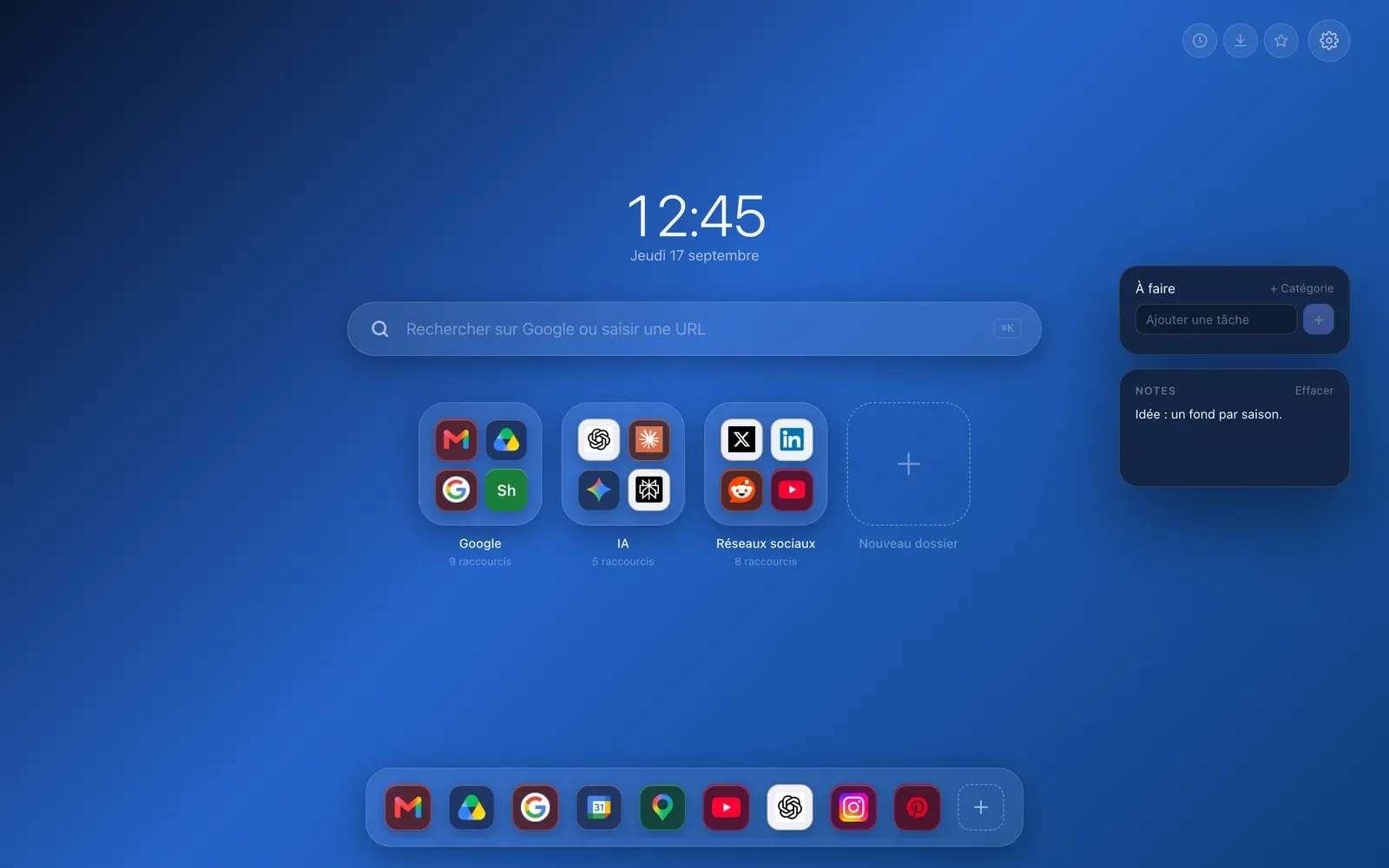
Two templates are free: the Dock, which keeps your Essentials in a bar at the bottom of the screen, the way macOS does, and Classic, which puts everything in the middle of the page. Five more come with Premium: the Dashboard, which lines up the time and the widgets in a column, Columns, Arc, Widgets first and Bento.
The time and the date
The clock has five sizes, from very small to very large, a twenty-four or twelve hour format, and four typefaces your system already provides: System, Light, Elegant and Fixed digits. The date can follow a different language from the interface. A checkbox hides it, if you would rather have a page with no time on it.
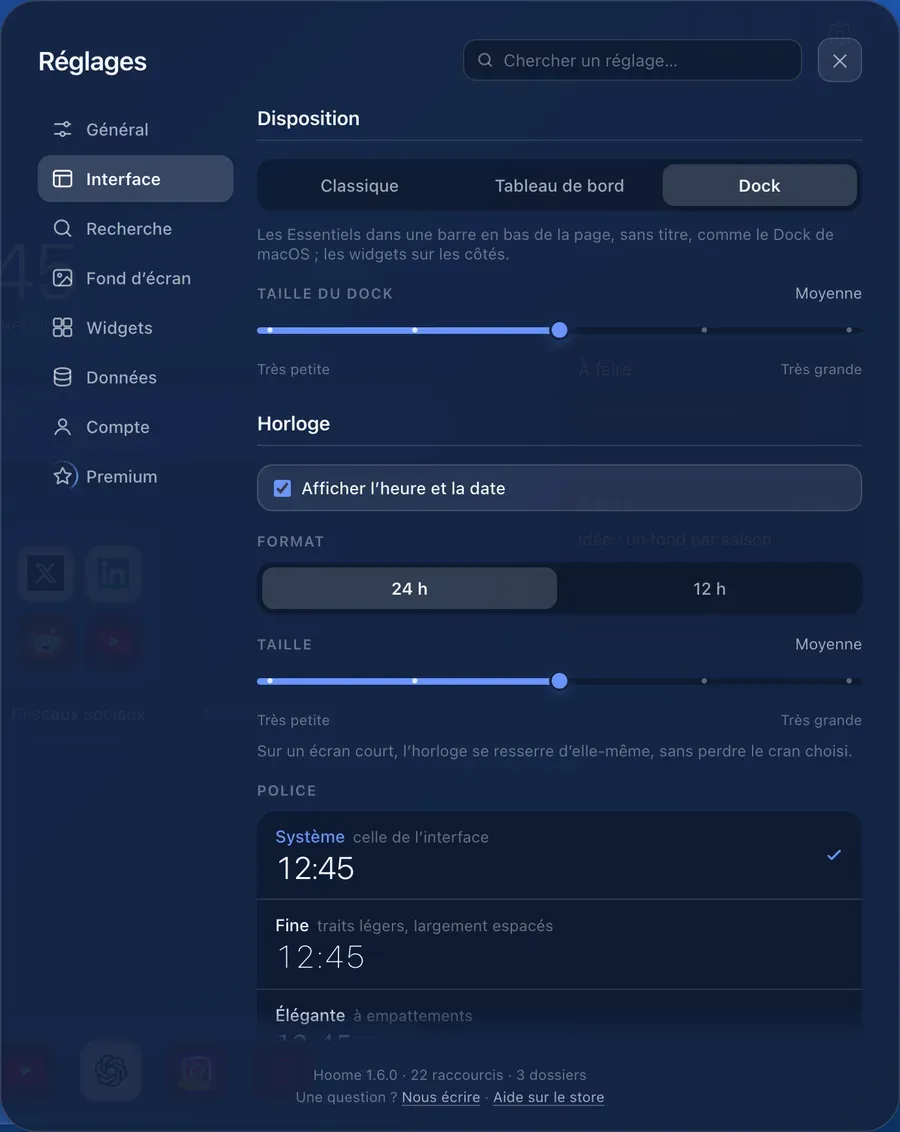
Every change applies to the page while you make it: you see the result before you close the panel.
The widgets
Three widgets are free: the weather, a to-do list and a notepad. Ten more come with Premium: today’s focus, the countdown, the world clocks, the timer, habits, the calendar, the sun and moon, the tides, the CPU and the memory.
They sit to the left or the right of your shortcuts, and move into a drawer when the screen is narrow. None of them makes a single request, apart from the weather and the tides, which send nothing but the coordinates of the place you chose.
The icons
Every shortcut keeps its site logo, or takes two coloured initials, or a picture of your own: right-click the icon, then Edit. For all of them at once, three sizes and three styles: logo tint, white background or no background.
The theme and the language
Light, dark, or Auto, which follows your system from morning to night. The page speaks five languages, English, French, Spanish, German and Portuguese, and starts in the one your browser uses.
The background
Thirteen gradients are free. With Premium, more than one hundred and thirty backgrounds drawn by code, most of them animated, and a picture of your own. Picking a light background switches the page to the light theme, so that everything stays readable.
In three steps
- Install Hoome from the Chrome Web Store: your next new tab opens on your page.
- On first launch, choose your folders, or import the ones from your bookmarks.
- Open the settings, the cog at the top right, for the layout, the background and the widgets.
Your shortcuts stay on your computer: no account is asked for, and there are no ads.