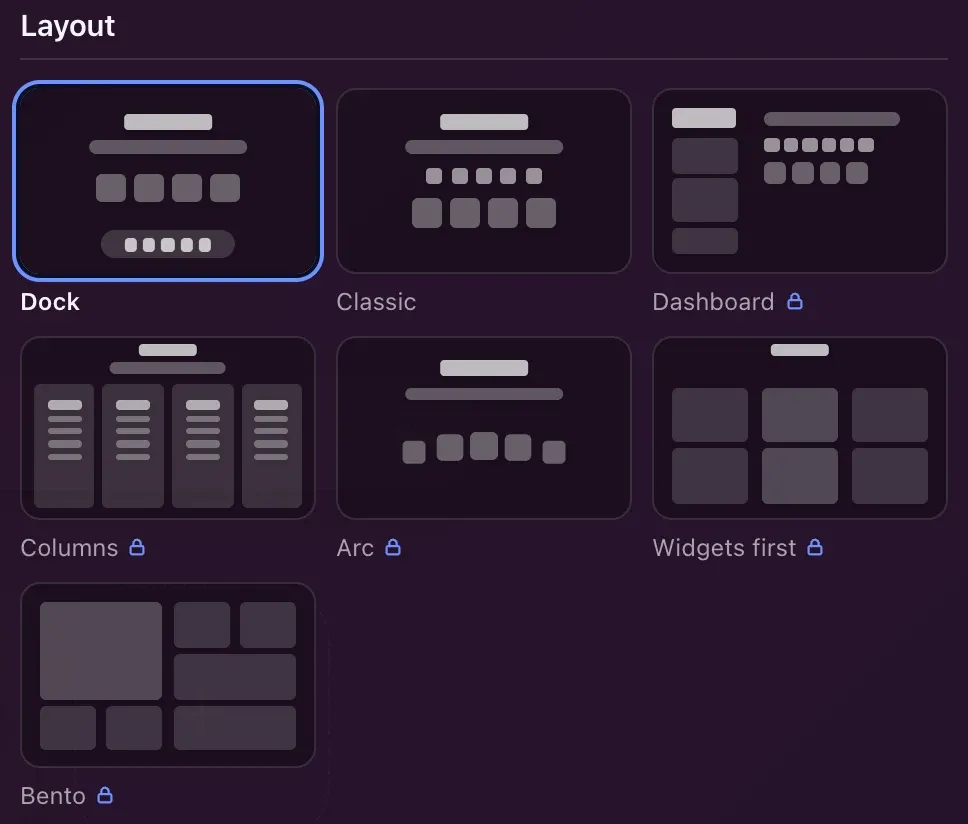
Choosing a layout for your new tab page means deciding what you see first. Hoome offers seven, two free and five with Premium, and you switch from one to another in a click without losing anything: your shortcuts, folders and widgets stay the same.
The Dock, chosen by default
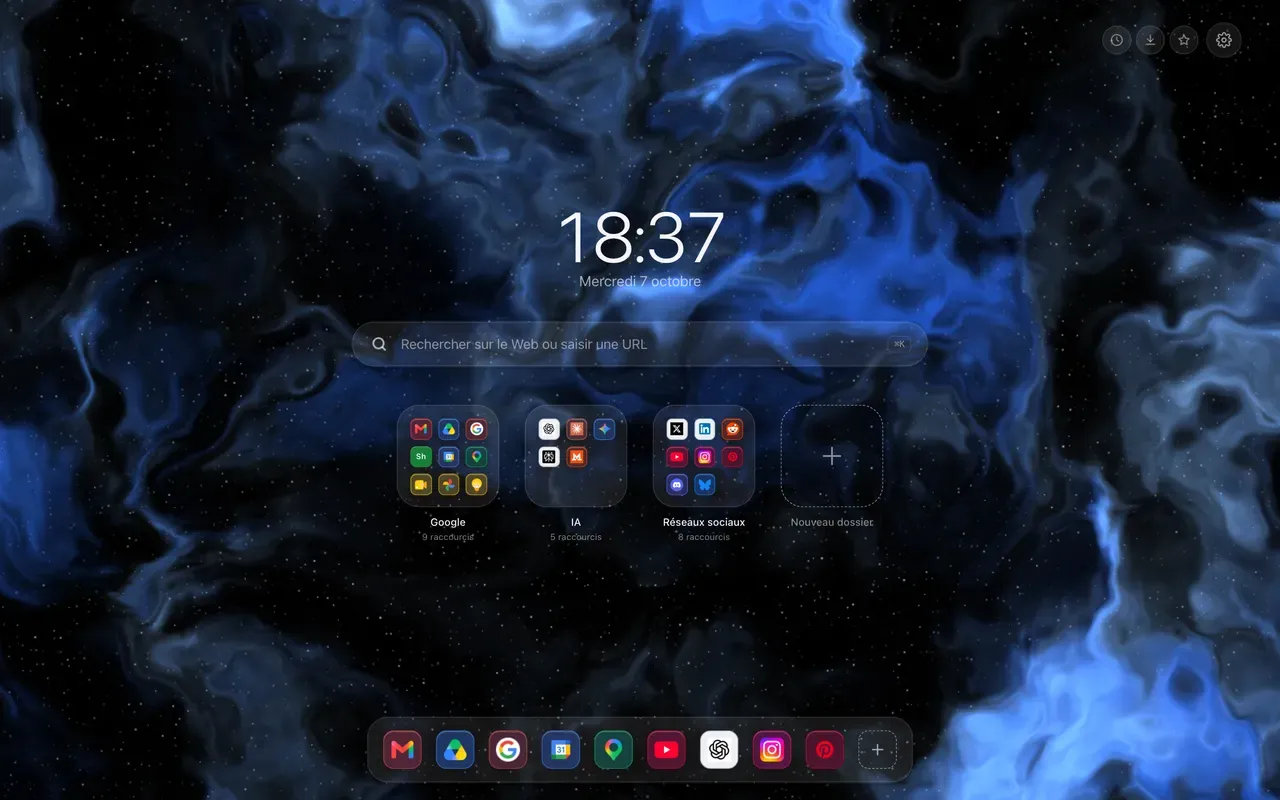
Your Essentials leave the centre and line up in a bar at the bottom of the screen, like on a Mac. The clock, the search bar and the folders keep the rest of the page.
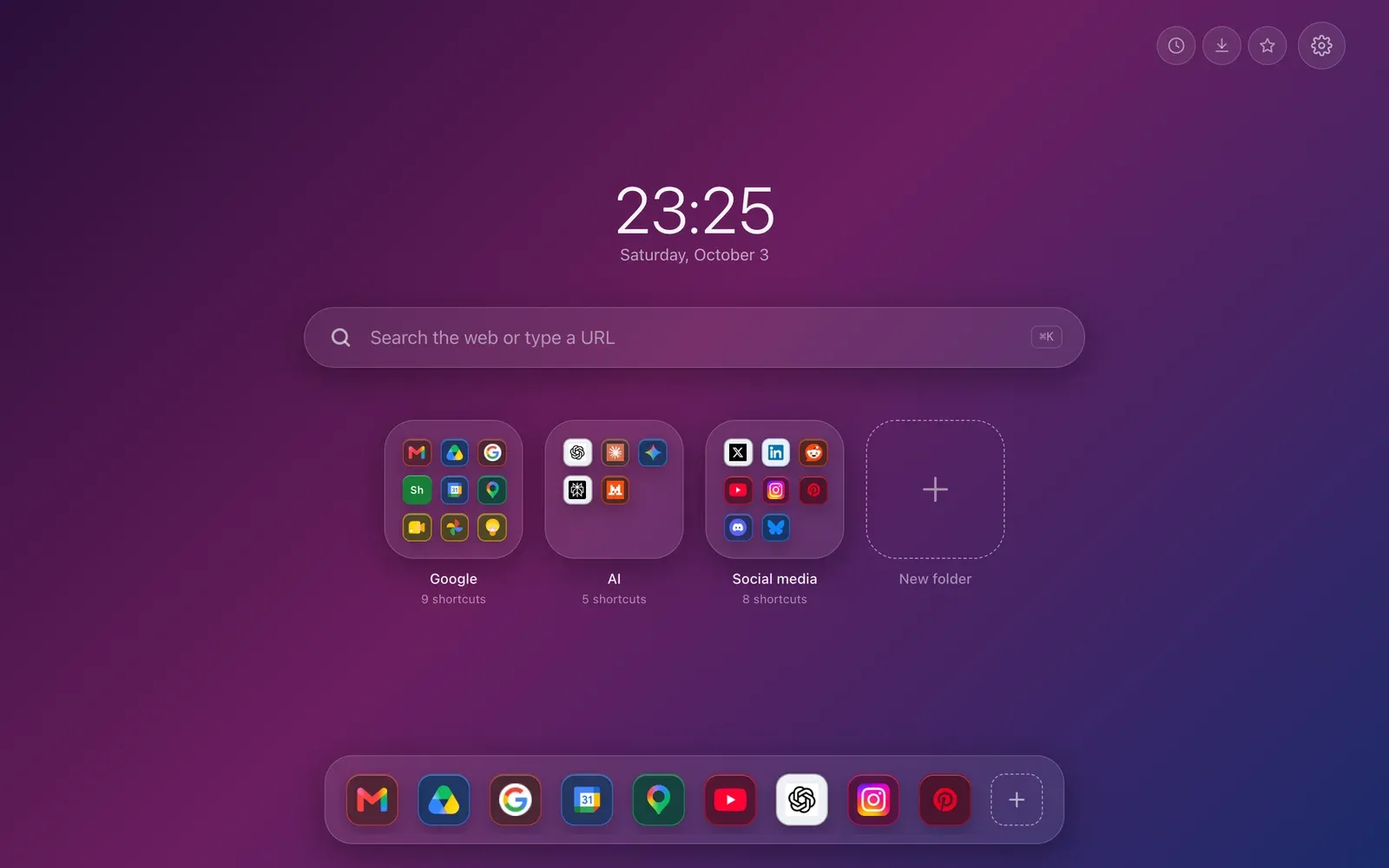
Dock icons have no name under them: it appears in a bubble when the mouse goes over them, or when the keyboard stops on one. The Dock comes in five sizes, from very small to very large, in the settings. It is the layout of a fresh install, and it is free.
Classic, everything in the centre
The clock, the search bar, the row of Essentials and the folders, stacked in the middle of the page. Widgets sit on the sides, left or right, and move into a drawer when the screen is narrow.
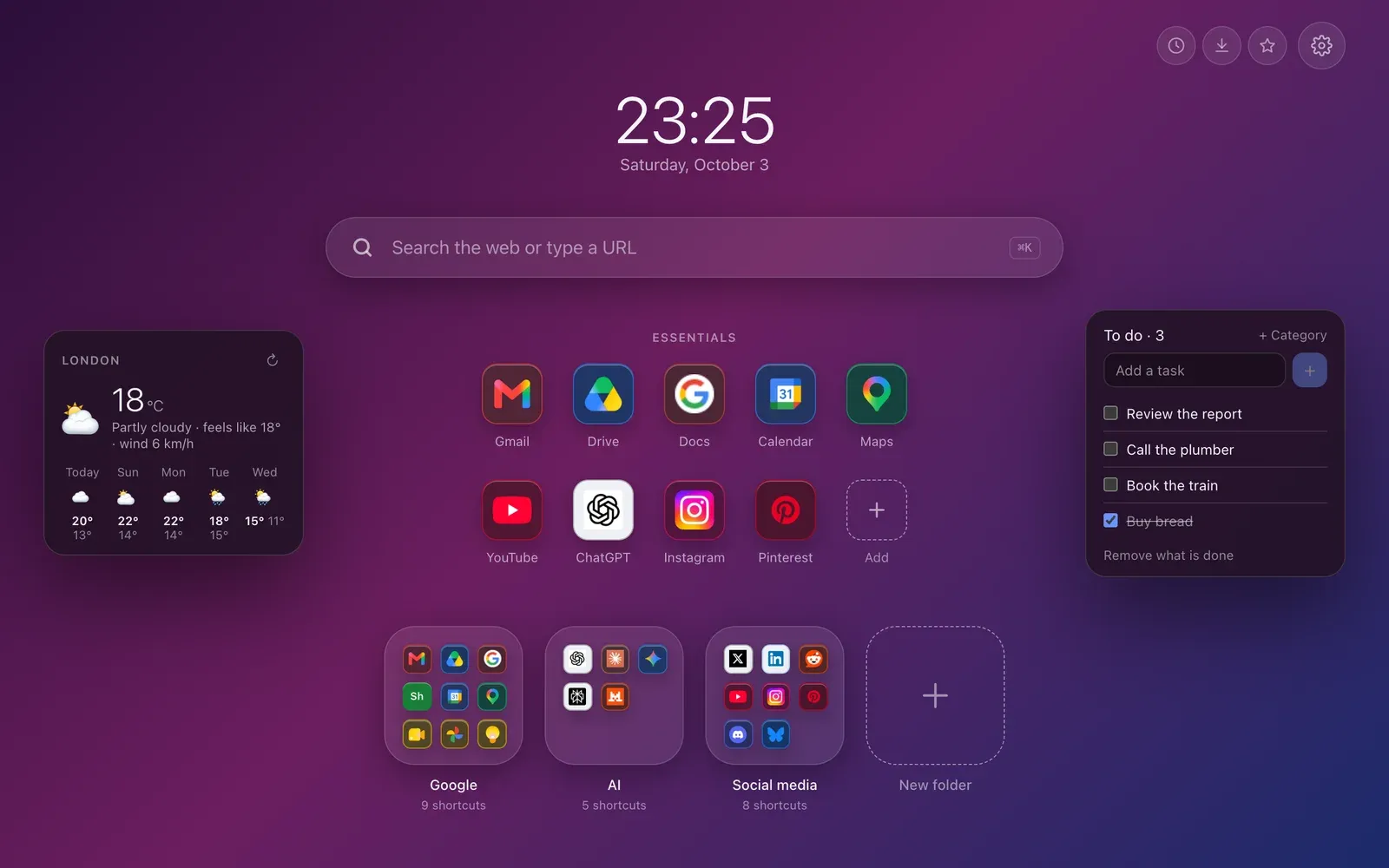
It is the easiest to read on a small laptop, and it is free too.
The Dashboard, and four more with Premium
The clock and the widgets line up in a column on the left, while the search bar, the Essentials and the folders take the right. On a large screen, everything fits in a single glance, with nothing overflowing.
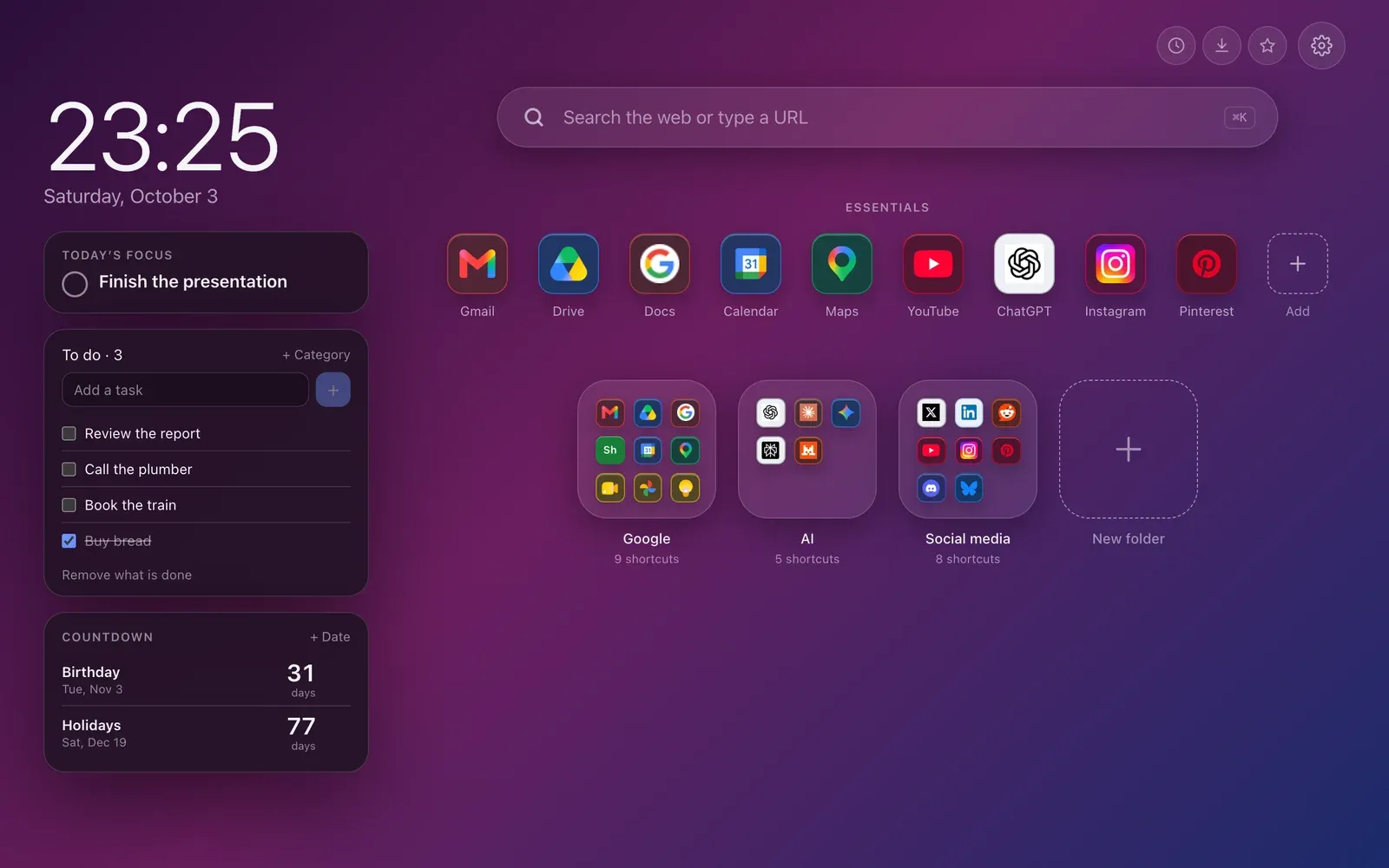
Four more layouts come with Premium. Columns turns each folder into a titled column you can read without opening it. Arc sets the folders on a curve under the clock, the centre a little higher. Widgets first gives the page to the widgets and folds the folders into small pills. Bento puts everything into a single grid of tiles whose size you choose.
Change your new tab layout
In the settings, the gear at the top right, Interface section, then Layout. The change applies to the page while the settings are open: try them, and keep the one that suits you. Premium layouts carry a small padlock.