To manage Chrome extensions, you only need one page, and few people ever open it: the extensions page. It shows everything that is installed, it is where you turn off whatever is slowing things down, and above all it tells you what each extension is allowed to do. This guide covers everything Chrome lets you do, from installing to tidying up, with its screens as they appear in English.
Where to manage Chrome extensions
Three routes lead to the list:
- the three-dot menu, at the top right, then Extensions and Manage extensions,
- the address
chrome://extensions, typed into the address bar, - the jigsaw piece icon, to the right of the address bar: it lists the extensions that are turned on, with a shortcut to the same page.
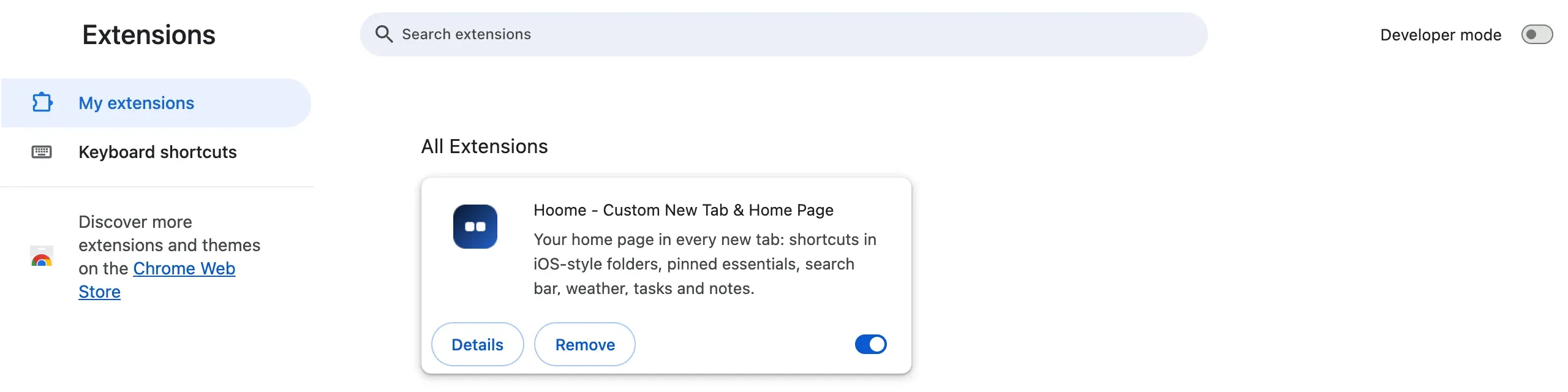
Each extension has its own card there: its name, its description, a Details button, a Remove button, and a switch to turn it on or off. The field at the top finds an extension by its name when the list gets long.
Add an extension
Extensions are installed from the Chrome Web Store, Google’s shop. On an extension’s page, the Add to Chrome button opens a window listing what it will be able to do, such as “Read and change all your data on all websites”. Read that list before clicking Add extension: Chrome will only show you such a list again of its own accord if an update asks for new permissions. It then turns the extension off until you accept them.
Before installing, also check on its page who publishes it, the date of its last update, and whether it has a privacy policy. To help you choose, our selection of the best Chrome extensions sorts them by use, with what you need to know before installing them.
Pin an extension to the toolbar
In recent versions of Chrome, a newly installed extension pins itself to the toolbar, thanks to the Pin new extensions to Toolbar setting on the extensions page, which is on by default. If that setting is off, or if your Chrome does not have it yet, the extension goes into the jigsaw piece menu. To pin it yourself:
- click the jigsaw piece icon,
- click the pin next to the extension: its icon joins the toolbar.
The same setting exists on the extension’s details page, under the name Pin to toolbar. To take it off again, right-click its icon and choose Unpin from Toolbar. You change the order of the pinned icons by dragging them.
Read what an extension is allowed to do
A card’s Details button opens the most useful page of all: what the extension can do, and the settings to limit it. Here is the one for Hoome, our new tab extension.
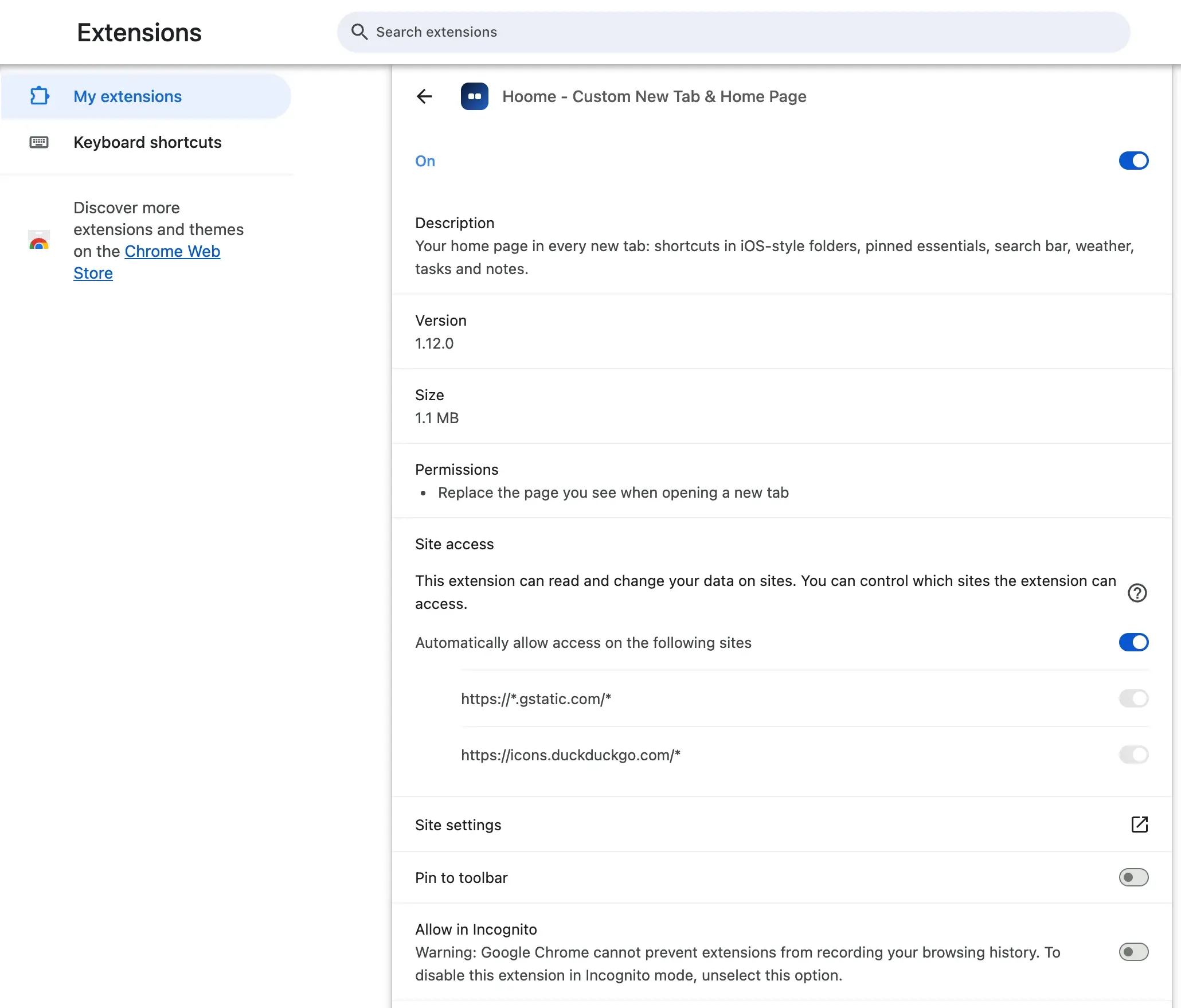
From top to bottom, you will find:
- Permissions: what the extension can do that Chrome thinks you should know about, written in plain language. Permissions it considers harmless, such as storing its own data, are not listed. For Hoome, a single line after installation: it replaces the new tab page. A line is added if you allow it to read your bookmarks to import them, or to show a notification when the timer ends,
- Site access: the sites whose pages the extension can read and change. Hoome has only two:
*.gstatic.com, the Google domain that hosts its icon service, andicons.duckduckgo.com. It downloads the logos of your shortcuts from them, then keeps them on your computer. When an extension asks for “all sites”, it is worth asking why, - Pin to toolbar, covered above,
- Allow in Incognito: off by default. Chrome warns that it cannot prevent an extension from recording your browsing history: only turn it on for an extension you trust.
Limit an extension’s access to sites
For an extension that asks to read every site, the Site access section offers three settings:
- Ask on every visit: the extension does nothing until you have allowed it on the site that is open,
- On specific sites: you draw up the list of sites where it is allowed to act,
- On all sites: the default setting for extensions that ask for it.
This is the most useful setting for a spell checker or a password manager: the extension keeps working where you need it, without reading everything else.
Turn off or remove an extension
Turning off an extension, with its switch, puts it on pause: it no longer runs, but it keeps its settings and its data, and comes back exactly as it was when you turn it on again. This is the right way to find the one that is slowing Chrome down or opening tabs by itself: turn them all off, then turn them back on one at a time. Our guide on Chrome opening new tabs by itself explains this method in detail.
Removing an extension, with the Remove button on its card or by right-clicking its icon and choosing Remove from Chrome, deletes it along with its data. If the extension holds things of yours, such as shortcuts, notes or passwords, export them first: a removal cannot be undone.
Give an extension a keyboard shortcut
The chrome://extensions/shortcuts page, or the Keyboard shortcuts link on the left of the extensions page, lets you assign a key combination to each extension’s actions. Our list of Chrome keyboard shortcuts explains how, and gives all the others.
Developer mode
The Developer mode switch, at the top right, adds buttons for loading an extension from a folder on your computer, with Load unpacked. It is meant for developers testing their own extension. If a person or a website asks you to turn it on to install an extension from outside the Chrome Web Store, be wary: it is a common way to install an extension that Google has not reviewed.
Tidy up regularly
Every extension adds a little work for Chrome and gives one more piece of software access to your pages. Once a quarter, open the extensions page and ask yourself three questions about each one:
- do you still use it?
- does it need every site, or just one?
- is its publisher still the same? An extension can be bought, and change its behaviour with its new owner.
Chrome helps too: the Safety Check section of its settings, under Privacy and security, flags, among other things, extensions that have been taken down from the Chrome Web Store.
Common questions
Where are extensions in Chrome? Behind the jigsaw piece icon, to the right of the address bar, and on the chrome://extensions page, which the three-dot menu also opens through Extensions, then Manage extensions.
Why has an extension disappeared from the toolbar? It is probably no longer pinned: it is still in the jigsaw piece menu, where the pin puts it back in place. If it is not there either, check on the extensions page that it is still turned on.
Do extensions work in Chrome for Android or iPhone? No, Chrome only accepts them on a computer. Our guide to Chrome extensions on Android and iPhone explains what works instead.
Does turning off an extension delete its data? No: it keeps its settings and whatever it has saved. Only removing it deletes them.
In short
- The list:
chrome://extensions, or the three-dot menu, then Extensions and Manage extensions, - keeping an extension within reach: the pin in the jigsaw piece menu,
- knowing what it can do: the Details button, then Permissions and Site access,
- pausing it: its switch; parting with it: Remove, after exporting what matters.