Close a tab, bring back the one you just closed by mistake, jump from tab to tab without taking your hands off the keyboard: Chrome has a shortcut for almost everything, and most of them only take two keys. Here is the complete list, sorted by what you want to do, for Windows and for Mac, based on Google’s official help page.
On Windows and Linux, shortcuts use the Ctrl key. On a Mac, they use the ⌘ (Command) key, sometimes with Option (⌥). When a shortcut does not work, it is often because another app or an extension has taken it over.
The ten worth knowing
If you only remember these, you will already save time every day.
| Action | Windows and Linux | Mac |
|---|---|---|
| Open a new tab | Ctrl + T |
⌘ + T |
| Close the tab | Ctrl + W |
⌘ + W |
| Reopen the closed tab | Ctrl + Shift + T |
⌘ + Shift + T |
| Next tab | Ctrl + Tab |
⌘ + Option + → |
| Previous tab | Ctrl + Shift + Tab |
⌘ + Option + ← |
| Previous page | Alt + ← |
⌘ + [ |
| Find on the page | Ctrl + F |
⌘ + F |
| Go to the address bar | Ctrl + L |
⌘ + L |
| Bookmark the page | Ctrl + D |
⌘ + D |
| Incognito window | Ctrl + Shift + N |
⌘ + Shift + N |
The most useful of all is probably Reopen the closed tab: it brings back the last tab you closed, then the one before, as many times as you press it, and a whole window if a window is what you closed.
Tabs and windows
| Action | Windows and Linux | Mac |
|---|---|---|
| Open a new window | Ctrl + N |
⌘ + N |
| Go to tab 1 to 8 | Ctrl + 1 to Ctrl + 8 |
⌘ + 1 to ⌘ + 8 |
| Go to the last tab | Ctrl + 9 |
⌘ + 9 |
| Next tab, alternative keys | Ctrl + PgDn |
|
| Previous tab, alternative keys | Ctrl + PgUp |
|
| Close the window | Ctrl + Shift + W |
⌘ + Shift + W |
| Minimise the window | Alt + Space, then Minimize |
⌘ + M |
With the mouse, two gestures are as good as a shortcut: Ctrl + click on a link (⌘ + click on a Mac) opens it in a new tab in the background, and Shift + click opens it in a new window. Clicking the scroll wheel does the same as Ctrl + click.
Moving around a page
| Action | Windows and Linux | Mac |
|---|---|---|
| Previous page | Alt + ← |
⌘ + [ or ⌘ + ← |
| Next page | Alt + → |
⌘ + ] or ⌘ + → |
| Reload | F5 or Ctrl + R |
⌘ + R |
| Reload without the cache | Shift + F5 or Ctrl + Shift + R |
⌘ + Shift + R |
| Scroll down one screen | Space |
Space |
| Scroll up one screen | Shift + Space |
Shift + Space |
| Zoom in | Ctrl and + |
⌘ and + |
| Zoom out | Ctrl and - |
⌘ and - |
| Reset to normal size | Ctrl + 0 |
⌘ + 0 |
| Full screen | F11 |
Fn + F or ⌘ + Ctrl + F |
Ctrl + P |
⌘ + P |
|
| Save the page | Ctrl + S |
⌘ + S |
Reload without the cache is the answer when a site seems to show you an old version of itself: Chrome reloads everything, without reusing what it had stored.
Bookmarks, history and downloads
| Action | Windows and Linux | Mac |
|---|---|---|
| Bookmark the page | Ctrl + D |
⌘ + D |
| Show or hide the bookmarks bar | Ctrl + Shift + B |
⌘ + Shift + B |
| Open the bookmark manager | Ctrl + Shift + O |
⌘ + Option + B |
| Open your history | Ctrl + H |
⌘ + Y |
| Open your downloads | Ctrl + J |
⌘ + Shift + J |
| Clear browsing data | Ctrl + Shift + Delete |
⌘ + Shift + ⌫ |
Tools
| Action | Windows and Linux | Mac |
|---|---|---|
| Chrome’s task manager | Shift + Esc |
from the More tools menu |
| Developer tools | Ctrl + Shift + J or F12 |
⌘ + Option + I |
Chrome’s task manager is little known but invaluable: it shows what each tab and each extension is using, and lets you stop the one that is slowing your computer down.
Give an extension a shortcut
Extensions can have their own shortcuts, and you choose them yourself. Type chrome://extensions/shortcuts into the address bar, or open the extensions page and then Keyboard shortcuts in the menu on the left: each extension lists its actions there, and clicking the pencil lets you assign them a key combination.
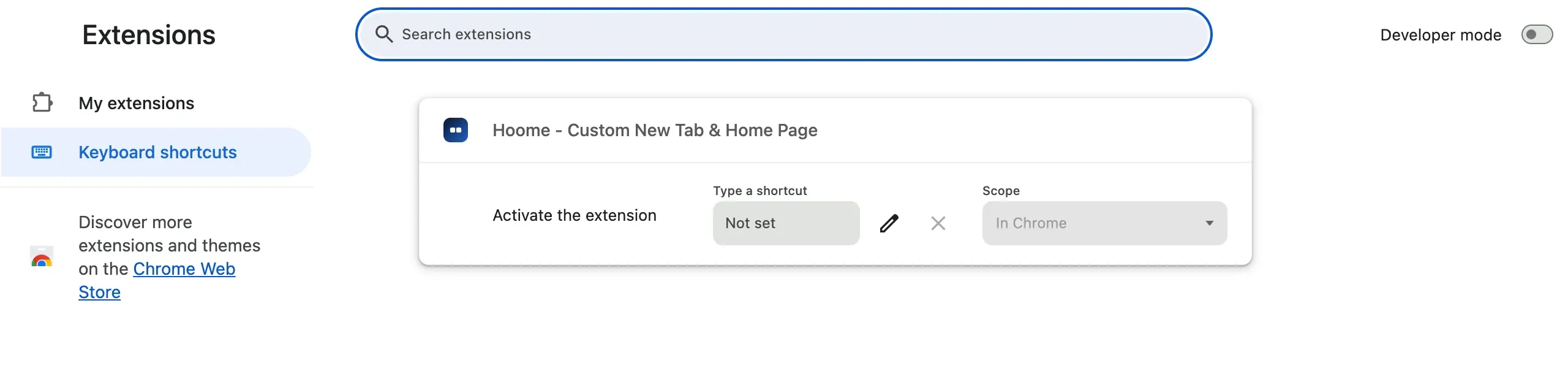
The Scope decides whether the shortcut works only in Chrome, or anywhere on your computer, even when Chrome is not in the foreground. Choose a combination that Chrome or another extension is not already using. To find out which extensions are worth installing, our selection of the best Chrome extensions sorts them by use.
Your new tab’s own shortcuts
A new tab page can have shortcuts of its own. Hoome, our extension, can be driven entirely from the keyboard: as soon as the tab opens, you type a few letters and the search bar finds the site among your shortcuts. Enter opens it, and the arrow keys move from one result to the next.
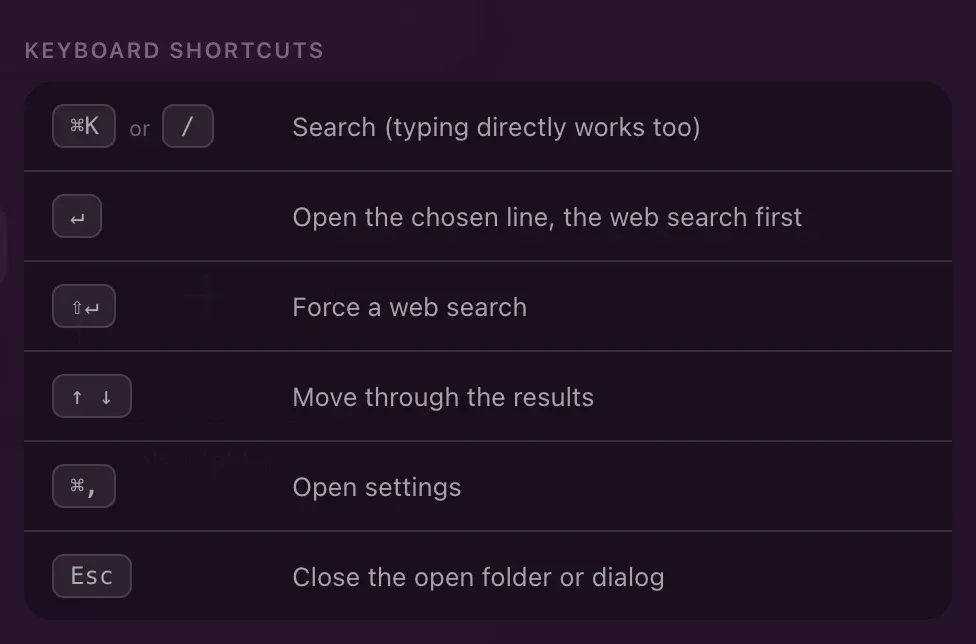
| Action in Hoome | Windows and Linux | Mac |
|---|---|---|
| Search (typing directly works too) | Ctrl + K or / |
⌘ + K or / |
| Open the chosen line | Enter |
Enter |
| Force a web search | Shift + Enter |
Shift + Enter |
| Move through the results | ↑ and ↓ |
↑ and ↓ |
| Open settings | Ctrl + , |
⌘ + , |
| Close the open folder or dialog | Esc |
Esc |
It is the fastest way to open a site you have not pinned: Ctrl + T, three letters, Enter. No mouse, and you never type the full address.
Common questions
Why has a shortcut stopped working? Most of the time, an extension or another app has claimed it. Check the chrome://extensions/shortcuts page, then your system’s own shortcuts.
Are the shortcuts the same on a Chromebook? For the most part, yes: they are the Windows ones, with the Ctrl key.
Keep this page handy for a week: the shortcuts you really use become second nature within a few days, and you can look up the rest here.