To reopen a closed tab in Chrome, one shortcut is all you need: Ctrl + Shift + T on Windows, ⌘ + Shift + T on a Mac. But the shortcut is not always enough: when you need one particular tab among the last ones you closed, when the tab was closed yesterday, or when the tabs were never actually closed at all. This guide takes each case in turn, from the simplest to the trickiest, with Chrome’s interface as it appears in English.
Reopen a closed tab in Chrome: the shortcut
| System | Shortcut |
|---|---|
| Windows, Linux and Chromebook | Ctrl + Shift + T |
| Mac | ⌘ + Shift + T |
The shortcut first reopens the last tab you closed, then, if you press it again, the one before, and so on. The tab goes back to its place in the tab bar, with its own history: the Back button works just as it did before you closed it.
If the last thing you closed was a whole window, the same shortcut reopens the window with all its tabs. And if it was a tab group, the group comes back, with its name and its colour.
Without the keyboard, two routes lead to the same place:
- right-click an empty space in the tab bar, then Reopen Closed Tab (or Reopen Closed Window, or Reopen Closed Group, depending on what you closed last),
- on a Mac, the File menu, at the top of the screen, then Reopen Closed Tab.
This is one of the shortcuts worth knowing by heart. The others are sorted by task in our complete list of Chrome keyboard shortcuts.
Choose which tab to reopen: recently closed tabs
The shortcut works backwards in order, one tab at a time. To go straight to the tab you closed ten minutes ago, without reopening everything closed since, Chrome keeps a list.
From the menu. Click the three dots at the top right of Chrome, then History. The submenu shows a Recently Closed section: each line is a tab, a window (“4 Tabs”, for example) or a group. One click reopens a tab. A window or a group opens a submenu, where Restore Window (or Restore Group) reopens the lot, and where each tab can also be reopened on its own. On a Mac, the same list is also in the History menu of the menu bar.
From tab search. This is the quickest route, and the least well known. Press Ctrl + Shift + A (⌘ + Shift + A on a Mac), or click the small arrow-shaped button at the edge of the tab bar. A window opens with two lists: your Open Tabs, across all your windows, and your Recently Closed tabs.
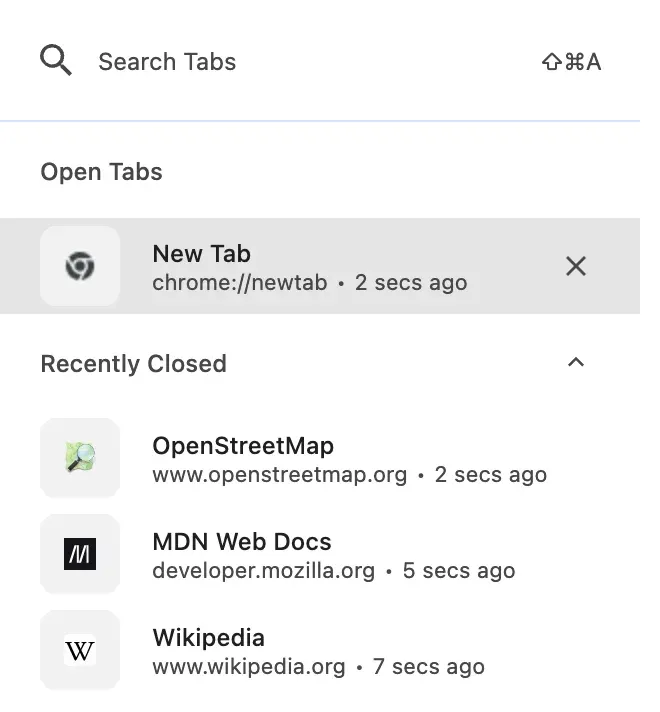
The field at the top searches both lists at once: type three letters of the title or the site name, and the tab appears, open or closed. Enter opens it. Each recently closed tab also shows how long ago it was closed, which helps when several tabs have the same name.
Find a tab you closed long ago: your history
The lists above only keep the most recent closures. For a tab closed yesterday, last week, or lost among fifty others, it is your history you need to open.
| System | Open your history |
|---|---|
| Windows, Linux and Chromebook | Ctrl + H |
| Mac | ⌘ + Y |
You can also type chrome://history in the address bar, or go through the three dots, History, then History again.
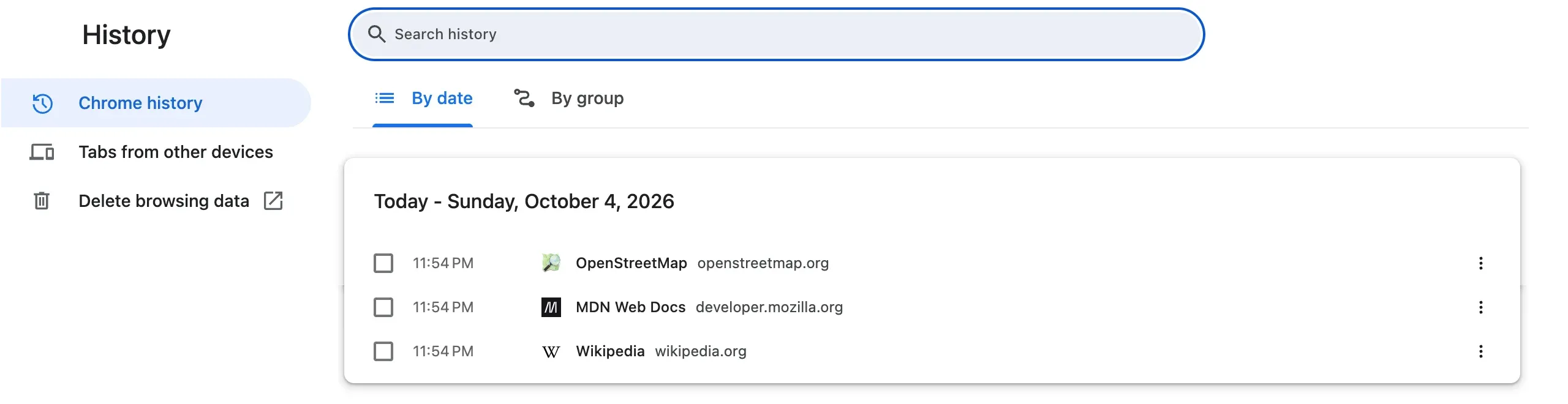
Three ways to find what you are looking for:
- the “Search history” field, at the top: a word from the title or part of the address is enough,
- the “By group” tab, which sorts visits by topic rather than by time, handy for finding research you did across several sites,
- “Tabs from other devices”, on the left, which lists the tabs open on your phone or another computer, as long as Chrome sync is turned on there with the same account.
Chrome keeps your history for ninety days. After that, the page disappears from Chrome’s history. It may still be in your Google Account, at myactivity.google.com, if you are signed in to Chrome with your history synced and the “Include Chrome history and activity from sites, apps, and devices that use Google services” box is ticked in Web & App Activity. Otherwise, only a bookmark will get you back to it.
After closing Chrome or a crash
You closed Chrome completely. Open it again, then press Ctrl + Shift + T (⌘ + Shift + T on a Mac): Chrome reopens the last window you closed, with all its tabs. The window also appears under History, in Recently Closed, as “12 Tabs” for example.
Chrome crashed, or the computer shut down. When you start it again, Chrome shows a message, “Chrome didn’t shut down correctly”, with a Restore button. One click, and your windows come back. If the message went away too quickly, the shortcut and the recently closed list still work.
So you never have to think about it again, ask Chrome to reopen your previous session every time it starts. Open the settings (the three dots, then Settings), go to On startup, and choose Continue where you left off. The direct address is chrome://settings/onStartup.
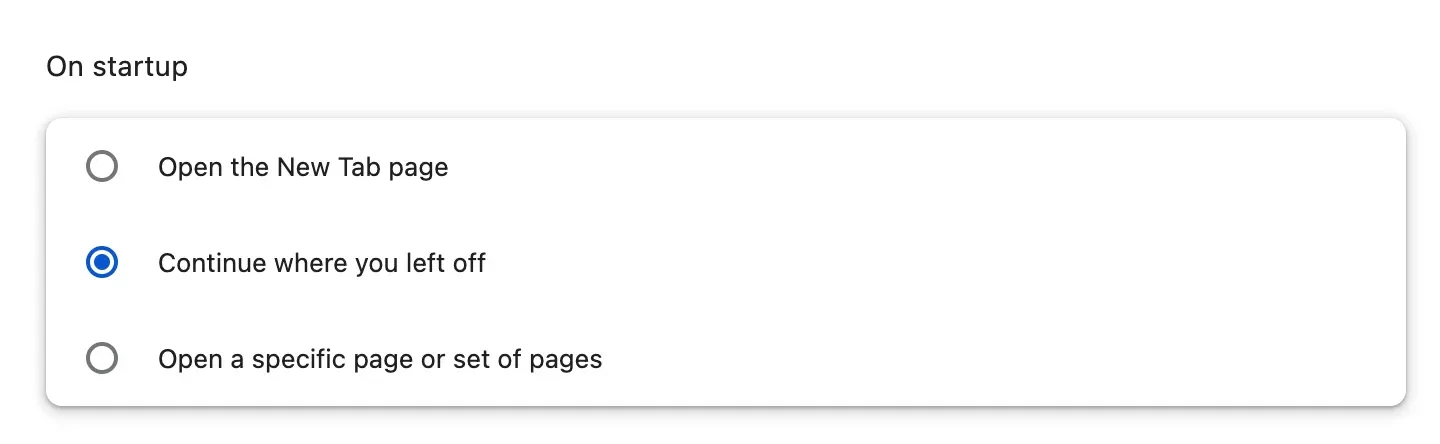
Chrome then reopens all your windows and all your tabs every time it starts, just as you left them. The downside: a heavy session slows down startup, and tabs you opened by mistake come back too.
Missing tabs that are not actually closed
Sometimes no tab was closed at all: it is simply out of sight. Before digging through your history, check these five causes.
Another window. A minimised window, one hidden behind another, or one open on another virtual desktop in macOS or Windows. Tab search (Ctrl + Shift + A) lists the tabs in every window: type the name of the site, and Chrome takes you there.
A collapsed tab group. Clicking a group’s name collapses it, and its tabs vanish from the tab bar. Click the name again, in colour in the tab bar, to bring them back.
A closed tab group. Chrome saves tab groups: closing a group does not delete it. You will find it in the three-dot menu, under Tab Groups. It can also appear in the bookmarks bar, if the option that shows groups there is turned on in Settings, Appearance.
Another profile. Each Chrome profile has its own windows and its own history. If the tabs were open in your work profile, they will not appear in your personal profile. The round icon at the top right of Chrome lets you switch from one to the other.
Incognito mode. An Incognito window leaves nothing behind: that is its job. Once the last Incognito window is closed, its tabs appear neither in your history nor in the recently closed list, and there is no way to get them back.
Finally, a tab that looks blank or reloads when you click it has not been lost: that is Chrome’s Memory Saver (Settings, Performance), which puts inactive tabs to sleep to free up memory. The tab stays where it is, and the page simply reloads when you click it.
Stop losing your tabs
Finding them is easy. Not depending on your open tabs is even easier.
Bookmark all your tabs at once. Right-click an empty space in the tab bar, then Bookmark All Tabs…, or press Ctrl + Shift + D (⌘ + Shift + D on a Mac). Chrome creates a bookmark folder containing every tab in the window. You can then close the window without a worry: everything is in the folder. To keep these folders from turning into a mess, our guide to organising your Chrome bookmarks into folders gives you the method.
Name your tab groups. Chrome saves every group, which reopens in full, even days later, and a name lets you recognise it at a glance in the Tab Groups menu. It is the right answer for a project in progress.
Keep your everyday sites on the new tab page. Lots of tabs stay open “just in case”, because you do not want to have to find the site again. Putting those sites one click away solves the problem at the source. That is what Hoome, our new tab extension, does: your sites organised into folders, on every new tab. And right-clicking a folder offers Open the 9 shortcuts (the number matches the folder’s): every site in the folder opens at once, each in its own tab. For more than five, Hoome asks you to confirm first.
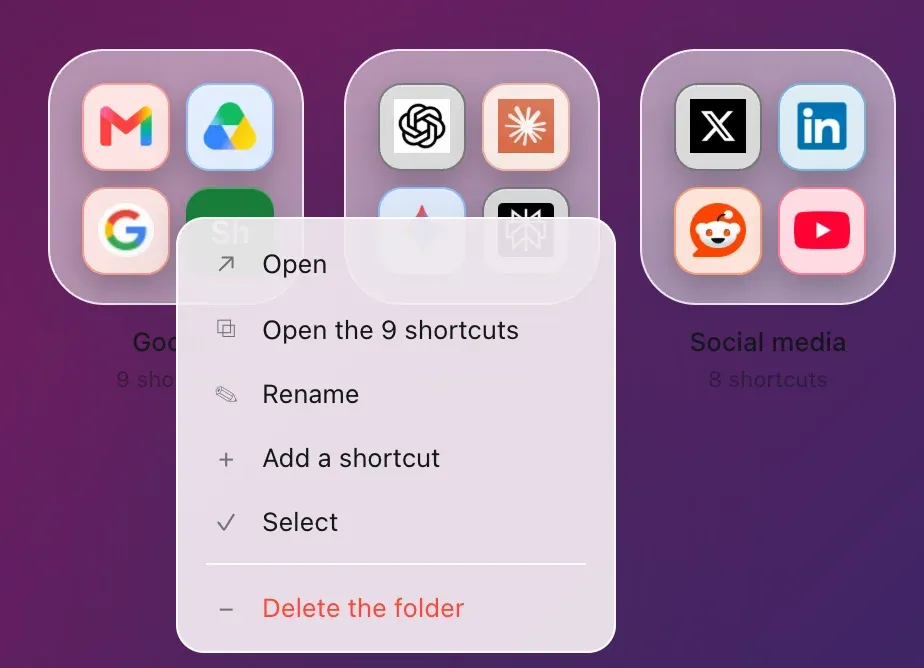
A “Work” folder can then replace the twelve-tab window you no longer dare to close: you close it in the evening, and the next day, a right-click on the folder, Open the 12 shortcuts and a confirmation bring back its twelve sites, each in its own tab. The free version of Hoome, with no account, goes up to five folders and a hundred shortcuts, and your shortcuts stay on your computer. For everything else, our introduction to Hoome gives you the full tour. Other extensions look after the tabs themselves, by putting them aside or sorting them: our pick of the best Chrome extensions includes some, grouped by use.
Common questions
How many closed tabs does Chrome remember? Chrome remembers the last twenty-five closures, with a tab, a window or a group each counting as one: the shortcut can go back that far. The History menu only shows the last eight. To go back further, your history keeps every page you visit for ninety days.
Why does Ctrl + Shift + T do nothing? Most of the time, there is nothing to reopen: a brand-new profile, or an Incognito window, where Chrome remembers no closed tabs. Also check that you are holding down Shift: Ctrl + T on its own opens a new tab. On a Mac, the shortcut is ⌘ + Shift + T, and Ctrl + Shift + T does nothing there.
Can you get a closed tab back on Android or iPhone? Yes. In Chrome for Android, the three-dot menu offers Recent tabs, which lists recently closed tabs and those from your other devices. On Android, right after you close a tab, a button to undo it also appears for a few seconds at the bottom of the screen. On iPhone, the list of recent tabs opens from Chrome’s menu.
Does a reopened tab bring back what I typed into a form? Not always. Chrome reopens the page and its history, but text you were in the middle of typing can be lost, depending on the site. For a long message, it is safer to write it somewhere else before sending it.
In short
- A tab closed a moment ago:
Ctrl + Shift + T, or⌘ + Shift + Ton a Mac, as many times as you need, - a specific tab among the last ones closed:
Ctrl + Shift + A, or⌘ + Shift + Aon a Mac, or the History menu, - a tab from yesterday or earlier: your history,
Ctrl + Hor⌘ + Y, - after closing Chrome: the same shortcut, or the Restore button after a crash, then Continue where you left off for next time,
- to stop losing anything: bookmarks, named groups, and your everyday sites on your new tab page.