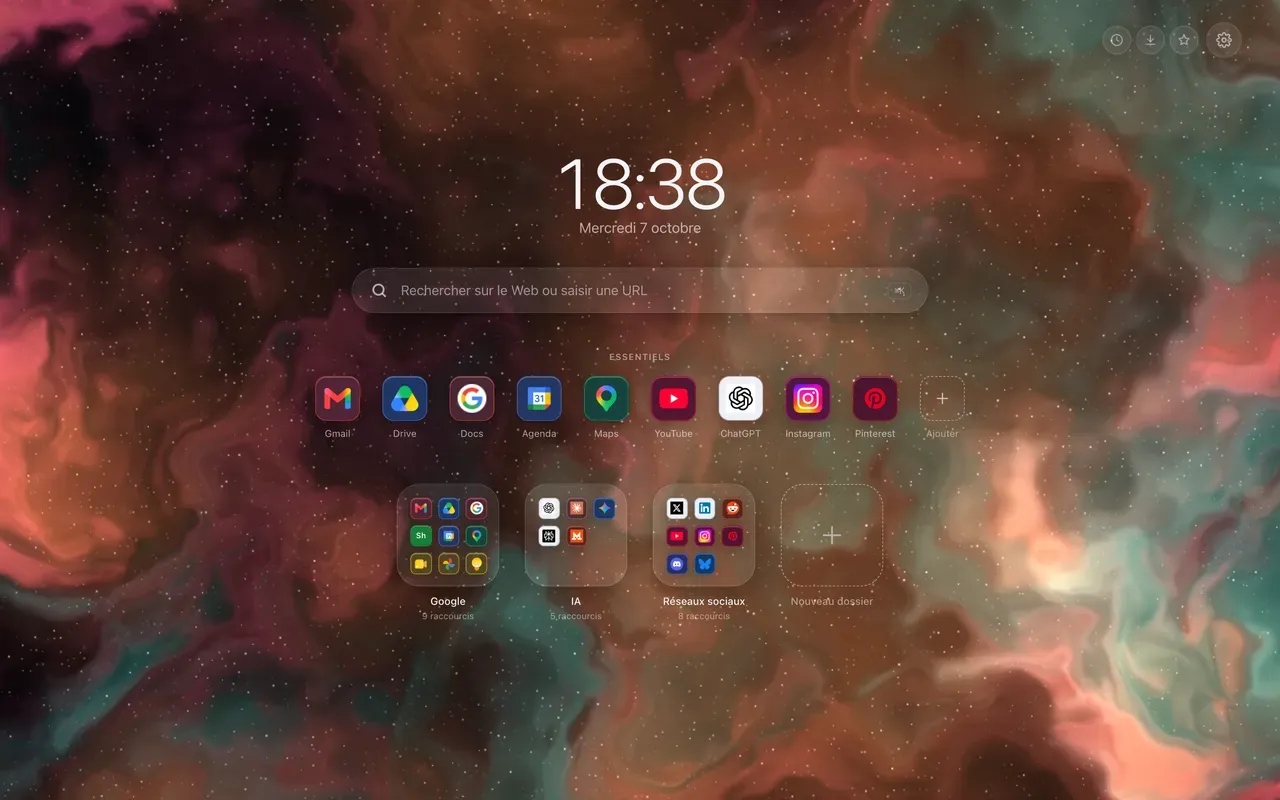
Adding shortcuts to the Chrome new tab page usually takes a full address, a name, sometimes an icon to find. For the sites everyone uses, that work is already done.
A right-click on an empty part of the page
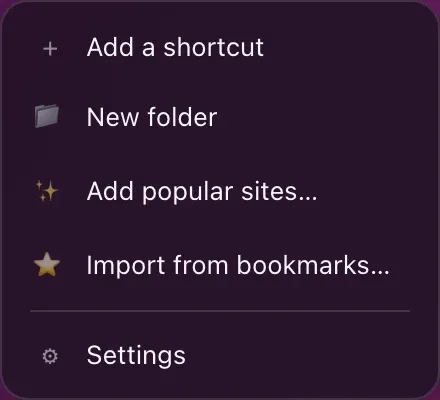
A right-click anywhere on the background opens a short menu: add a shortcut, create a folder, add popular sites, import from bookmarks, open the settings.
Tick the sites, then add the shortcuts
Add popular sites opens a catalogue sorted into eleven families: Google, artificial intelligence, entertainment, social media, and seven more, from shopping to tools. Each site arrives with its name and its icon.
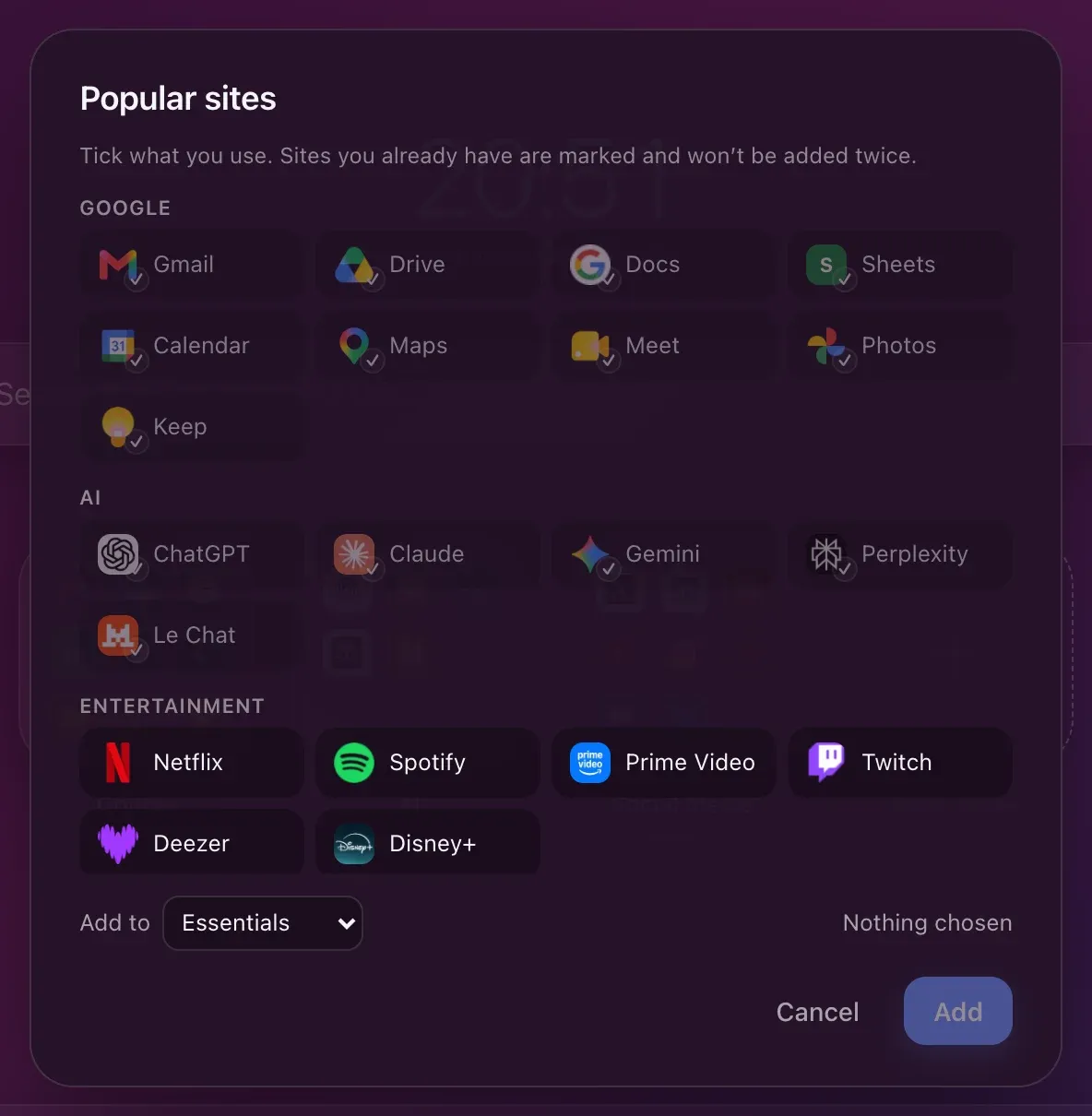
Two details save you tidying up afterwards: the sites you already have are marked and will not be added twice, and you choose at the bottom where everything lands, in the Essentials or in a folder.
The sites of your country
The families that depend on the country, shopping, news, travel, jobs and investing, change with the language of the interface. In English, you find English-language sites; in German, German ones. Nobody wants a shortcut to a marketplace that does not deliver to them.
The rest is filled in by hand, with Add a shortcut: an address is enough, Hoome fetches the name and the icon. Your Chrome bookmarks can also come over in one go, sorted into folders, and everything is then rearranged with the mouse.