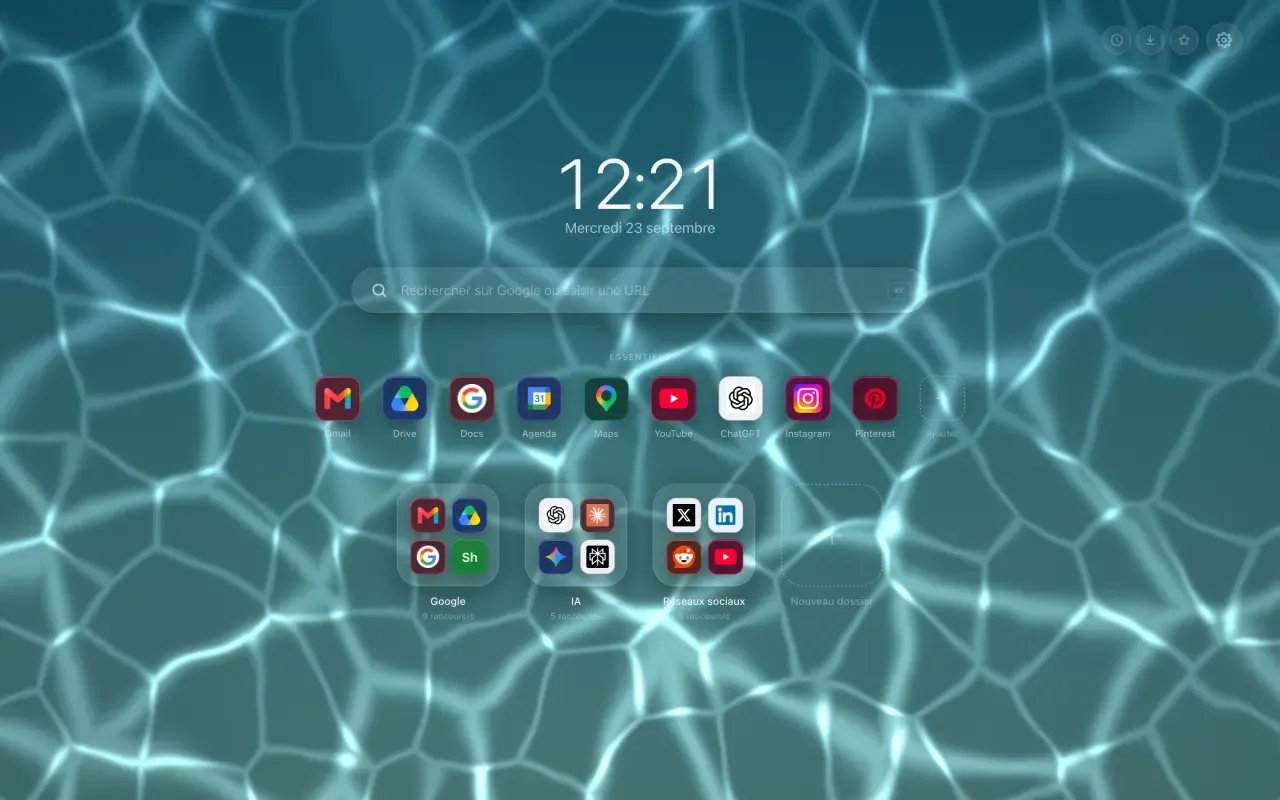
Moving the shortcuts on your Chrome new tab should work like on a phone: you pick up an icon and put it down somewhere else. In Hoome, that is exactly the gesture, and it works for shortcuts and folders alike.
Change the order of your new tab shortcuts
Grab a tile and move it. As soon as you pass the middle of its neighbour, the neighbour moves aside: the page always shows where the tile will land, so you never have to guess.
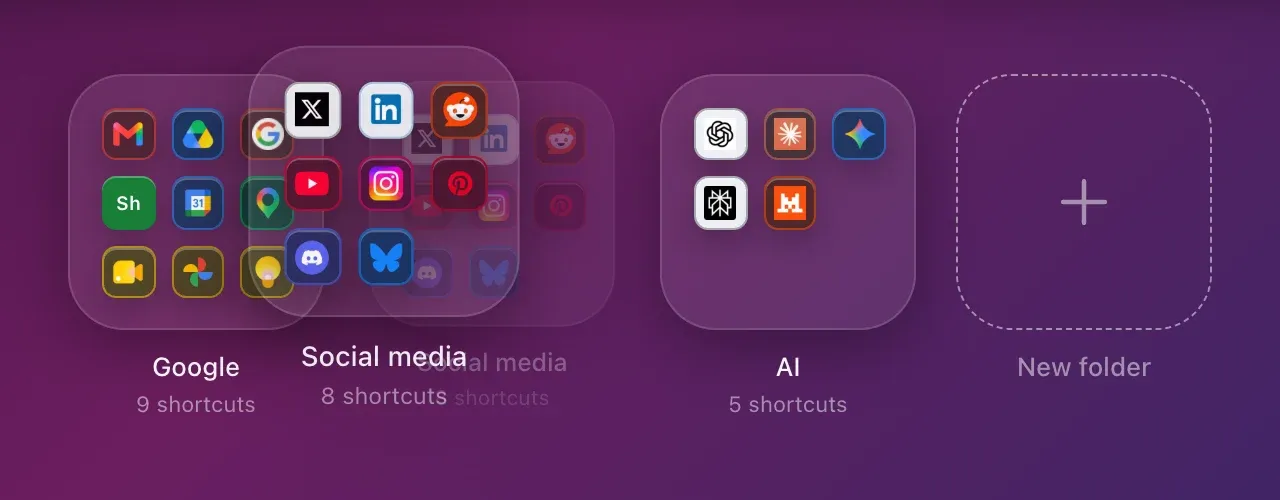
It also works in the Essentials, and for the shortcuts inside an open folder.
Take a shortcut out of its folder
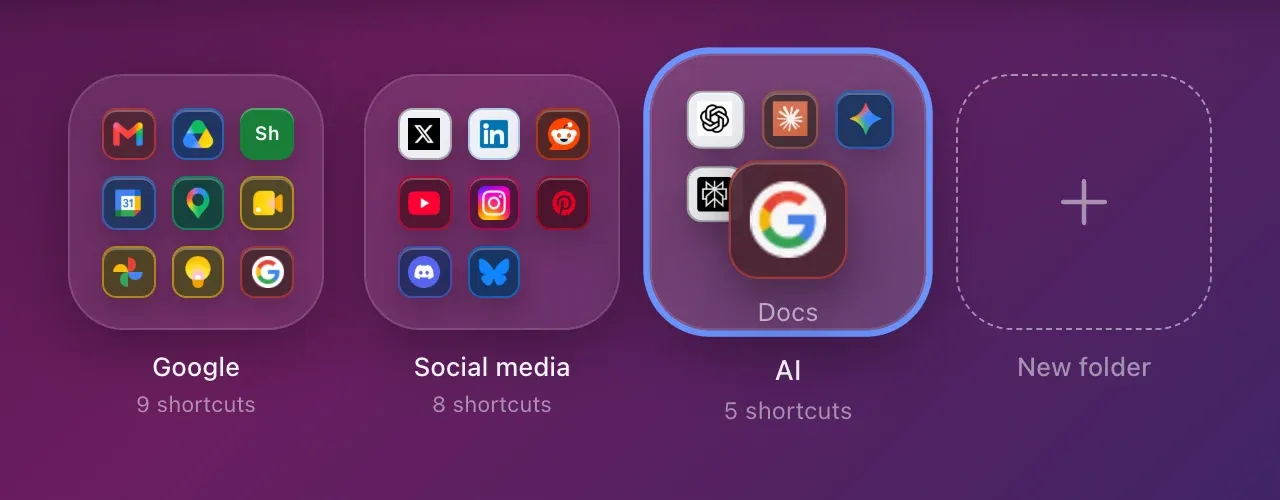
Open a folder, grab a shortcut, and leave the frame without letting go: the shortcut stays in your hand, and the folder closes by itself on the way. Drop it on another folder, and it goes in. Drop it on the Essentials, and it is pinned there.
Create a folder by dragging
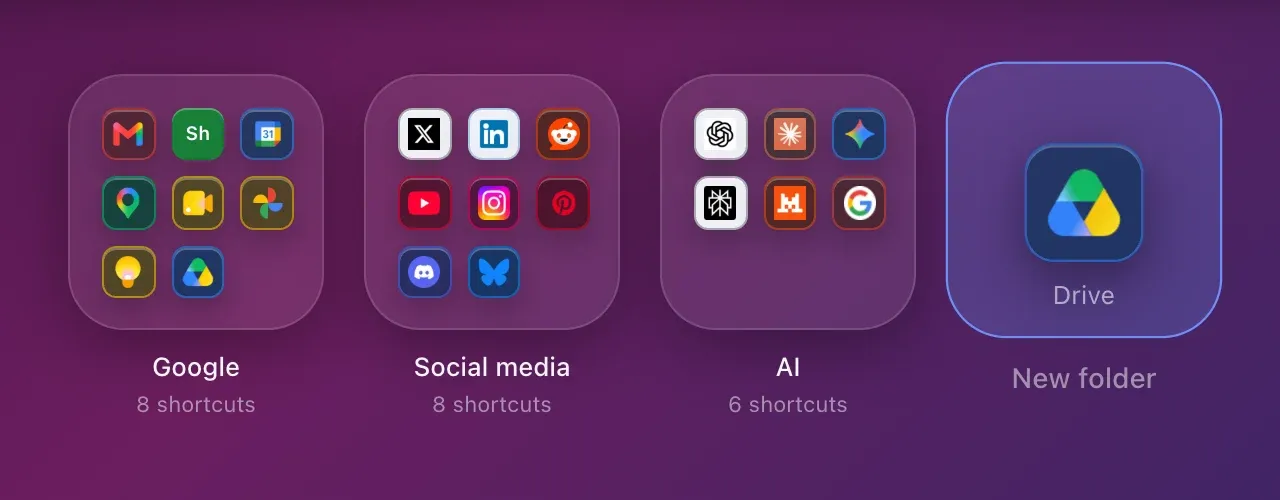
The New folder tile is a target too. Drop a shortcut on it, or a whole selection, and Hoome asks for the folder’s name before putting it inside. Nothing moves until the folder exists: if you cancel, everything stays where it was.
Why this is not the browser’s drag and drop
Chrome stops its own drag and drop as soon as the dragged element changes place in the page, which is exactly what has to happen to show the result live. So Hoome follows the pointer itself. The gesture is the same, but it does not break halfway, and the page shows the result while you move.