You can usually tell a dangerous Chrome extension by what it asks for: permissions that have nothing to do with what it does, a publisher you can’t identify, a listing that says nothing about your data. But a perfectly good extension can also be sold or hacked, and turn bad overnight through a simple update. This guide shows what to check before installing, what Chrome does for you, and what to do when an extension goes wrong.
Why an extension can be dangerous
An extension isn’t a website you visit: it lives inside the browser, and whatever you allow it to do, it does on every page. An extension allowed to read and change all your data on the websites you visit sees what you see: the emails you open in the browser, the forms you fill in, your bank’s pages. It can also change those pages, add ads or redirect a link.
It updates itself, without asking you anything as long as its permissions stay the same. That’s convenient, and it’s the weak spot: the extension you installed three years ago isn’t necessarily the one running today.
Three true stories
They show that the danger doesn’t always come from an extension that looked shady on day one.
The Great Suspender, 2021. A well-loved extension that put unused tabs to sleep to free up memory. Its author handed it over in 2020 to a buyer who never made themselves known. A few months later, a new version loaded code from an outside server. Google pulled it from the store in early 2021 and disabled it on people’s computers, with the label “This extension contains malware”.
Cyberhaven, Christmas 2024. A security company, of all things. A fake email from the Chrome Web Store, threatening to take its extension down, led an employee to authorize a malicious app. The attackers published a rigged version on December 25, installed automatically for its users, that stole their logged-in sessions. It was removed the same day, but the same campaign hit other extensions too.
Featured extensions, 2025. Researchers at Koi Security found a dozen ordinary extensions, color pickers, emoji keyboards, VPNs, some of them carrying the store’s Featured badge. They had behaved for a long time, then an update gave them the means to follow every page visited and redirect the browser.
The lesson is the same all three times: neither popularity nor a badge protects you from a bad update. What protects you is installing few extensions, granting only what’s needed, and looking at what’s installed every now and then.
Before installing: read the store listing
Only install from the Chrome Web Store: an extension offered by a website, an email or a pop-up skips its checks. Then read the listing, especially the bottom part nobody scrolls to:
- the developer: a name, a website that exists and talks about the extension, a contact address. In the European Union, the listing also says whether the developer declared itself a trader, which commits it to EU law,
- the Privacy section: the data the extension says it handles, and its commitments, not selling it and not using it for anything beyond its purpose. A listing that declares a lot of data for a small feature deserves a second look,
- the date of the last update: an extension abandoned for years isn’t dangerous in itself, but it’s up for sale, and that’s often how things go wrong,
- the most recent reviews: a sudden change of tone, “ads everywhere since the last version”, is the first sign of a new owner.
Steer clear of an extension that copies the name of a well-known one with a typo or an extra word: it’s a common trick to collect installs.
The permissions that should worry you
When you install an extension, Chrome shows what it will be able to do. It’s the most important window, and the one people read least. Afterwards, the same list is on the extension’s page: chrome://extensions, then Details. Here is the one of a sample extension made for this guide, which asks for a lot.
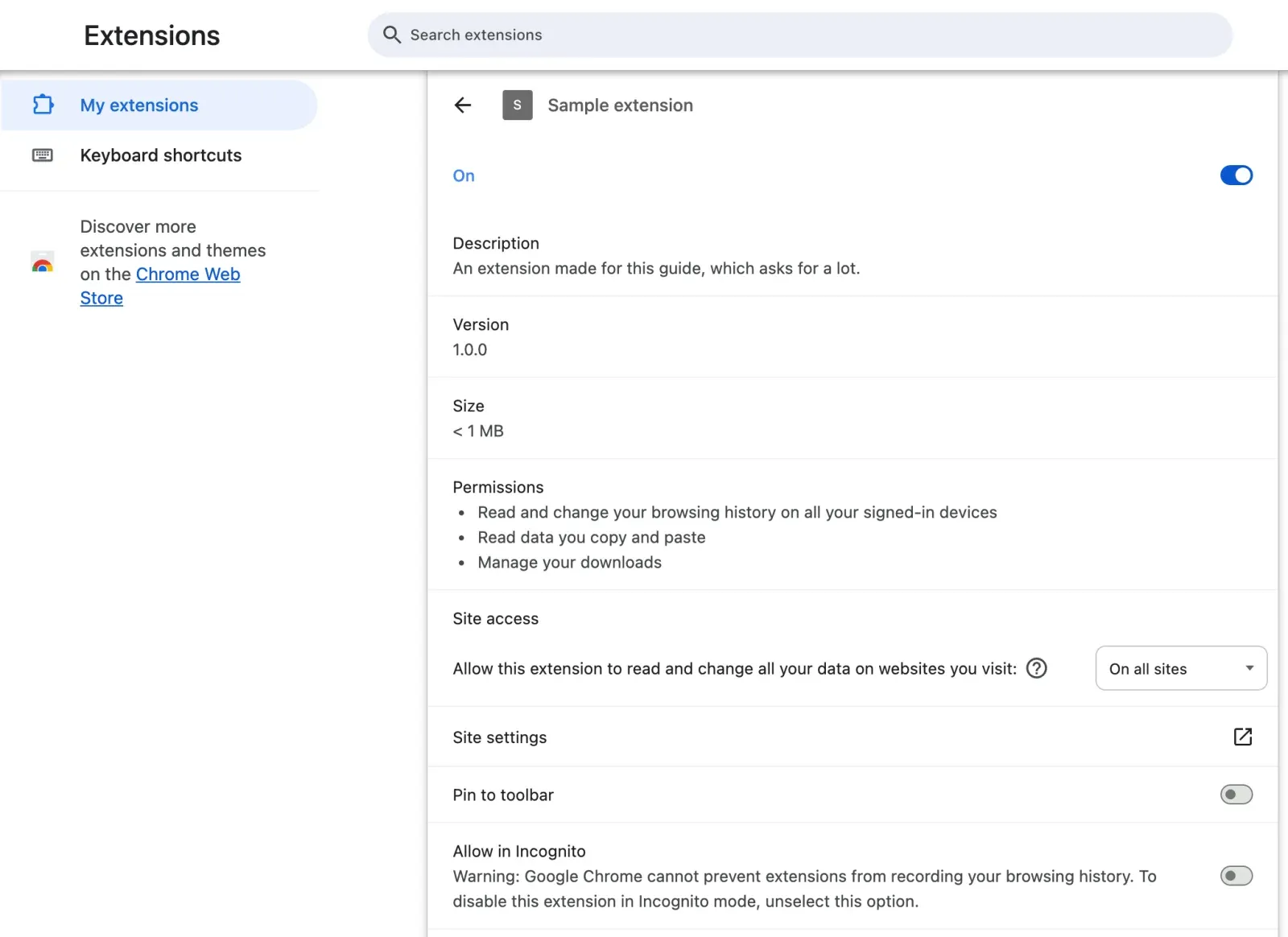
The question to ask for each line: does what the extension does actually require it?
- Read and change all your data on websites you visit: the broadest one. Normal for an ad blocker, a password manager or a spell checker, which have to work on every page. Suspicious for a color picker, a timer or a wallpaper,
- Read and change your browsing history: the extension knows where you go. Rarely needed,
- Read data you copy and paste: a copied password, a card number, everything goes through there,
- Manage your apps, extensions, and themes: an extension that can turn others off, including the ones that protect you.
If an update asks for a new permission that deserves a warning, Chrome disables the extension and waits for your approval to turn it back on. Don’t click through on autopilot: that’s precisely the moment a sold extension changes its nature.
Limit what an extension can see
On the same page, the Site access section offers three settings:
- On click: the extension does nothing until you click its icon, on the page you’re on,
- On specific sites: only on the sites you list,
- On all sites: the default for the ones that ask for it.
“On click” suits many extensions you only use now and then: a translator, a screenshot tool, a developer tool. Our guide to managing Chrome extensions covers that page in detail, from pinning to removal.
Chrome’s Enhanced protection
Chrome checks extensions, sites and downloads against Google’s Safe Browsing lists. The setting is in Chrome’s settings, Privacy and security, then Security.
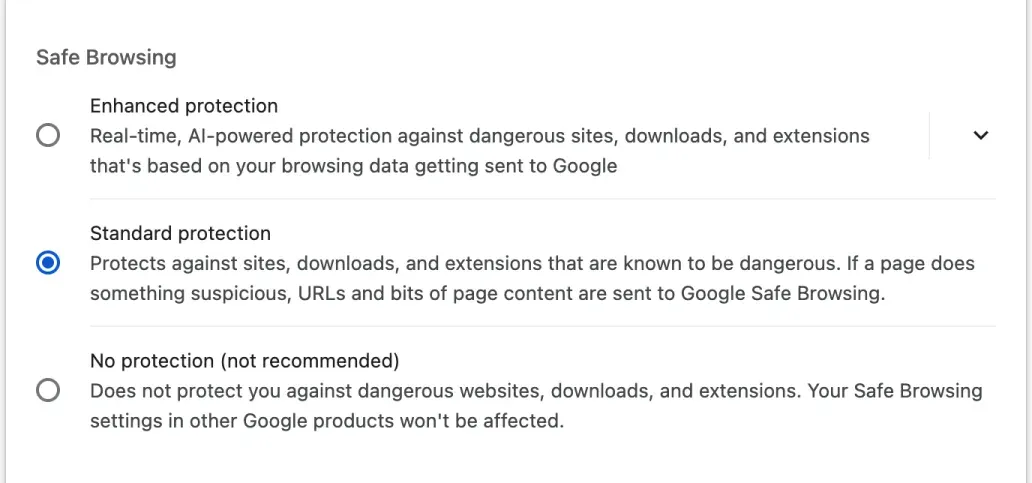
- Standard protection, the one everyone has: Chrome blocks what is known to be dangerous,
- Enhanced protection: Chrome also checks in real time, and the store warns you before you install an extension from a developer it doesn’t know yet. Google only trusts a developer after several months of following its rules: the warning doesn’t say the extension is malicious, only that it’s new or that its publisher hasn’t proven itself yet.
The trade-off is written under the option: with Enhanced protection, more of your browsing data is sent to Google to be analyzed. It’s your call.
Safety Check
When Google removes an extension from the store because it contains malware, Chrome disables it on people’s computers. For the other cases, an extension taken down by Google, unpublished by its developer or flagged as harmful, Safety Check, under Privacy and security, tells you about it and offers to remove it.
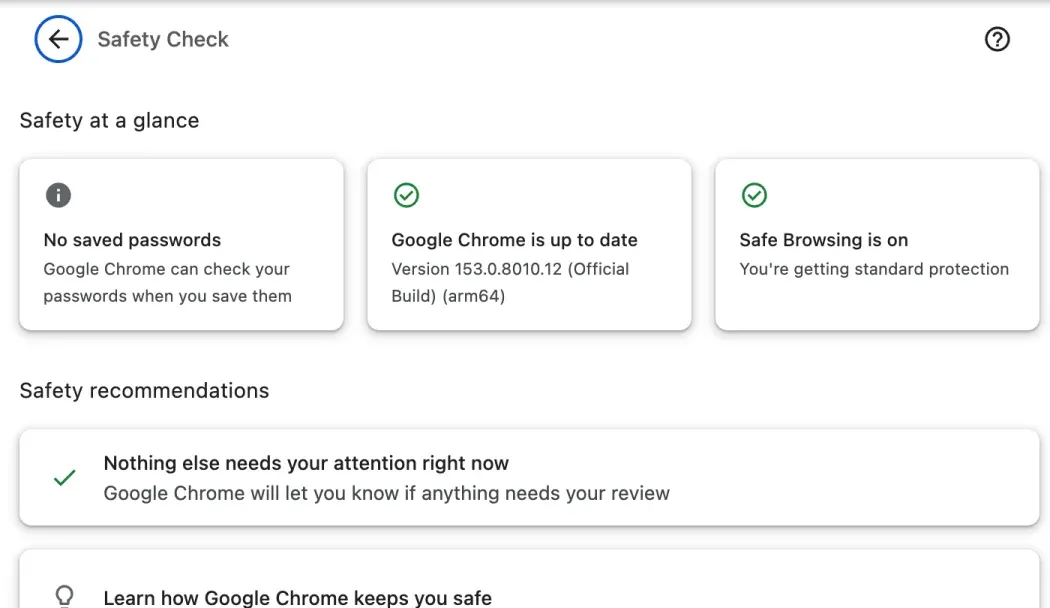
A glance every month or two is enough. Here, nothing to report.
Signs an extension has gone bad
An extension that changes its nature often leaves traces:
- ads where there were none, or links that lead somewhere other than they say,
- a search engine or home page that changes without you touching it,
- tabs that open on their own,
- an extension disabled by Chrome because it wants new permissions,
- a browser that suddenly slows down, with an extension at the top of Chrome’s Task manager (the three-dot menu, More tools, Task manager).
To find the culprit, turn them all off, then back on one at a time.
What to do if an extension looks suspicious
- Remove it from
chrome://extensions. Turning it off isn’t enough for an extension you suspect: it can be switched back on by mistake. - Sign out of your important accounts and change your passwords, starting with your email and your bank. An extension that stole logged-in sessions doesn’t need your password: signing out everywhere invalidates what it took.
- Report it from its Chrome Web Store listing, with the report link at the bottom of the page. That’s what lets Google act for everyone else.
- Check your settings: search engine, startup page, new tab page. A malicious extension loves changing them.
What about Hoome?
Hoome is our new tab extension, so we might as well hold it to this guide. On its details page, Chrome shows a single permission, “Replace the page you see when opening a new tab”, and access to two sites only, the icon services it downloads your shortcuts’ logos from. It doesn’t read the pages you visit, your history, or what you copy. Your shortcuts, notes and settings stay in your browser, and go through your browser’s sync if you turn it on. Only the account sync, with Premium, puts a copy on our servers, and a switch turns it off. Strict privacy even turns off the weather and the icons. The details are in our privacy policy.
That’s what you should expect from a new tab extension: it replaces one page, it has no need to read the others.
Common questions
Are Chrome Web Store extensions reviewed? Yes, each one is reviewed when it’s published and when it’s updated, partly automatically. That stops a lot, not everything: the stories above all went through the store.
Is a popular extension safe? Not necessarily. A popular extension is exactly what ill-intentioned buyers want: its users are already there, and auto-update delivers the new version to them.
Does an antivirus protect against extensions? Rarely: to an antivirus, an extension is just part of Chrome. Protection comes from Chrome itself and from your choices.
Do extensions run in Incognito? Only the ones you allow, with the Allow in Incognito setting on their details page, off by default. Leave it off, except for an extension you fully trust.
How many extensions should I keep? As few as possible. Each one is one more door: our pick of the best Chrome extensions suggests one per need, not ten.
In short
- Install from the Chrome Web Store, and read the listing to the bottom: developer, privacy, last update, recent reviews,
- compare each permission with what the extension does, and limit site access when you can,
- when Chrome disables an extension that wants new permissions, ask yourself why before accepting,
- run Safety Check now and then, and remove what you no longer use,
- at the slightest doubt: remove, sign out everywhere, change your passwords, report.