Your new tab layout
The same page, arranged seven ways. Your shortcuts and widgets stay the same from one layout to the next: only their place changes, and one click takes you back.
All 7 layouts, in pictures
-
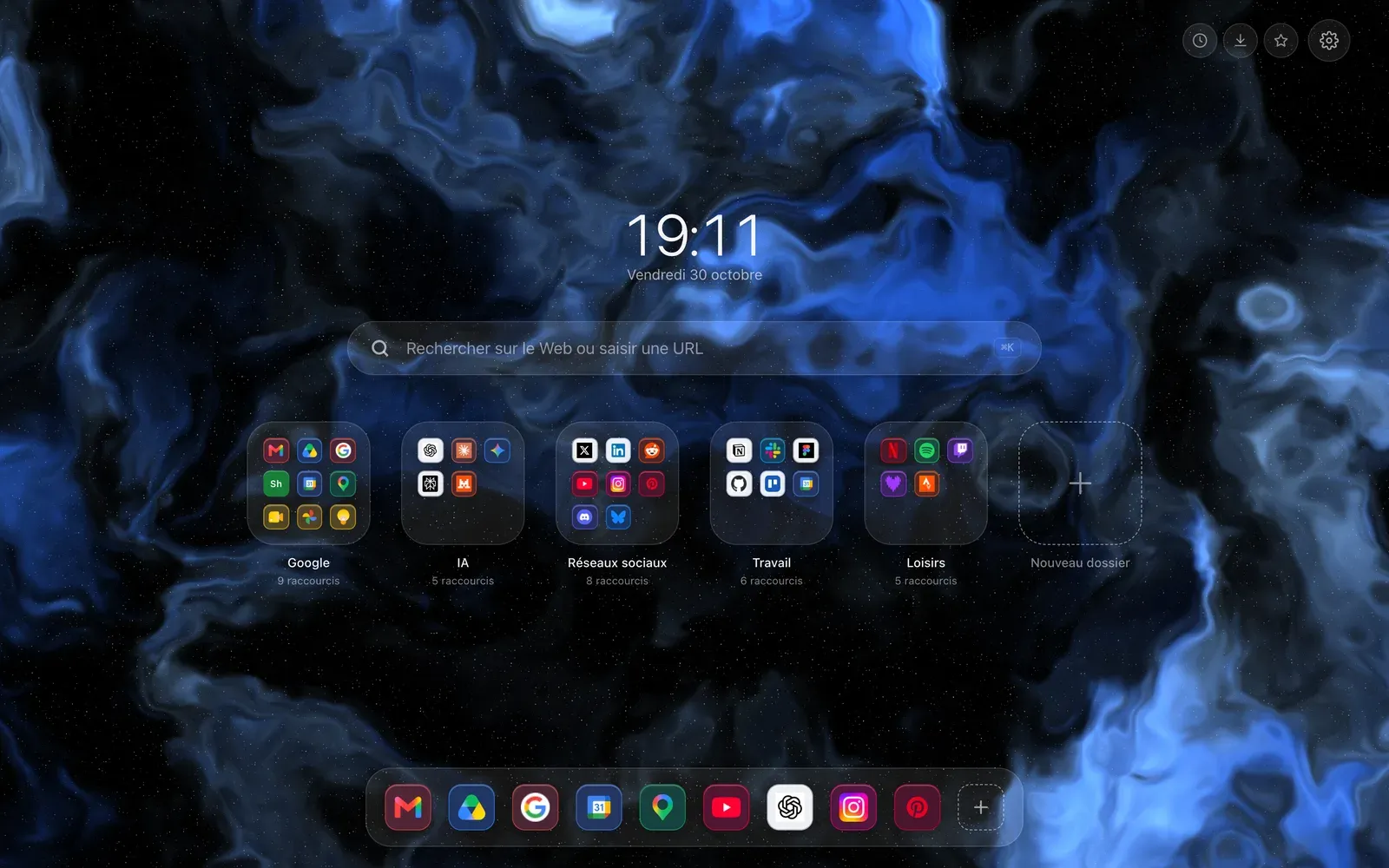
Dock
 Sapphire Nebula
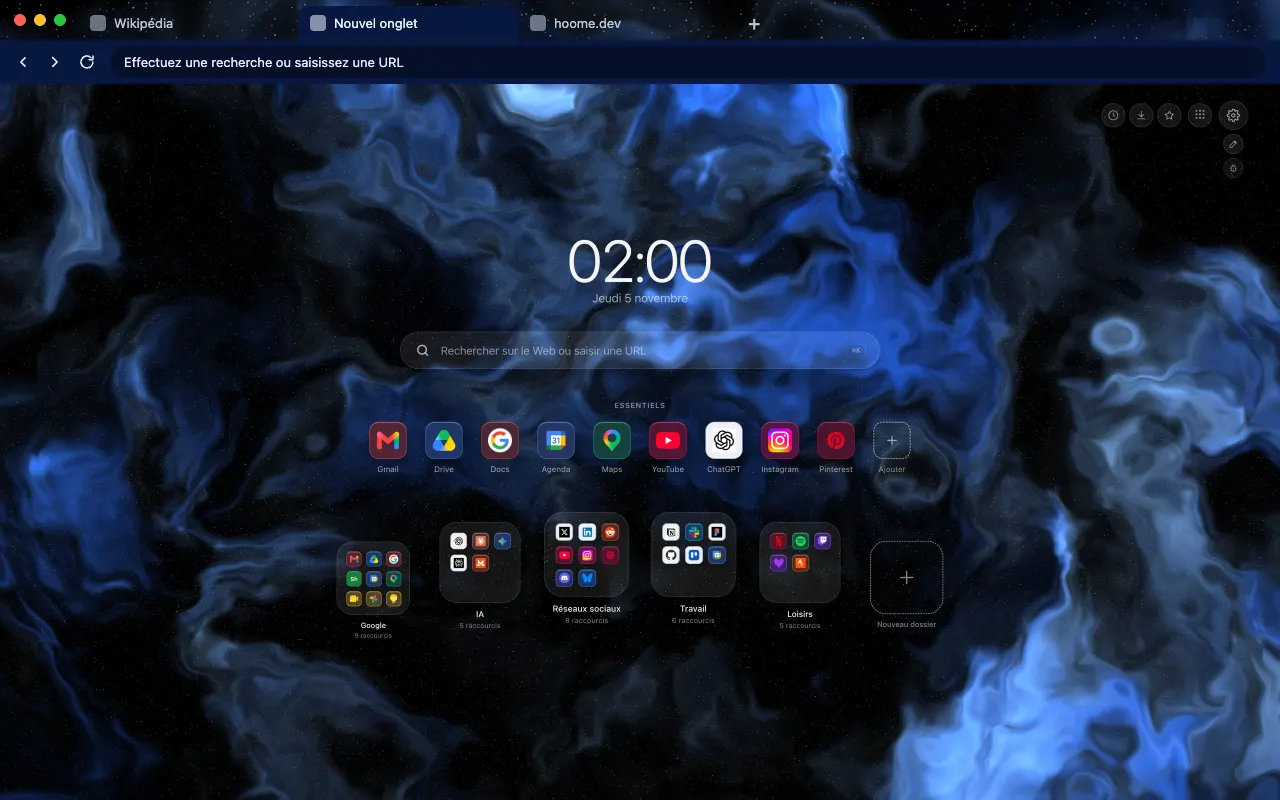
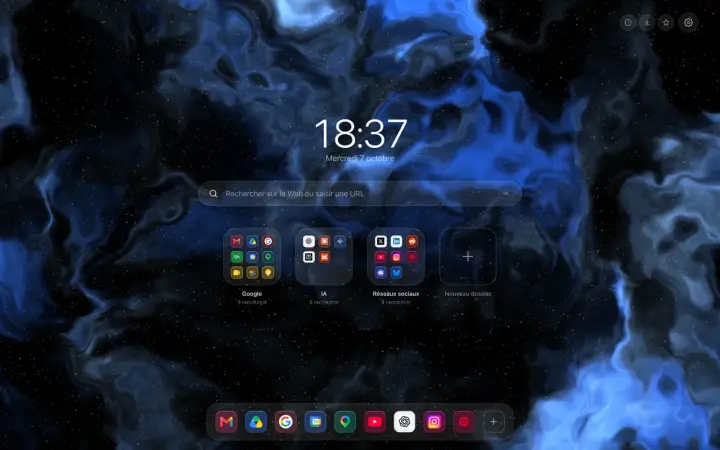
The Essentials in a bar at the bottom of the page, as on a Mac. It is the layout of a fresh install.
-
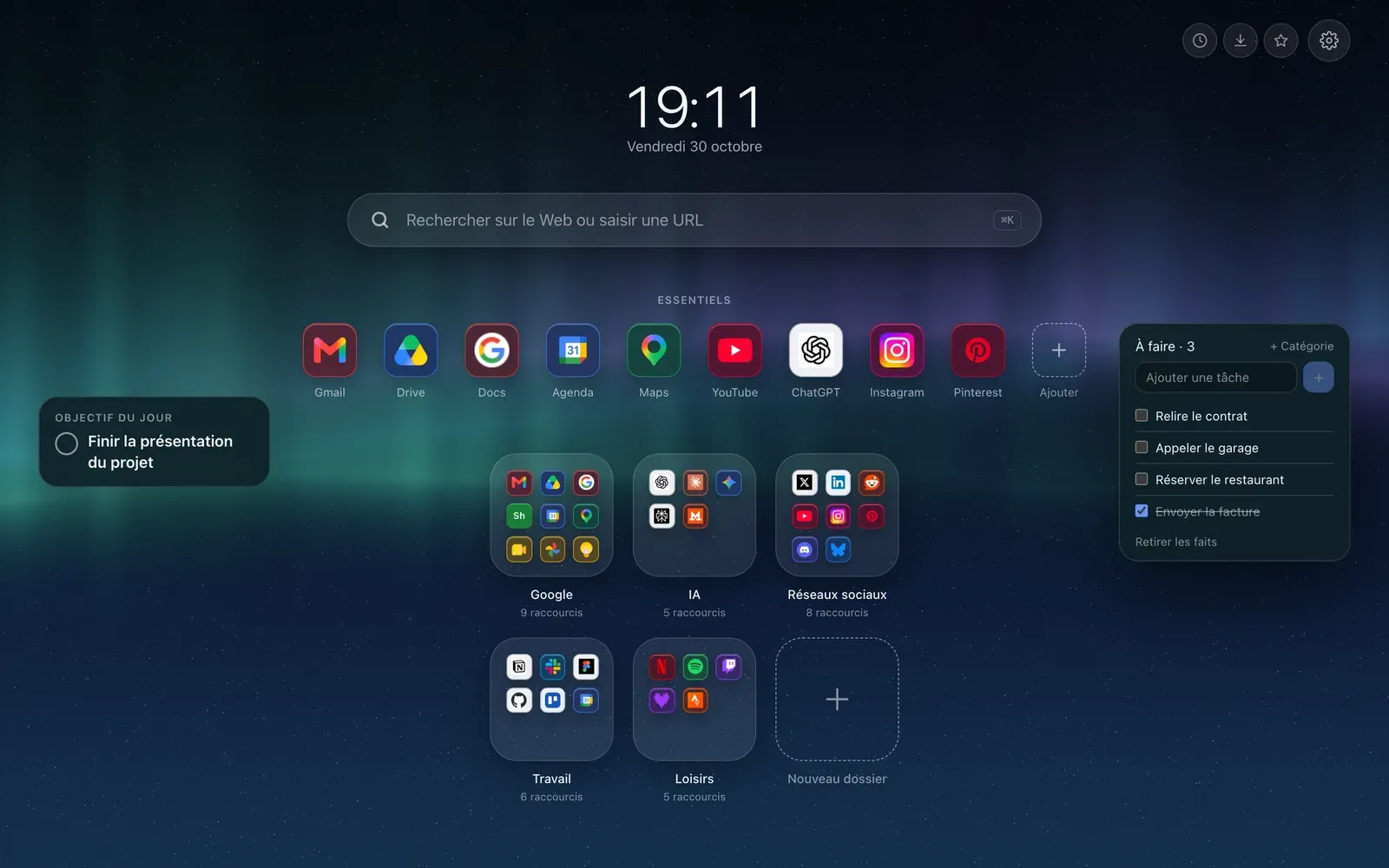
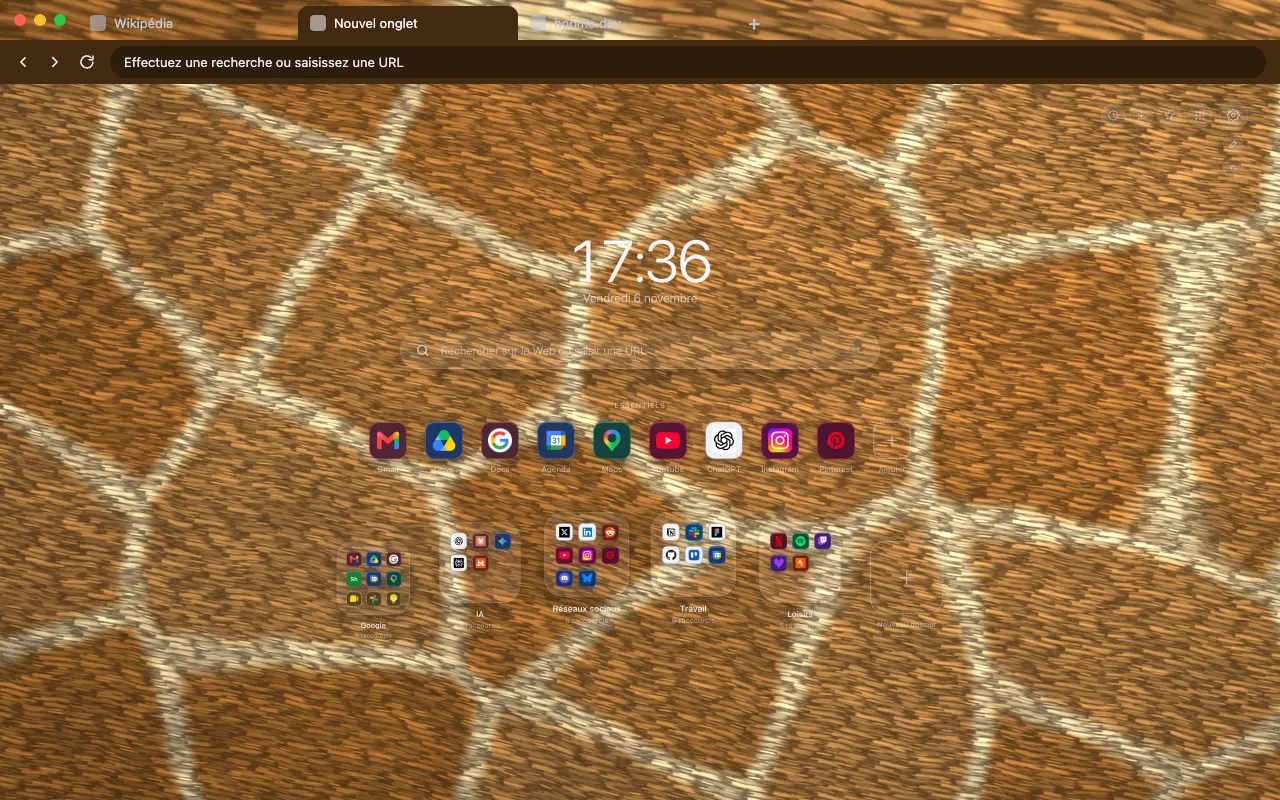
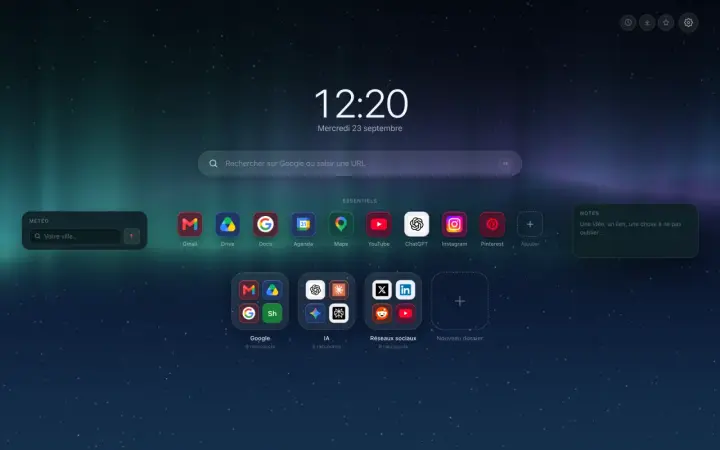
Classic
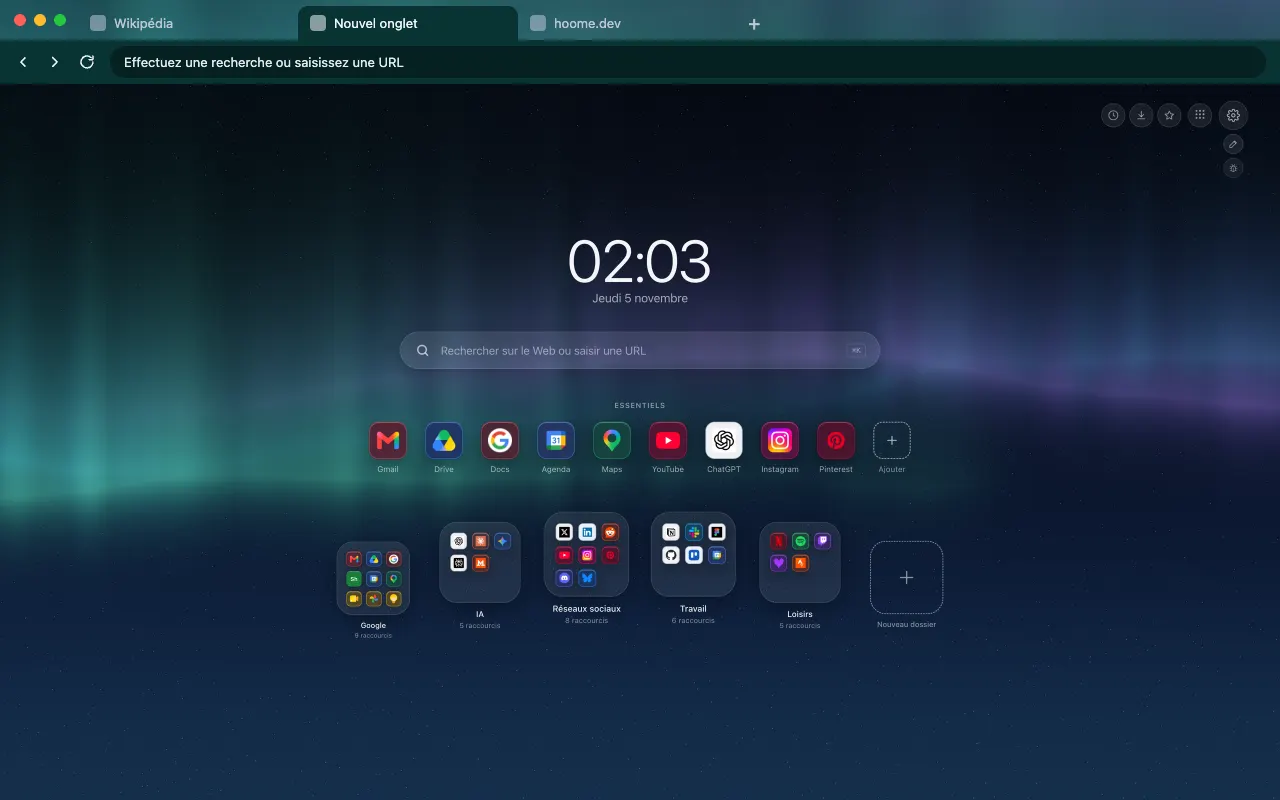 Northern Lights
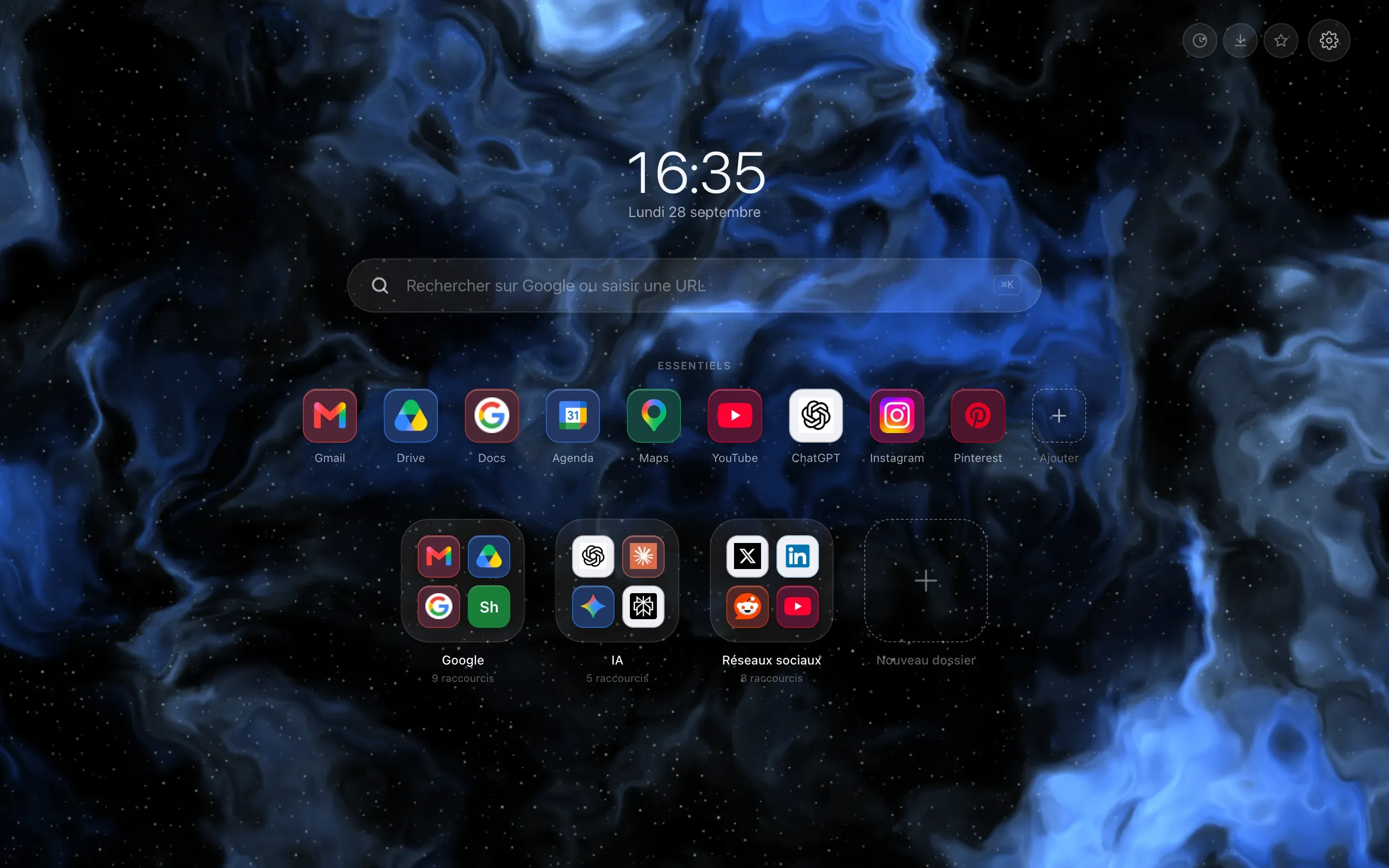
Everything in the center: clock, search, Essentials and folders, with widgets on the sides.
-
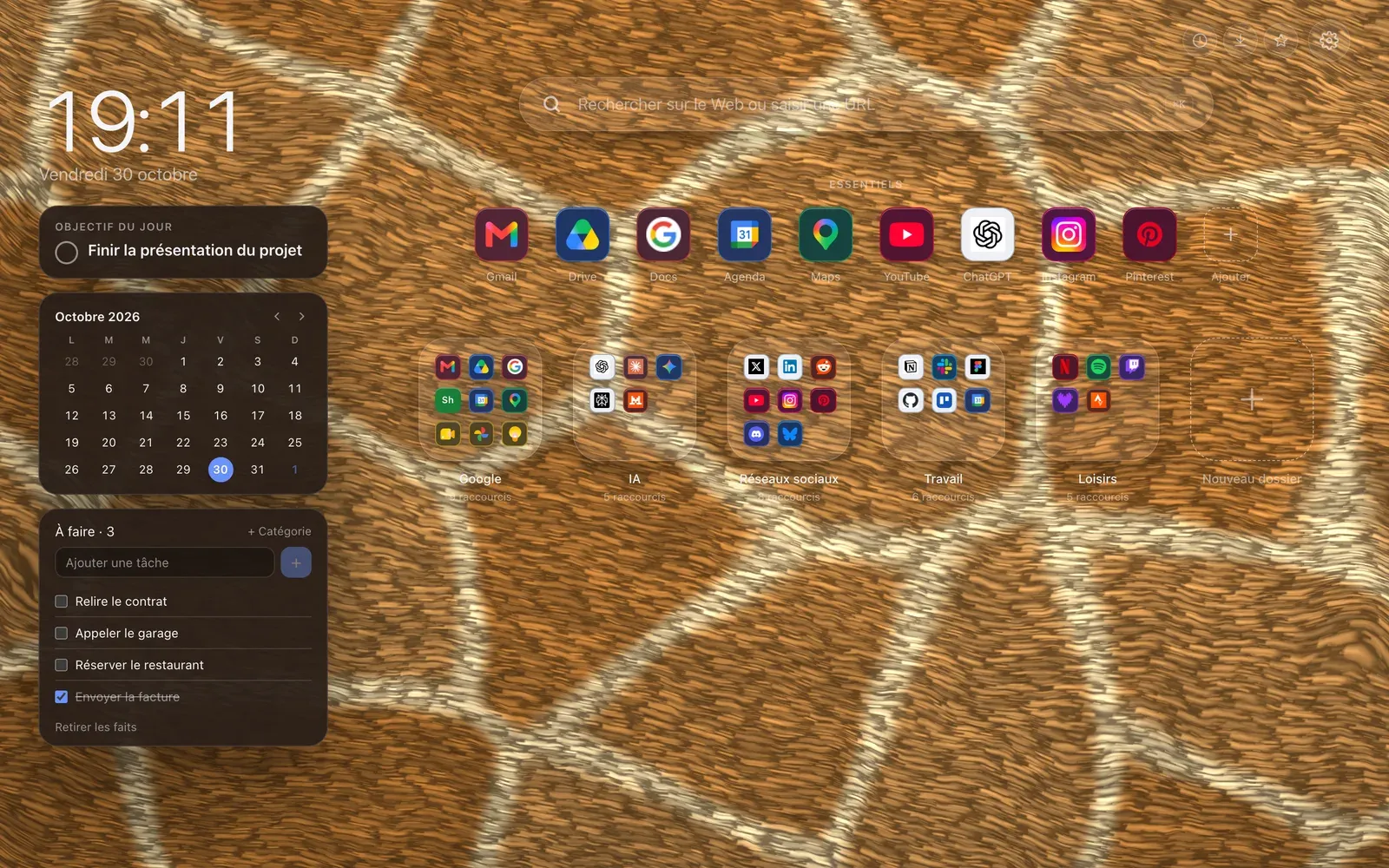
Dashboard
 Giraffe Fur
The clock and widgets lined up in a left column, shortcuts and folders on the right.
-
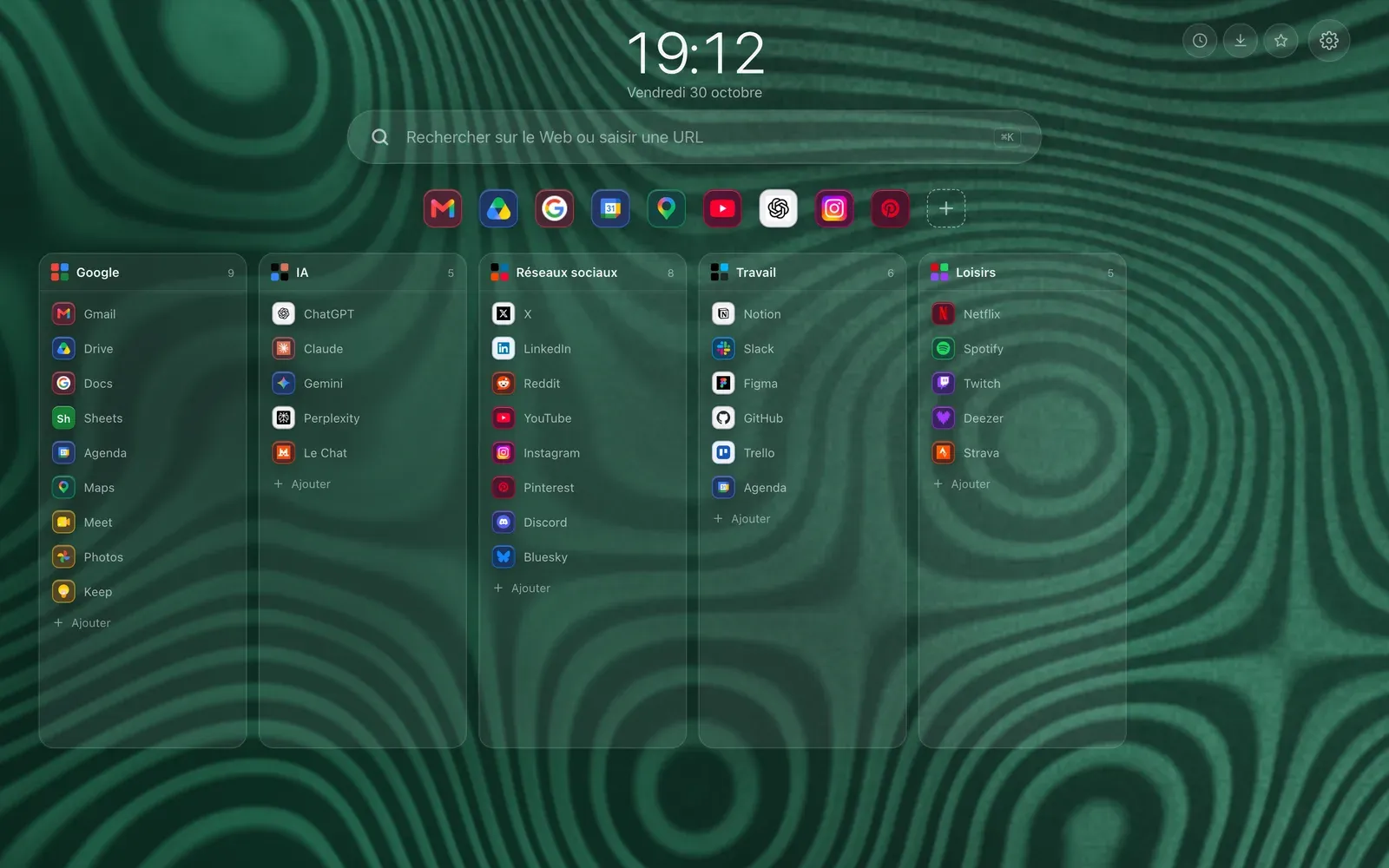
Columns
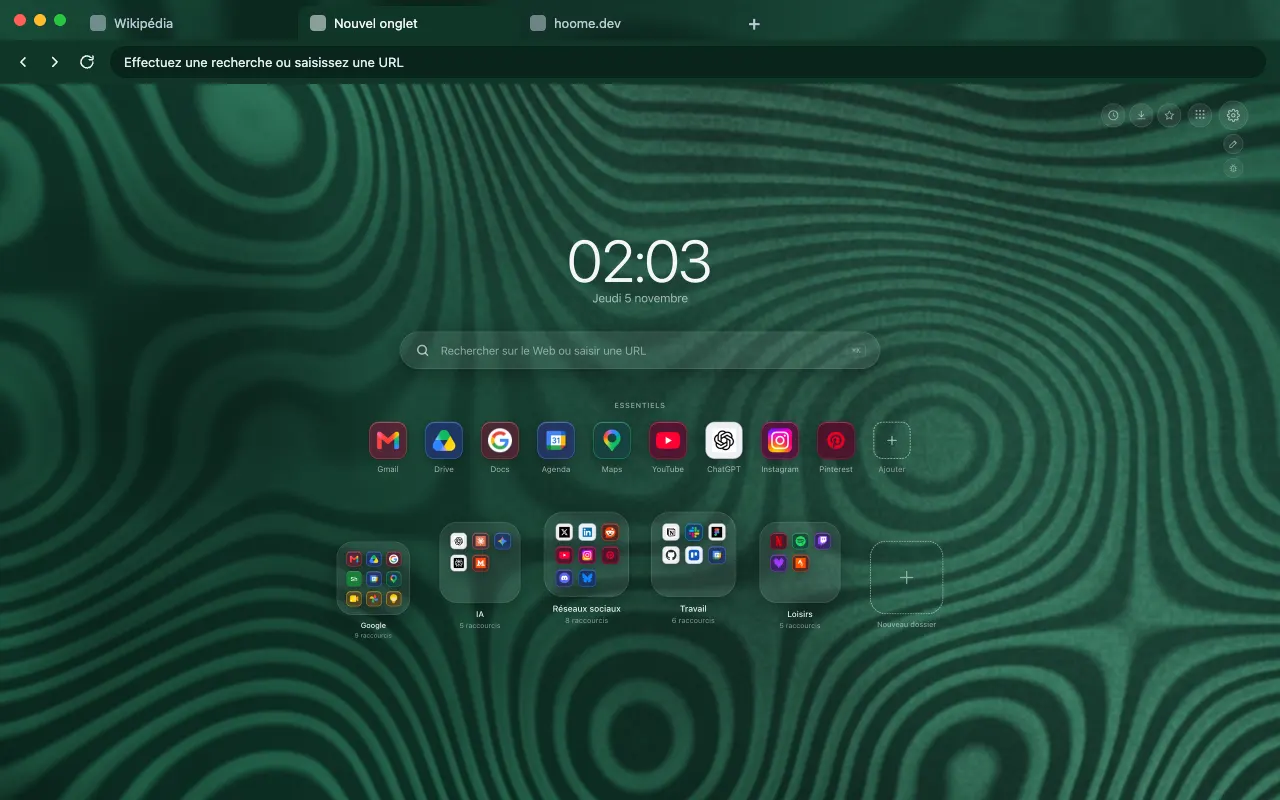 Malachite
Each folder becomes a column of links you read without opening it.
-
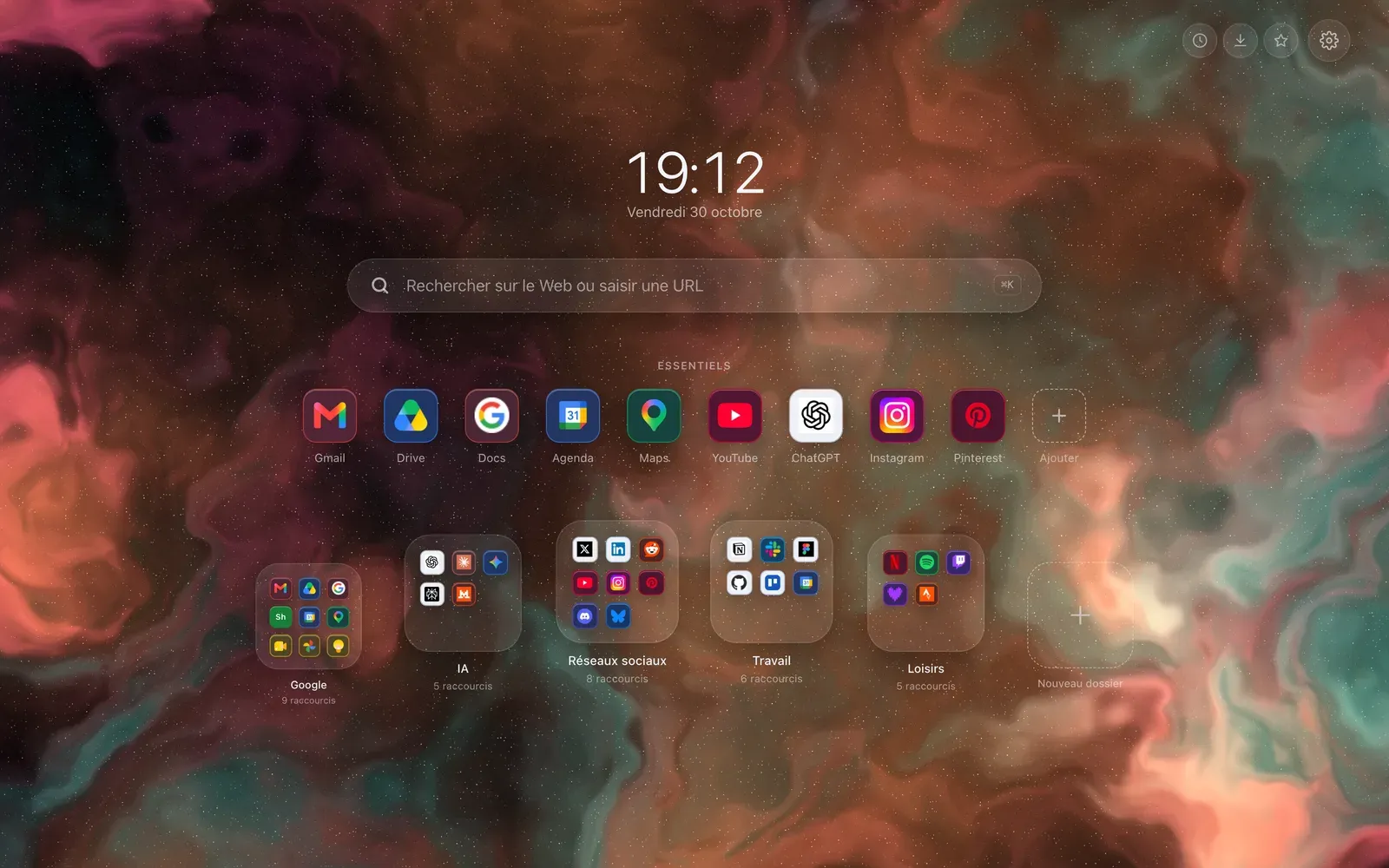
Arc
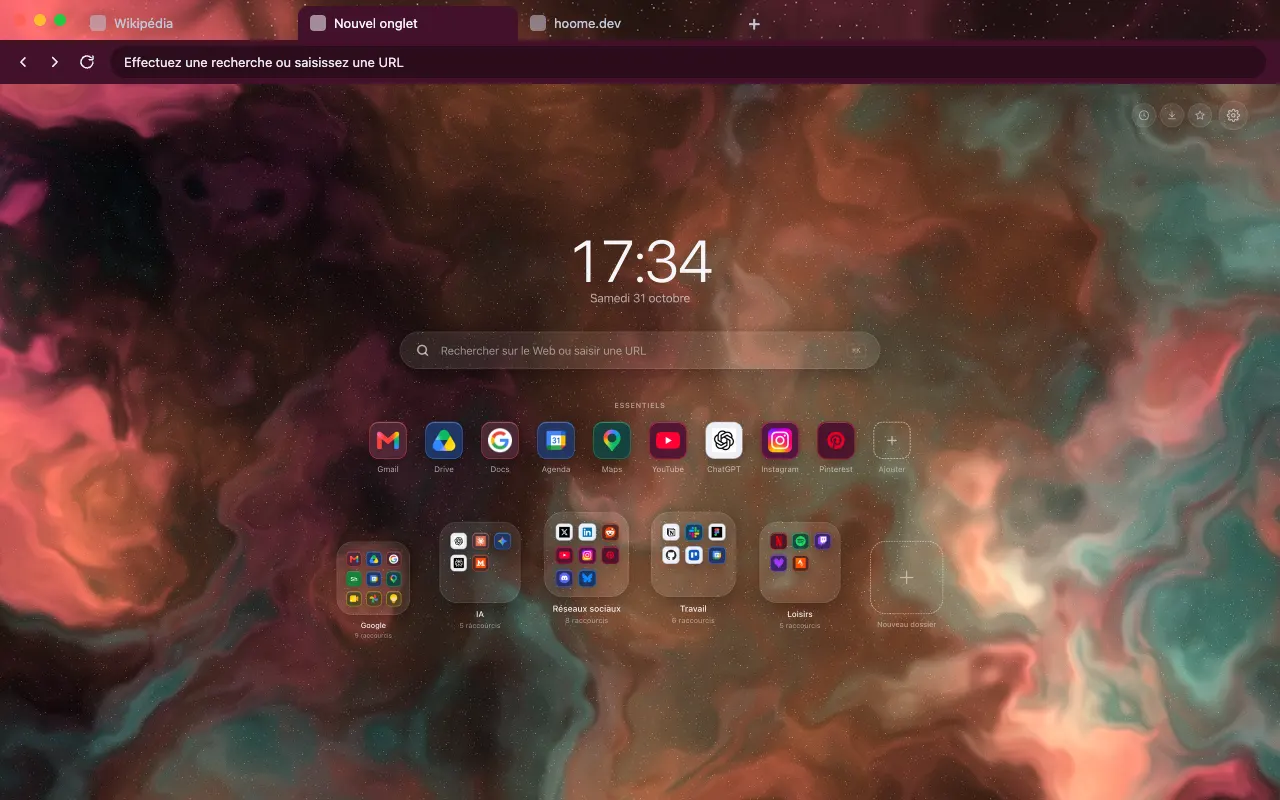 Orion Nebula
Folders set on a curve, under the clock and the Essentials.
-
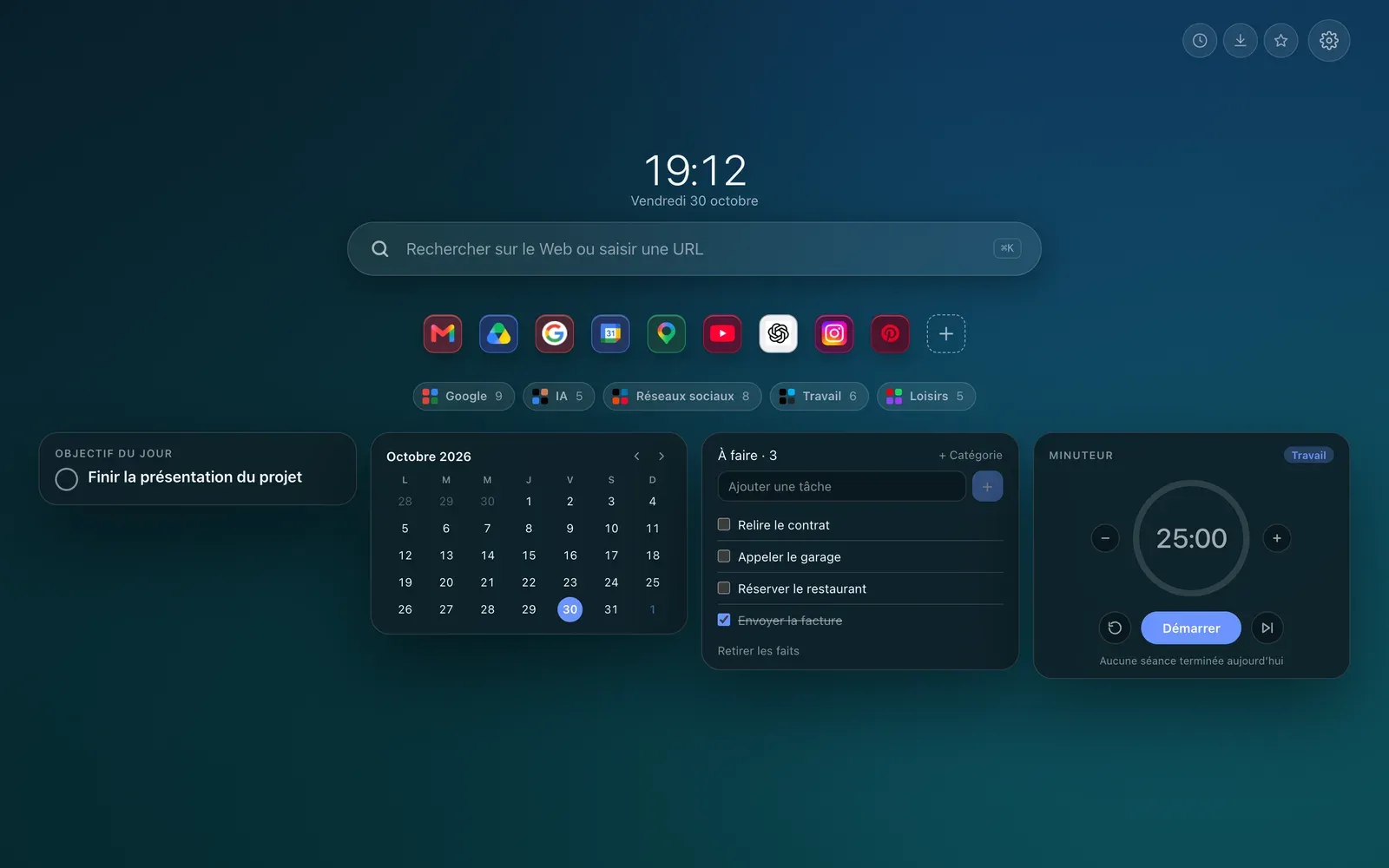
Widgets first
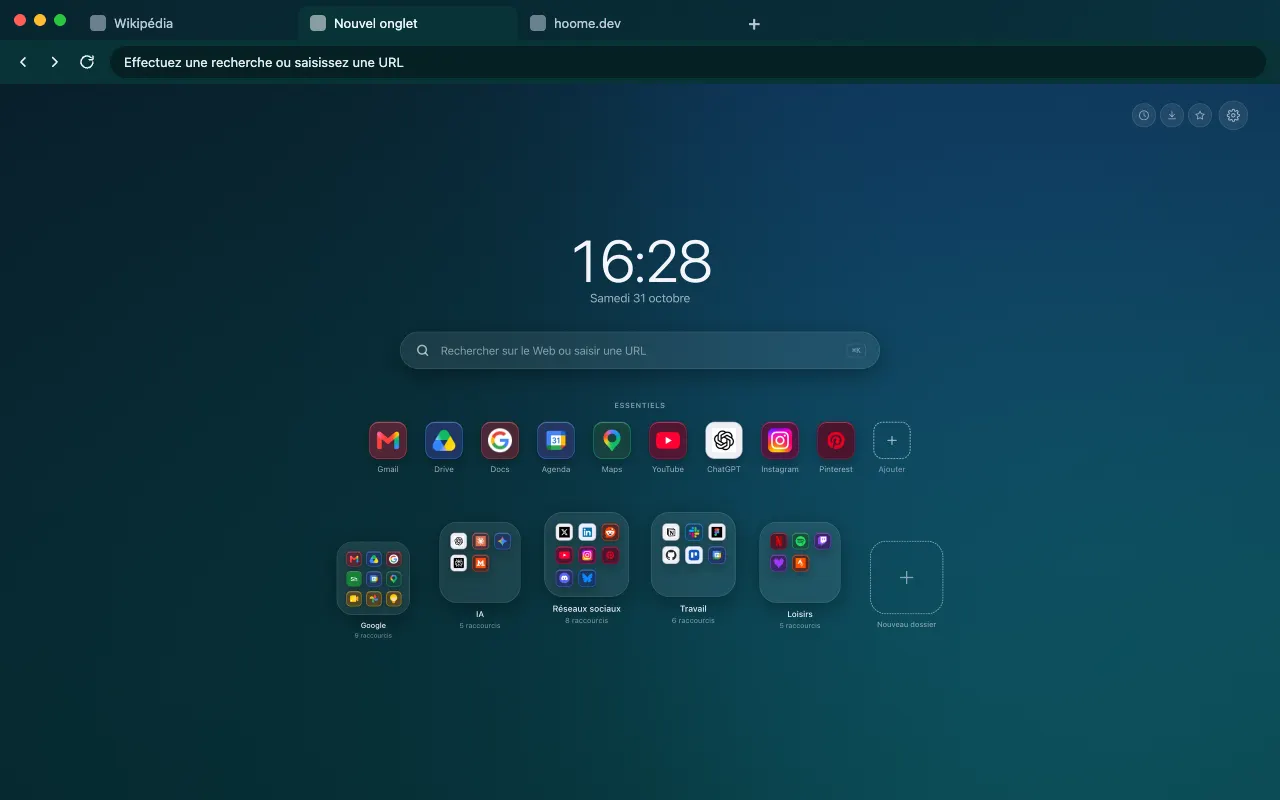 Lagoon Gradient
The page belongs to widgets: daily goal, calendar, tasks and timer, folders as tags.
-
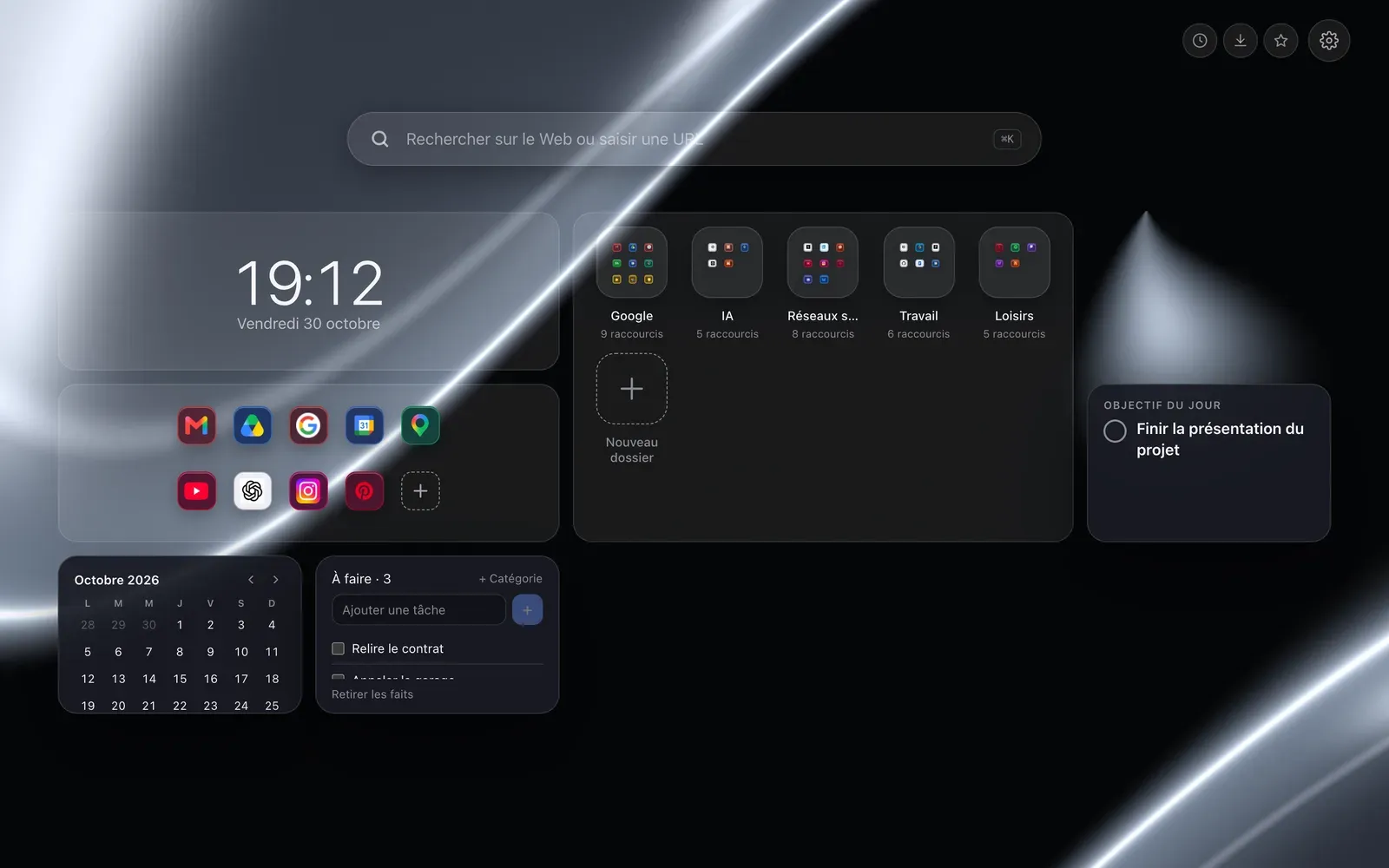
Bento
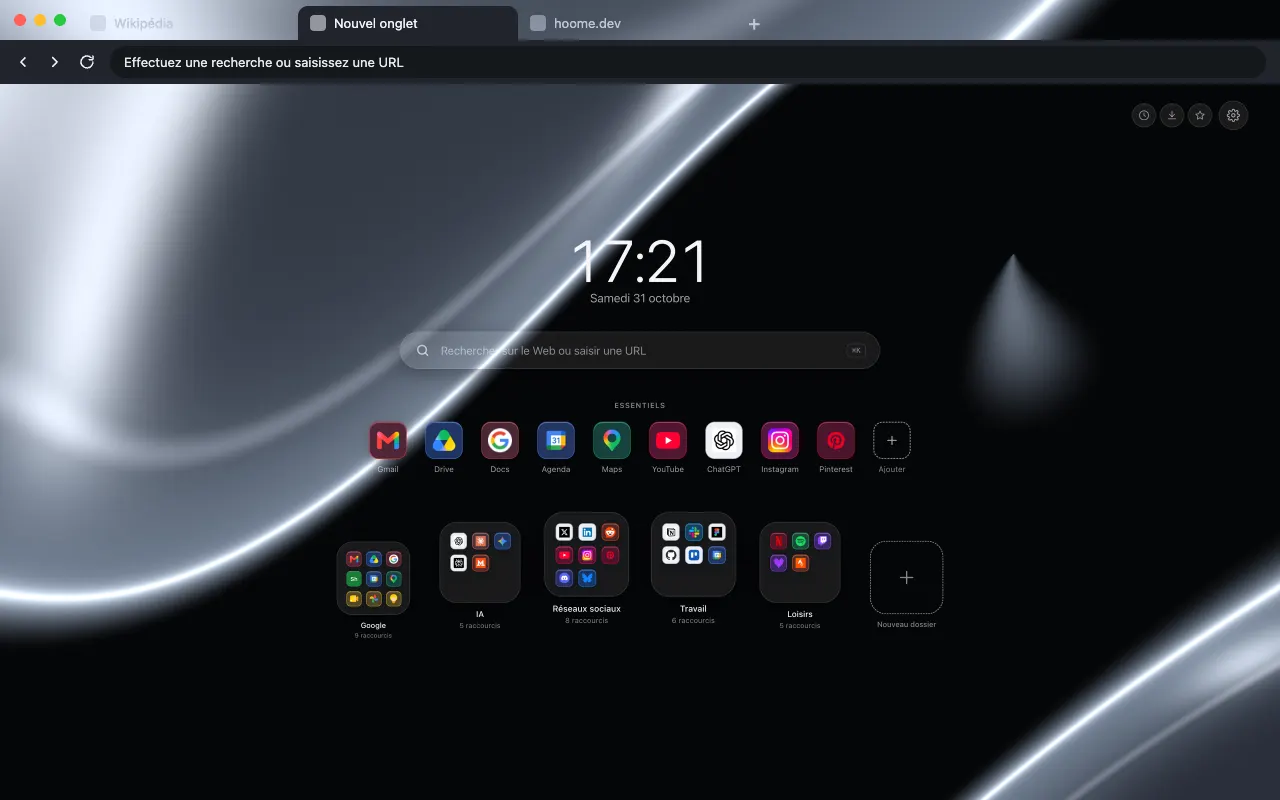 Black Chrome
Everything in one grid of tiles, clock, folders and widgets together.
Settings that follow along
Each layout only offers the settings that do something in it: no folder preview size where folders have no preview. On a narrow screen, Dashboard falls back to Classic by itself.
Free or Premium
Dock and Classic, with the free widgets wherever you like.
the five extra templates. Without Premium, a chosen template stays saved and the page falls back to Classic.
Guides on the blog
Customize
New tab layout: the Dock or the classic one
The Dock at the bottom of the screen like on a Mac, or everything in the centre: the two free layouts of your Chrome new tab, and five more with Premium.
Guide Customize
Customize the Chrome home page: the guide
Customize the Chrome home page: what the browser settings allow, then a page of your own, with folders, layout, clock, widgets, icons, theme and background.