A custom new tab for Chrome
Hoome replaces the Chrome new tab page with your shortcuts, folders, widgets and the background you choose. It installs from the Chrome Web Store, from Chrome 111 on, and every one of its features is available there.
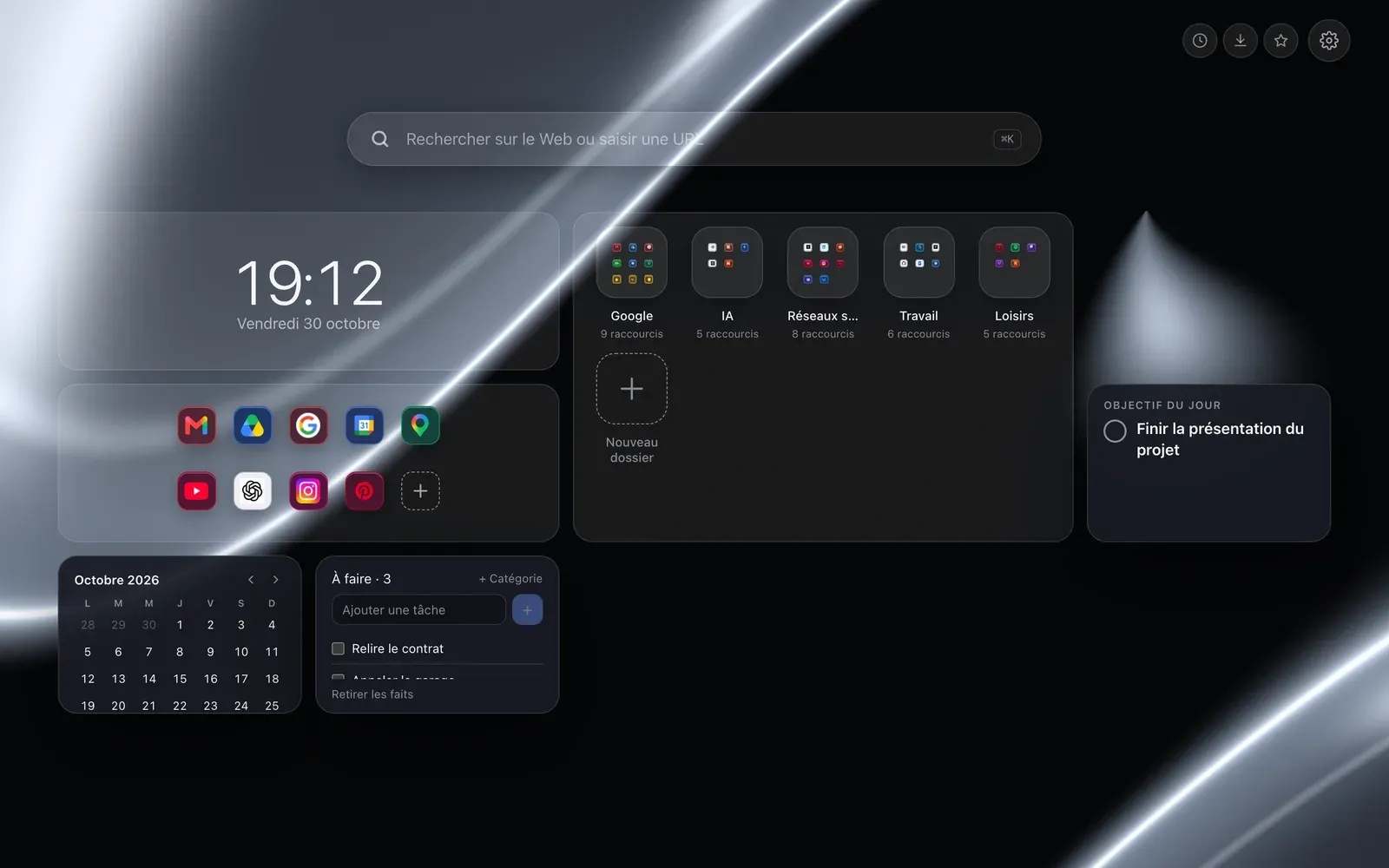

- Install store
- Chrome Web Store
- Minimum version
- Chrome 111
- Account
- None for the free version
- Store listing
- Public
Install Hoome on Chrome, step by step
-
Open the Hoome listing on the Chrome Web Store with the button above, then click “Add to Chrome”.
-
Chrome shows what the extension will be able to do. Read the list, then confirm with “Add extension”.
-
Open a new tab (Ctrl+T, or Cmd+T on a Mac). Chrome may ask “Did you mean to change this page?”: choose “Keep it”. “Restore settings” turns the extension off without erasing anything, and you turn it back on in chrome://extensions.
-
Since Chrome 138, a gray bar appears at the bottom of the page with the extension’s name. Chrome adds it, not Hoome: a right click on the bar offers to hide it, and the “Footer” section of the “Customize Chrome” panel turns it off for good.
What Hoome brings to Chrome
-
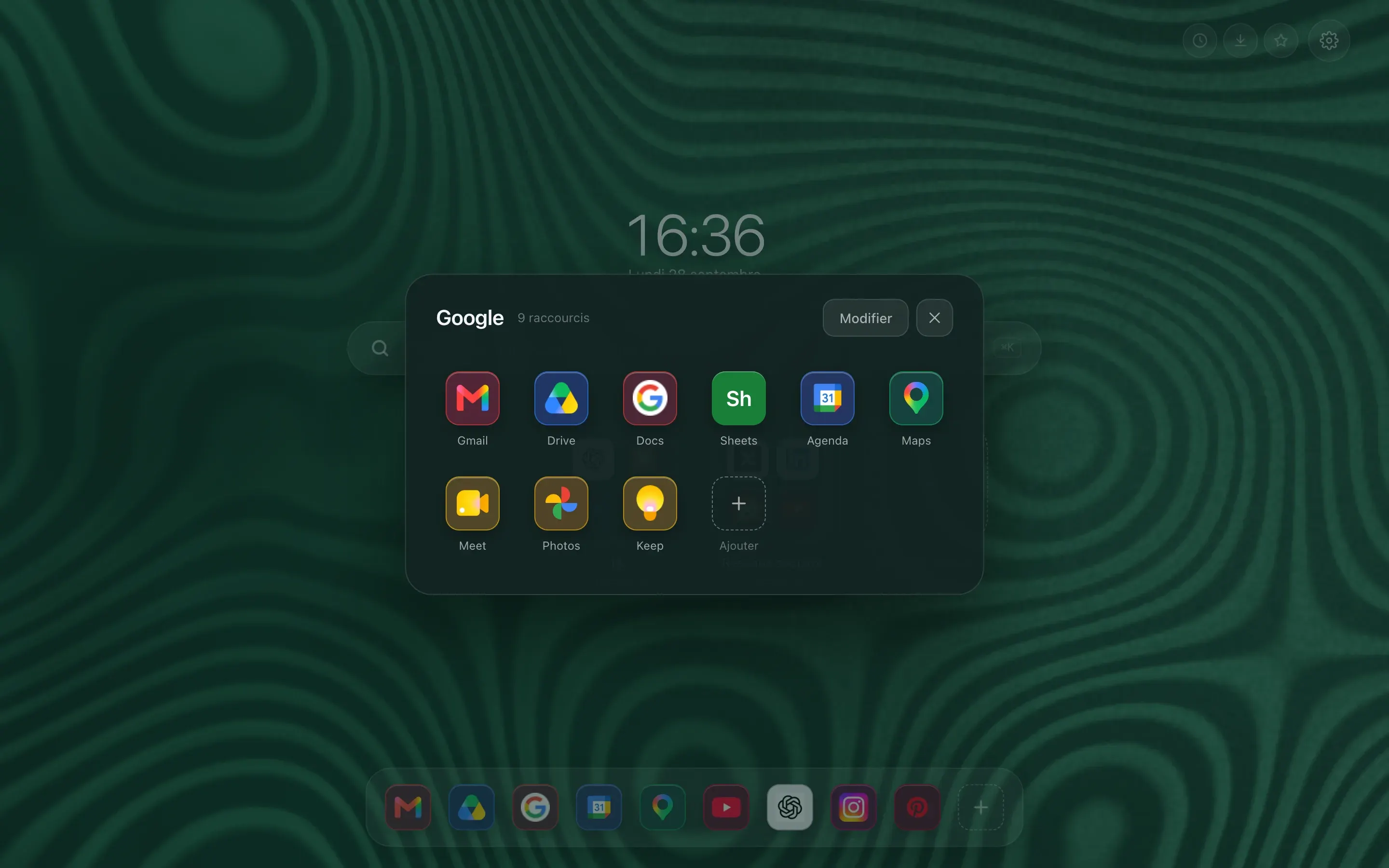
Folders, the way a phone does them
A preview tile shows 4 or 9 icons. One click and it zooms open on the full grid. Work tools on one side, reading on the other, and the page stays short.
-
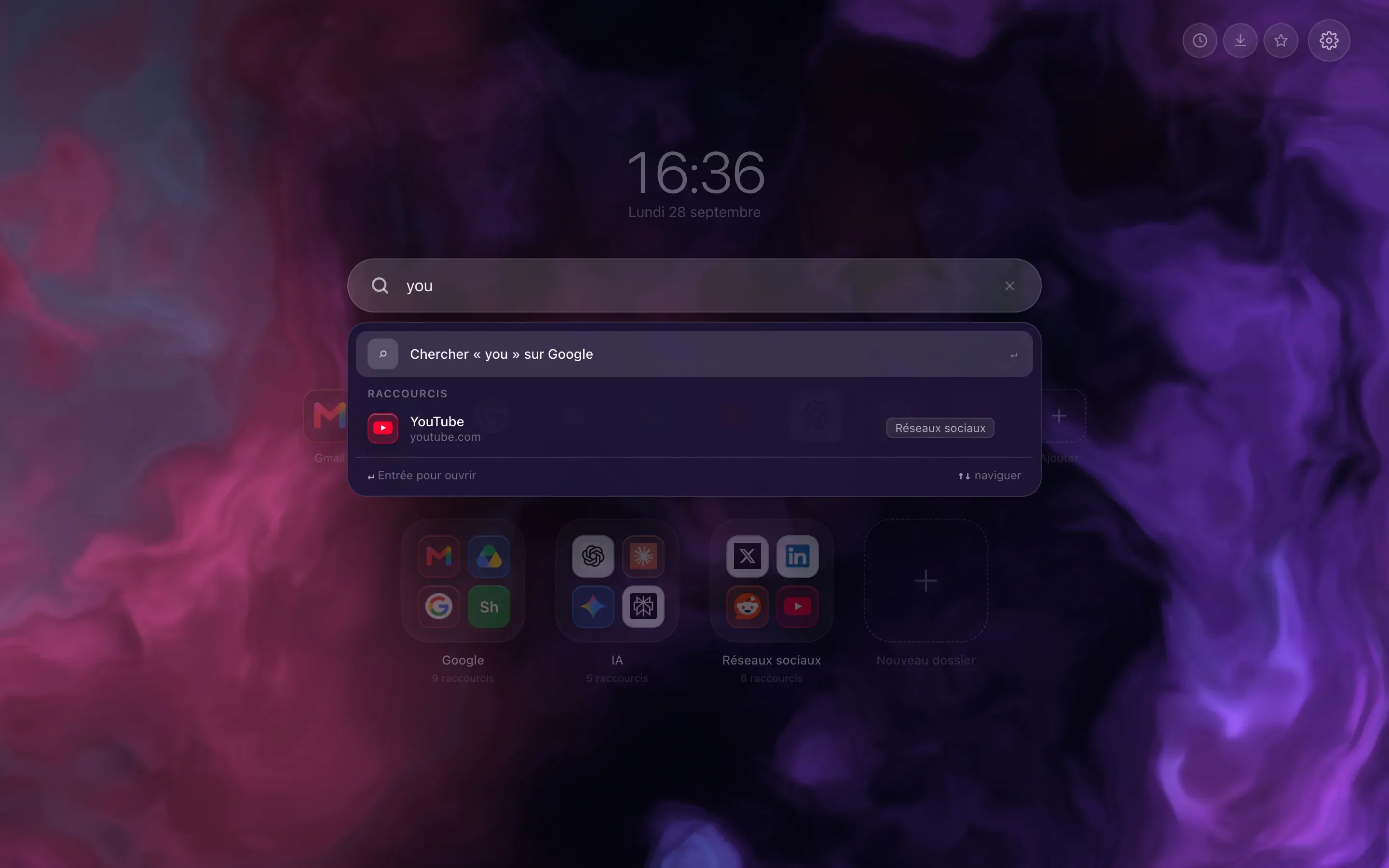
Type three letters, the site is there
The bar filters your shortcuts as you type, and switches to your browser’s search engine when what you want is not filed with you. Enter opens the first result, Shift and Enter force a web search.
-
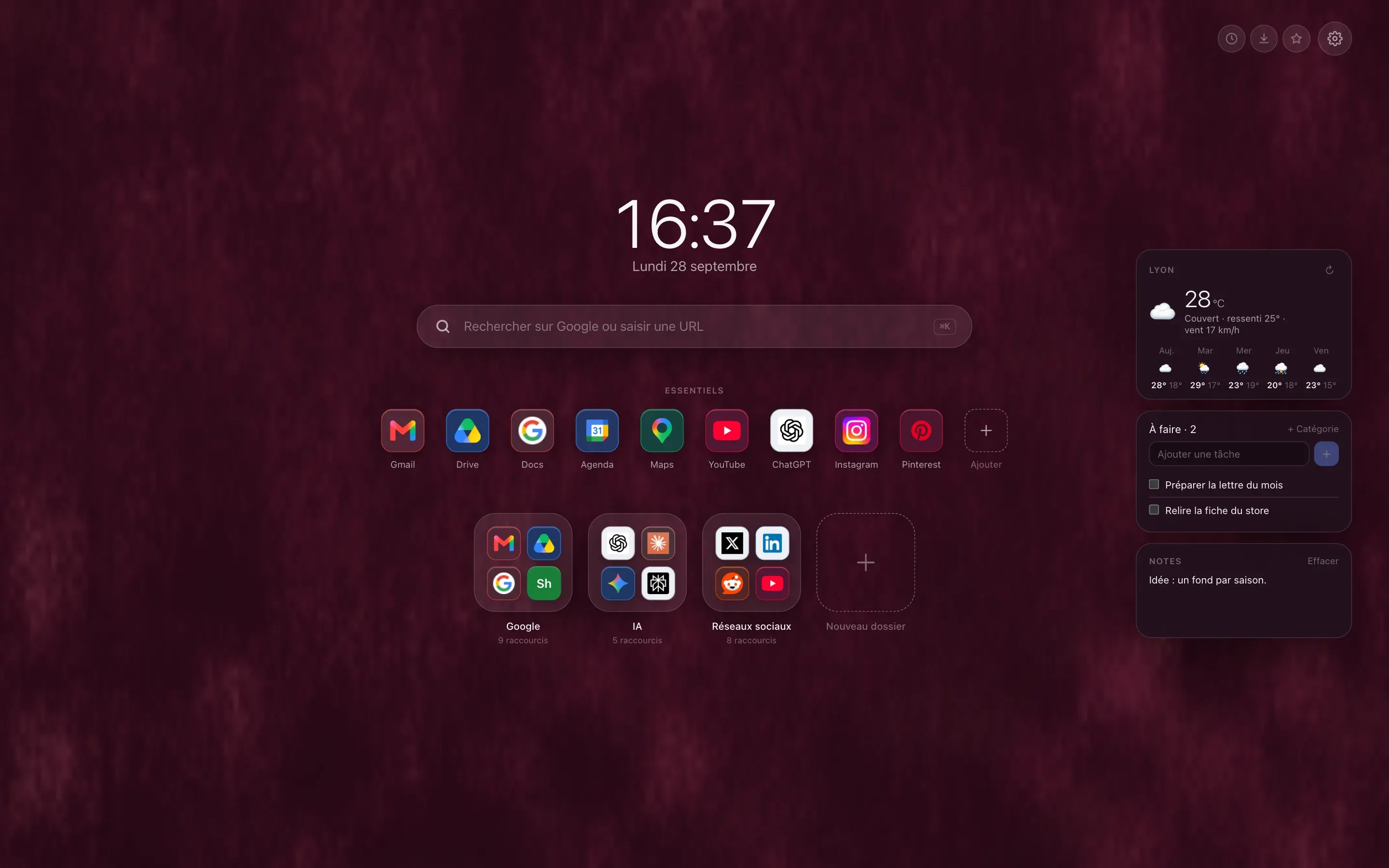
The weather, your tasks, your notes
Three free widgets, off by default, that you switch on one at a time. The five day forecast asks for no account and no key, only the name of your town. Tasks and notes stay in your browser, unless you choose to sync them.
What works on Chrome, and what does not
-
Every feature
YesShortcuts, folders, Essentials, layouts, widgets and animated backgrounds: nothing is removed on Chrome. What Premium adds there is exactly what it adds elsewhere.
-
Most visited sites
YesIn the add-shortcut window, Hoome can suggest the sites you open the most. Chrome supplies that list after a permission you grant with one click, the first time only; without it, Hoome never reads the list.
-
Processor and memory
YesThe two Premium widgets that show how hard the computer is working read Chrome’s system information. Nothing is recorded, nothing is sent.
-
History, downloads, bookmarks
YesThe quick access buttons open these Chrome pages from the new tab. The setting can be turned off if you do not want them.
-
Sync through the Google account
Good to knowIt is free, goes through your Chrome profile signed in to Google, and follows your desktops from one Chrome computer to another. It does not link Chrome to Firefox: that takes the Hoome account, where saving a copy is reserved for Premium.
Chrome themes
Chrome accepts only still images as a theme, never motion: a Hoome theme for Chrome will be a snapshot of your background laid over the tabs. None is published on the Chrome Web Store yet, and this site only announces what is published. The backgrounds themselves, animated ones included, already show on the Hoome new tab page. The themes gallery tells you, background by background, where each store stands.
Guides on the blog
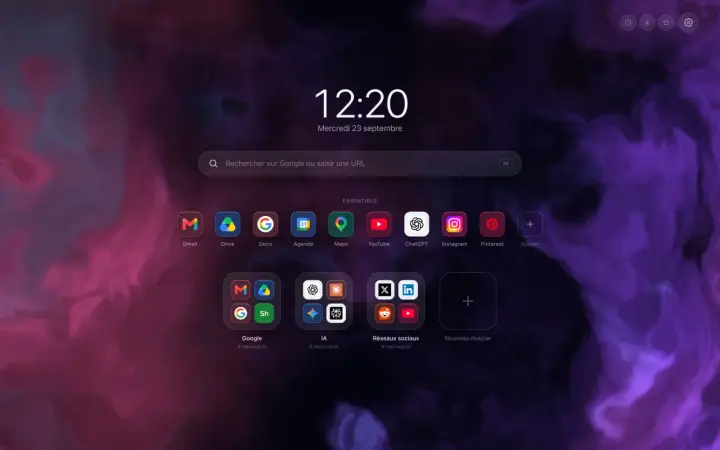
A Chrome new tab extension that tidies your sites
A Chrome new tab extension that tidies your sites into folders: what it changes in a working day, and what this blog is going to be about.
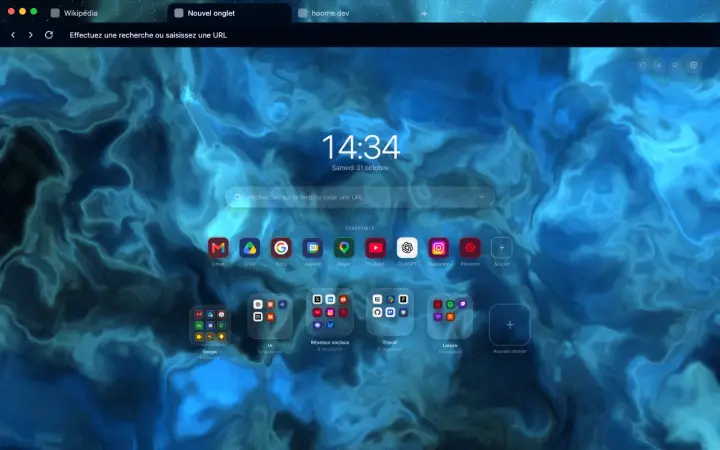
Customize
How to install a Chrome theme and change it, step by step
Install a theme on Chrome from the Chrome Web Store, switch to another one, or go back to the default theme in Settings, Appearance.
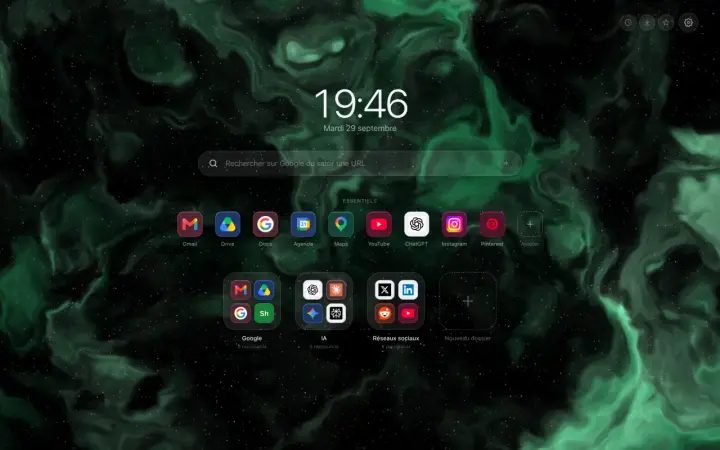
Customize
Remove the bar at the bottom of Chrome's new tab
The grey bar at the bottom of your new tab does not come from your extension: Chrome adds it itself. Here are the two clicks that make it disappear.
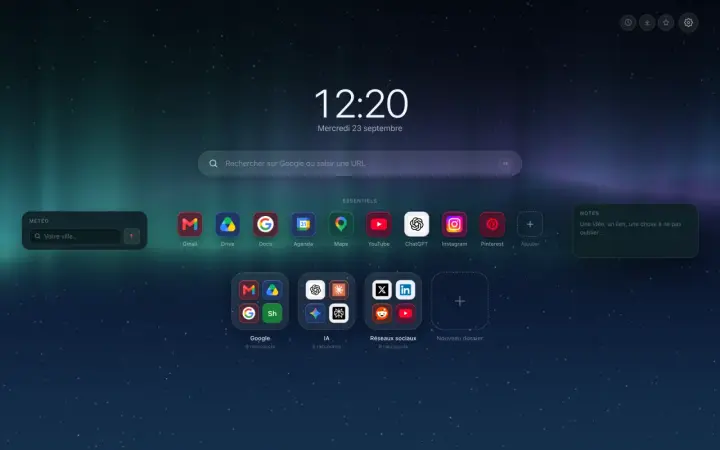
Guide Customize
Customize the Chrome home page: the guide
Customize the Chrome home page: what the browser settings allow, then a page of your own, with folders, layout, clock, widgets, icons, theme and background.
Guide Backgrounds
Change the Google Chrome background: the guide
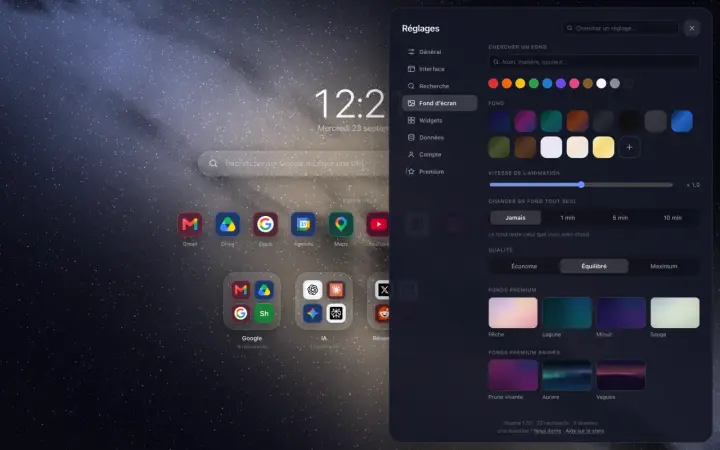
Change the Google Chrome background: the method built into the browser, the trap to avoid when an extension owns the page, then the backgrounds of Hoome.
How to manage Chrome extensions: view, pin and remove
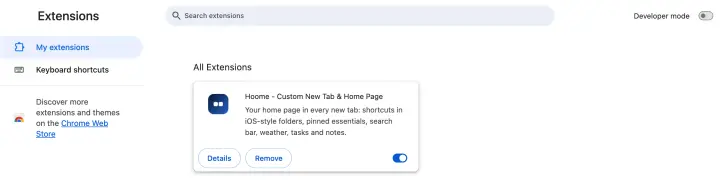
How to manage Chrome extensions: where to find them, how to add and pin them, set their permissions and site access, turn them off or remove them.