To install a Chrome theme, open its page on the Chrome Web Store and click Add to Chrome: the theme applies immediately. To change it, install another one: it replaces the previous one.
Install a theme on Chrome
- In Chrome, click More (the three dots) at the top right, then Settings.
- In the Appearance section, click the themes row: the Chrome Web Store theme gallery opens. You can also go straight to the Themes category of the Chrome Web Store.
- Click a thumbnail to preview the theme, then Add to Chrome.
- The theme applies right away. If you change your mind, click Undo in the bar that appears at the top of the window.
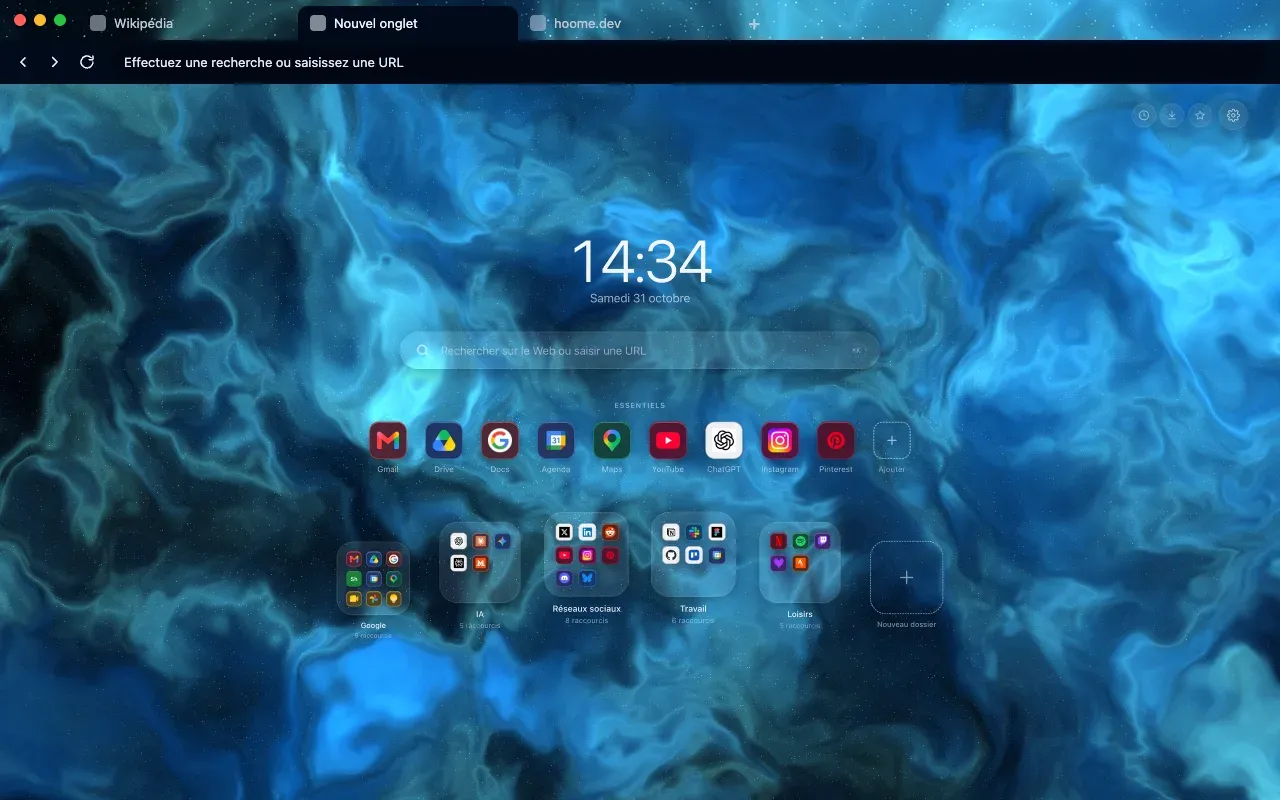
The theme dresses the frame, not web pages: the tabs, the address bar, the buttons. It can also put its image behind Chrome’s new tab page.
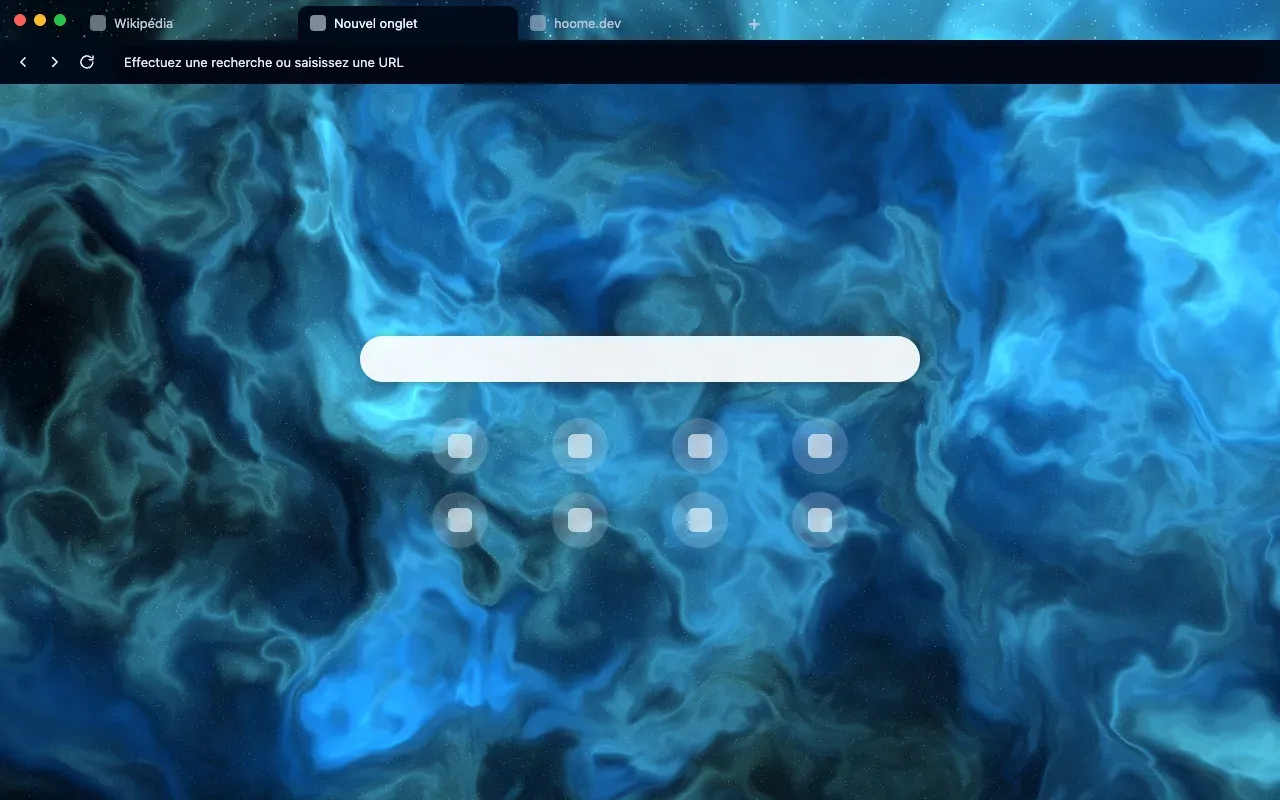
If an extension such as Hoome already runs your new tab page, it is the one displayed: the theme keeps the frame and its colors, and the two work together.
Change your Chrome theme
Only one theme is active at a time: follow the same steps with another theme, which replaces the previous one.
Go back to the default theme
Open Settings, go to the Appearance section and click Reset to default: Chrome’s standard theme comes back.
Find your theme on another computer
According to Google’s help, your Chrome themes are saved in your account: sign in to Chrome with that account and you get the same theme on another computer.
The Hoome themes
Hoome publishes a free theme for each background, so that Chrome’s frame matches the extension’s page, as the announcement explains. The Hoome themes are not on the Chrome Web Store yet: they will come later, and the previews in this guide show one of them as it will look there. For now, they are on Firefox. The Themes page shows each theme that is online, with the link to its listing.