To install a Firefox theme, open its page on addons.mozilla.org and click Install Theme: it applies right away, with no restart.
Install a Firefox theme
- Go to the Themes category of addons.mozilla.org and open the theme you like.
- Click Install Theme.
- Firefox applies the theme, and a message offers to undo it if you change your mind.
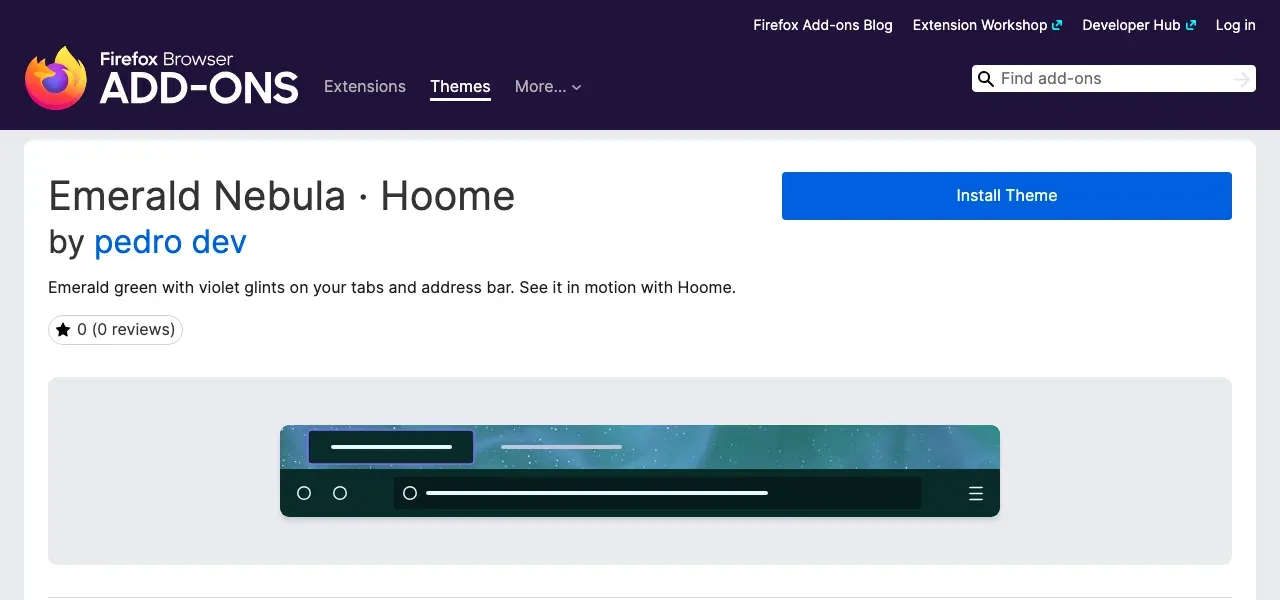
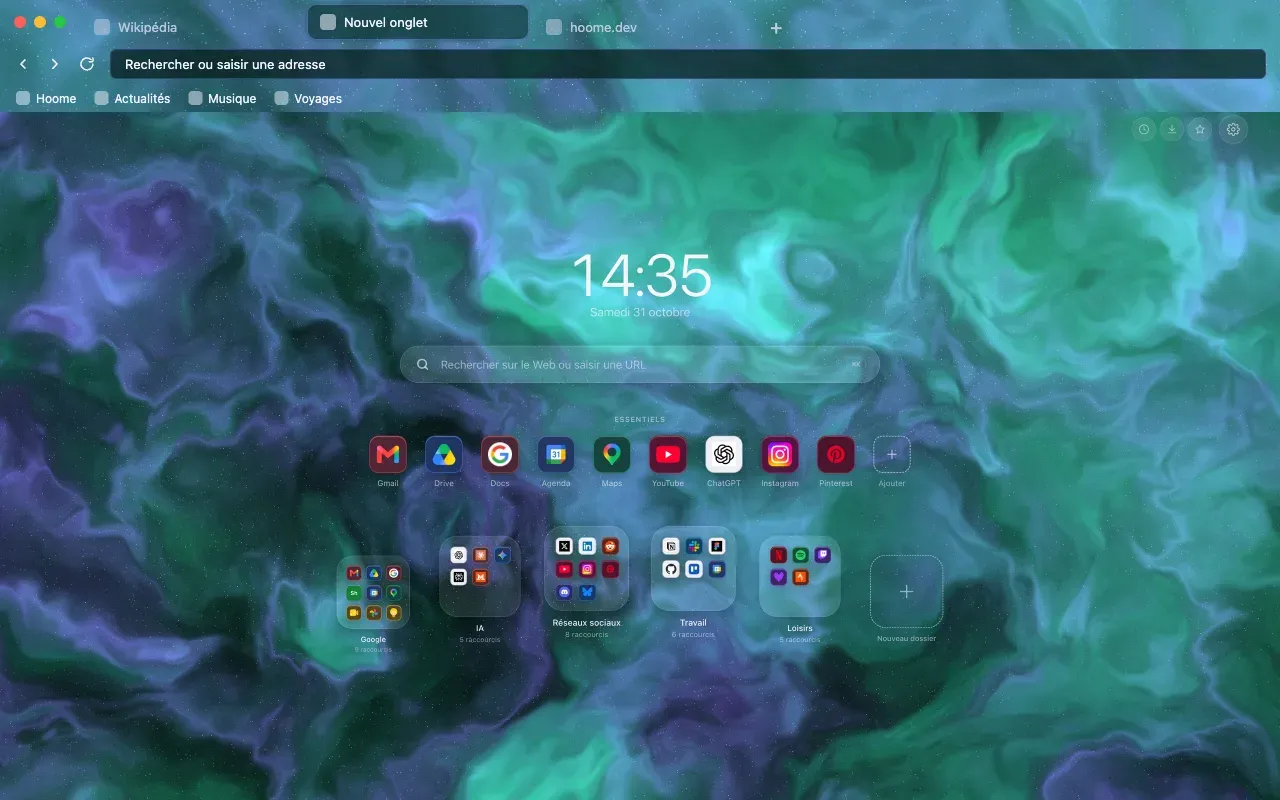
A theme dresses the Firefox frame: tabs, address bar, menus and bookmarks toolbar. It does not change web pages.
Change theme or go back to the default
Installed themes stay in Firefox, and you switch between them without downloading anything again:
- Open the Firefox menu, then Extensions and Themes, or type
about:addonsin the address bar. - Click Themes on the left. The active theme is at the top, the others are under Saved Themes.
- Click Enable under the theme you want.
To get the original look back, enable the default theme in the list, the one that follows your system. To remove a theme you installed, use the three-dot menu on its row, then Remove: themes that ship with Firefox cannot be removed.
An animated theme on Firefox
Firefox accepts animated themes: the frame’s pattern moves, which Chrome does not allow. An animated theme installs like any other, and only moves in the frame, at the very top of the window.
Animated Hoome backgrounds therefore come in two versions, each on its own listing: “Sapphire Nebula · Hoome”, still, and “Sapphire Nebula Animated · Hoome”. In the second, the background drifts slowly, in a loop, across the tabs, the address bar and the bookmarks toolbar. Only one theme is active at a time: enable the version you prefer in about:addons.
The Hoome themes
Hoome publishes a free theme for each background, made to go with the extension’s page. The first three, Sapphire Nebula, Neon Nebula and Emerald Nebula, have been on Firefox Add-ons since October 31, 2026, each in a still and an animated version: the Themes page leads to their listings. The others will follow. The same goes for Chrome: how to install a theme on Chrome.