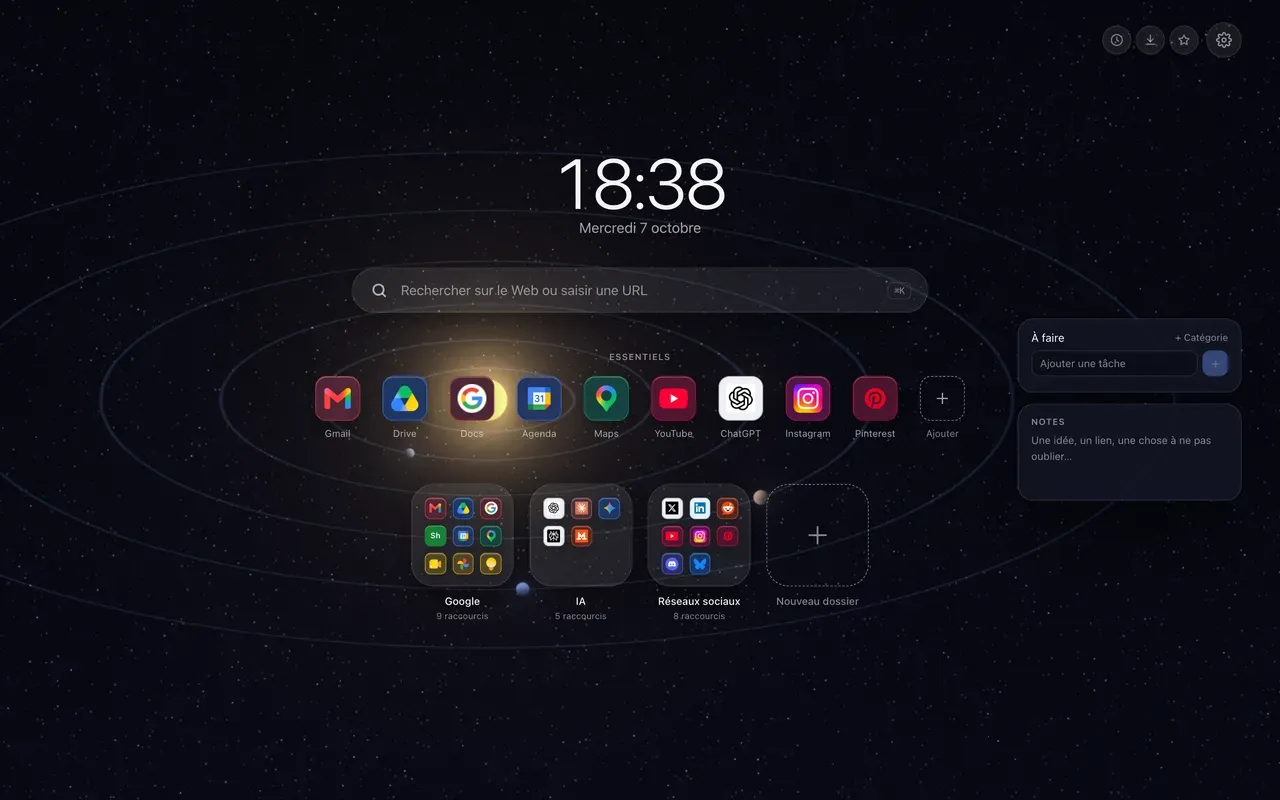
A to-do list on the Chrome new tab page has something no app has: you see it without opening it. Every new tab puts it back in front of you, and that’s often what a list needs to actually get done.
A to-do list and notes, at the side of the page
Hoome has two free widgets, To do and Notes. By default they sit to the right of your shortcuts, without pushing anything out of the center.
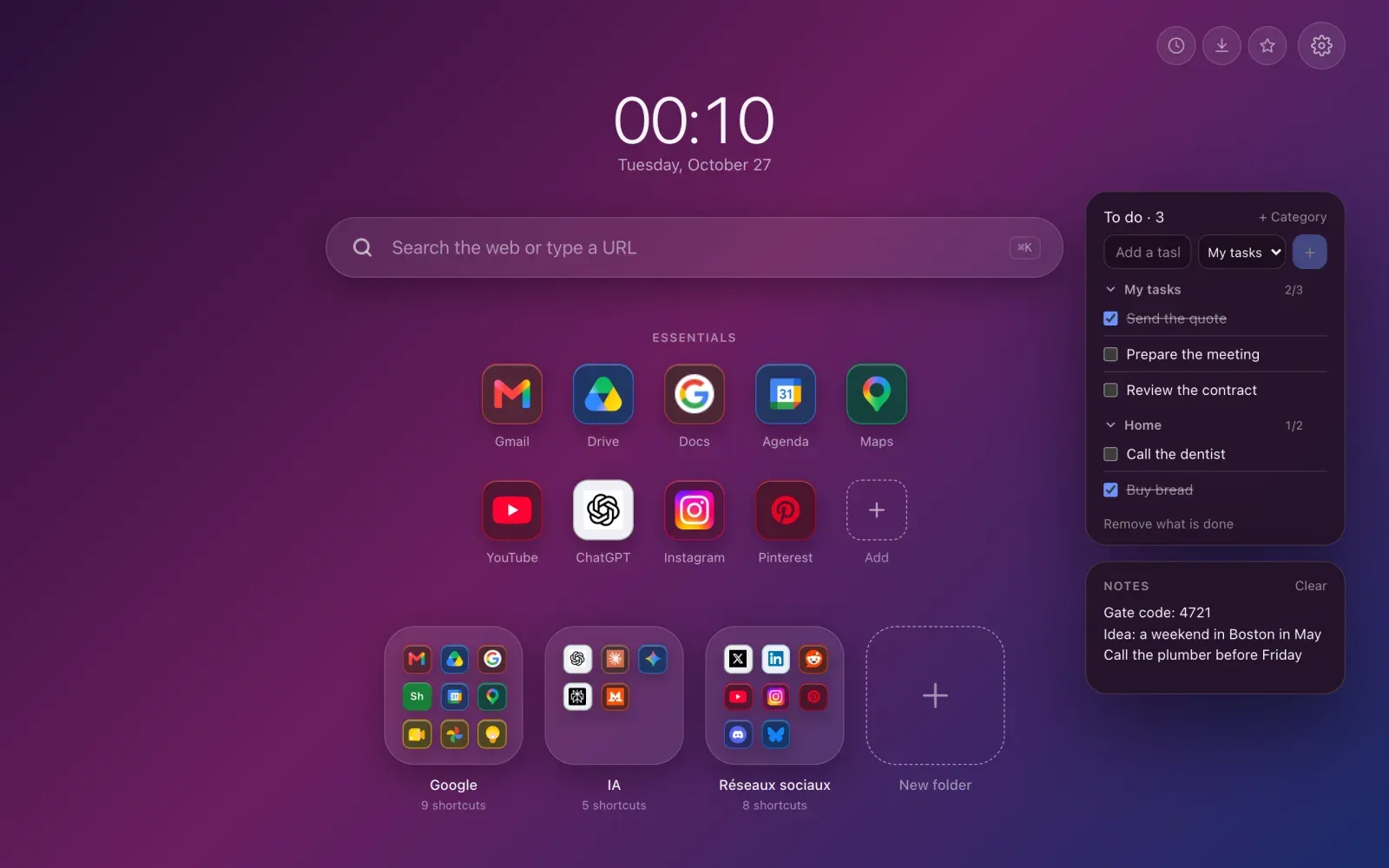
Neither is on by default. You turn them on in the settings, the gear at the top right, in the Widgets section, where you also choose which side they go on.
To do: write, check, clear
Type a task in the field at the top and press Enter. Checked off, it gets crossed out and stays visible, for the satisfaction of seeing what’s done; Remove what is done, at the bottom of the widget, clears them all at once. The number next to the title tells you how many tasks are left.
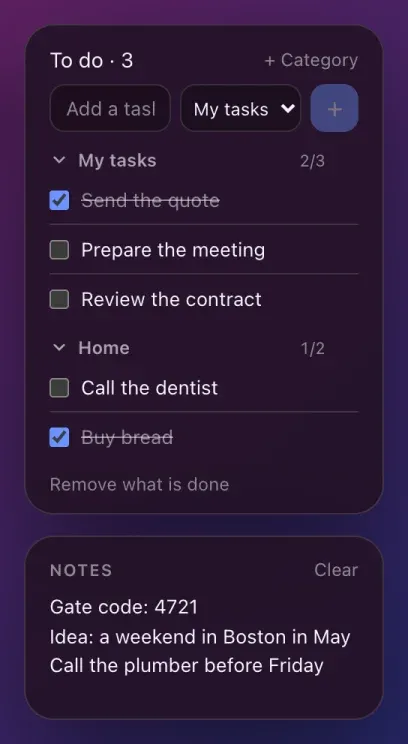
When one list isn’t enough, + Category adds another: “Home”, “Work”, or whatever makes sense to you. The menu next to the field picks where a new task goes. Each category shows what’s left out of its total, and folds away with a click on its arrow, so only the one you need stays open. A double-click renames a category, or the widget’s title.
What does a right-click do?
Right-clicking the widget opens its menu: mark all as done, remove what is done, delete all, rename the list or hide the widget. On a category, the same actions apply to that category only.
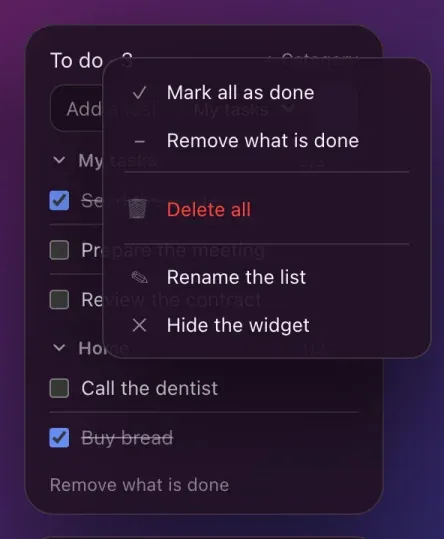
Delete all asks for confirmation, and an automatic backup lets you go back. Deleting a category doesn’t delete its tasks: they move to the first one.
Notes: a scratchpad that doesn’t get lost
The Notes widget is a blank page, with no formatting and no buttons. A code, an idea, three words to remember before a meeting. It saves as you type, and it’s there in your next tab. Its right-click copies the notes or clears them.
What these widgets don’t do
No due dates, no reminders, no list shared with other people: these are memory aids, not a project manager. For a task that has to ping you at a set time, a to-do app or your calendar is still the right tool.
Nothing leaves without you
Your tasks and notes stay in your browser. No account to create, and the free version sends them to none of our servers. They’re part of Hoome’s automatic backups, like your shortcuts, follow your browser’s sync if you turn it on, and go with the export if you switch computers. With Premium, the account sync puts a copy on our servers, and a switch turns it off.